
Magento 2 (Magento Open Source 2, Adobe Commerce) attribute groups and unassigned attributes
You have created Magento 2 (Magento Open Source 2, Adobe Commerce) attribute but there is no appropriate field when you create product? Double-check if you assigned this attribute to particular attribute group of attribute set that was indicated while creating the product.
With Store Manager for Magento there is no need to open additional windows, you see all assigned and unassigned attributes from one page.
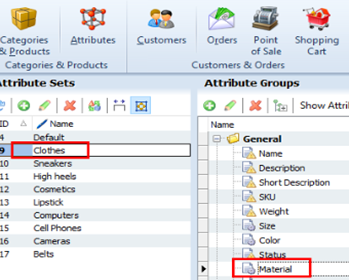
If you open Attributes section of Store Manager, you will see 3 columns: the very first one displays Magento 2 (Magento Open Source 2, Adobe Commerce) attribute set available at your store (one or many, depending on your needs), the column in the middle contains the attribute groups with assigned to them attributes and the last column include unassigned attributes.
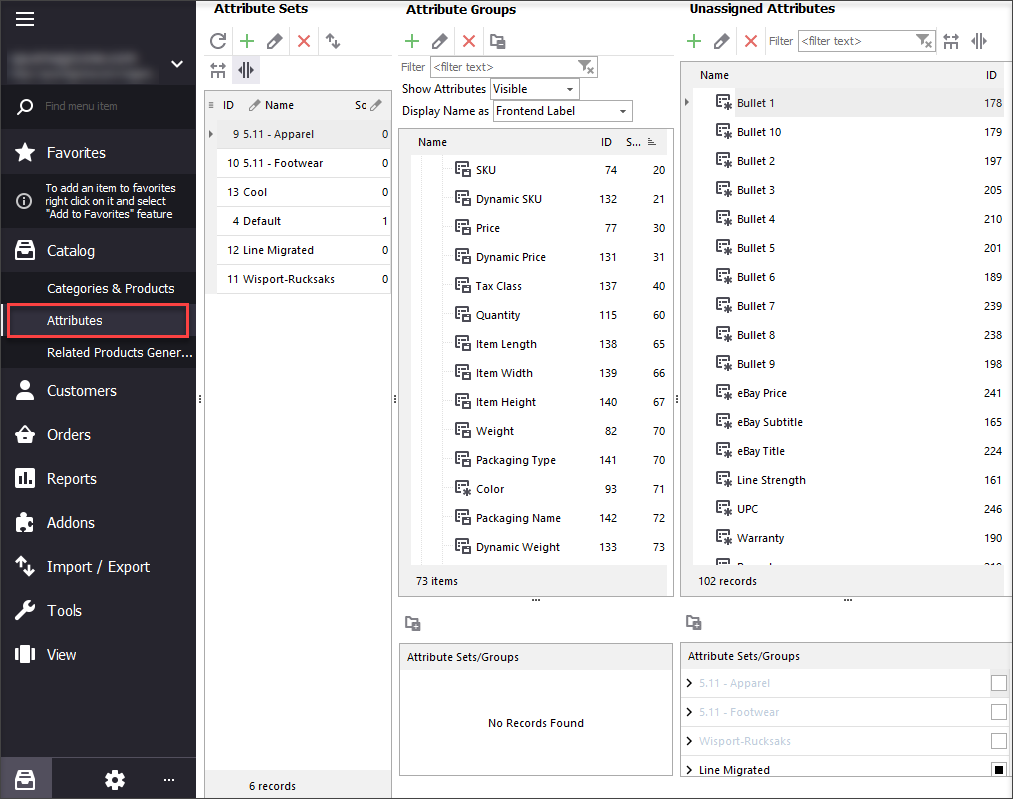
Magento 2 (Magento Open Source 2, Adobe Commerce) Attribute Group
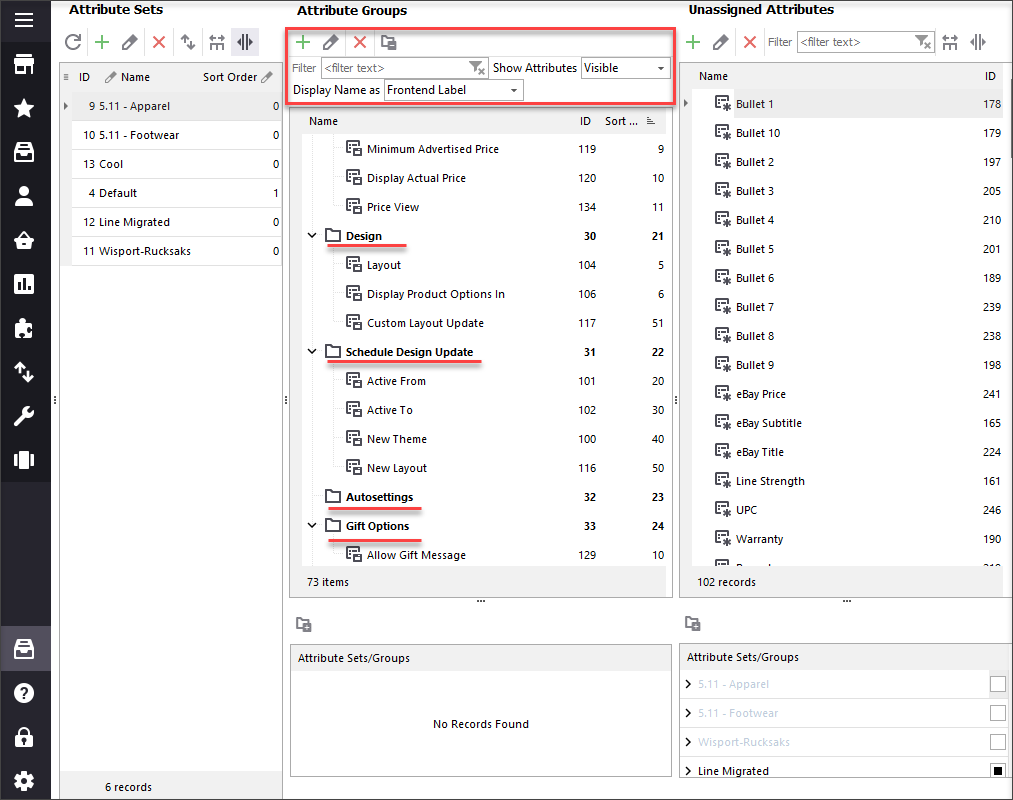
As was mentioned above, the middle pane contains Magento 2 (Magento Open Source 2, Adobe Commerce) attribute groups. They look like folders, but they not visible at the front-end. Groups serve as general tabs to gather the attributes that can be grouped on the basis of some parameter. It is especially convenient that you can move attributes from one attribute group to another simply by dragging-and-dropping them to needed place. Please note, system attribute сan be moved from group to group, but cannot be deleted.
You can create, edit or remove groups using appropriate buttons at the toolbar. There is also the option to reflect attributes of different type and to view front-end name as label or attribute code.
Unassigned Magento 2 (Magento Open Source 2, Adobe Commerce) attribute
This section contains attributes which are not assigned to selected attribute set. All the attributes you create get first here.
Generally, there exist 3 types of attributes: User Defined Attributes, Visible System Attributes.
Invisible System Attributes. You can create only User Defined Attributes and they get to the section of unassigned attributes.
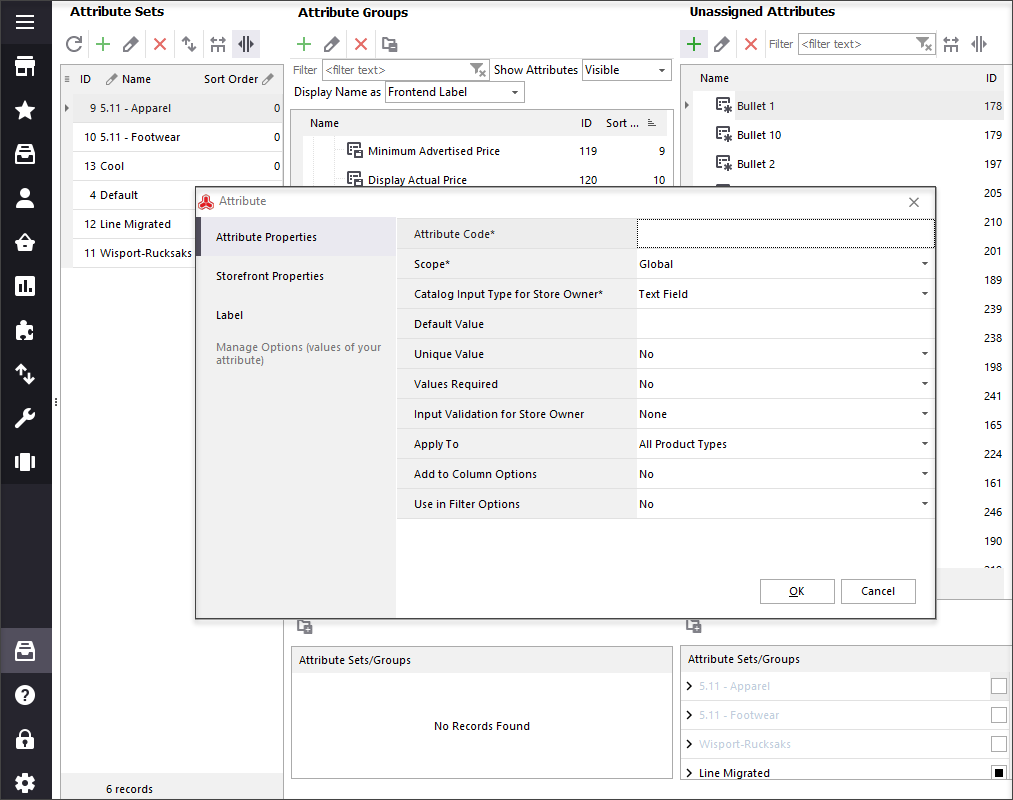
To add new attribute press appropriate button and you will see the form where you have to fill in the necessary fields. Please, remember that attribute code should not contain blanks, slashes or capital letters. It won’t be visible at the front-end, it serves for inner system management.
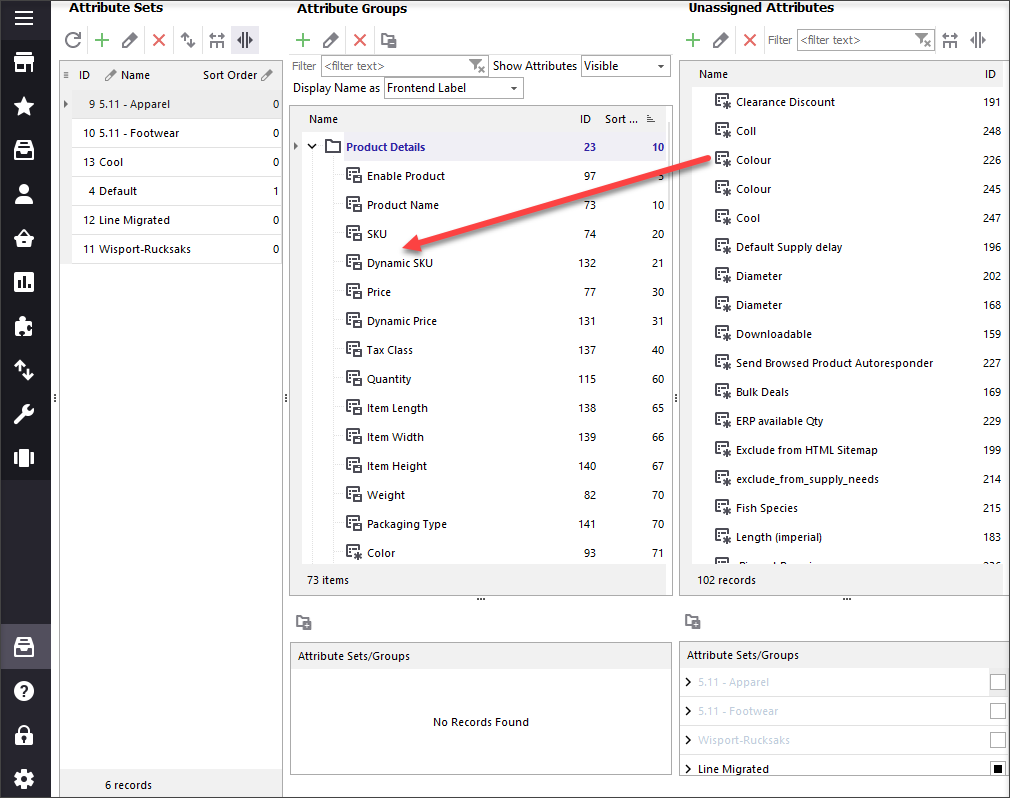
In order to place attribute to particular attribute group, drag it from “Unassigned attributes” section and drop it to particular Magento 2 (Magento Open Source 2, Adobe Commerce) attribute group of selected Magento 2 (Magento Open Source 2, Adobe Commerce) attribute set.
If you need to delete certain product attribute, press “Delete” button. If you press this button in section where unassigned attributes are placed, it will be gone forever. If you remove attribute from the place where it is assigned to particular attribute group, it would be moved back to unassigned attributes section.
More on Magento attribute management read here -
mag-manager.com/useful-articles/magento-attribute-management/
Related Articles:
Bulk Update Attribute Values in Magento 2
Get detailed guides on massive assigning/updating attributes via import or Multi Editor tool. Read More...
Magento 2 Configurable Product Creating
Learn how to create Magento 2 configurable attributes and assign simple products to them; check the generator of configurable products components. Read More...
Magento – Import Product Attribute Sets
Get step-by-step instructions on creating Magento 2 attributes and adding configurable products. Read More...
What Are Magento Super Attributes and How to Add Them
Find out what Magento attributes and configurable and learn how to manage price diffirentiation of product variants using super attributes. Read More...
COMMENTS