Magento Export Products

Magento Export Products Wizard will help you to export your Magento products to comma-separated values file (.csv) which can be easily opened in MS Excel or other application for detailed analysis.

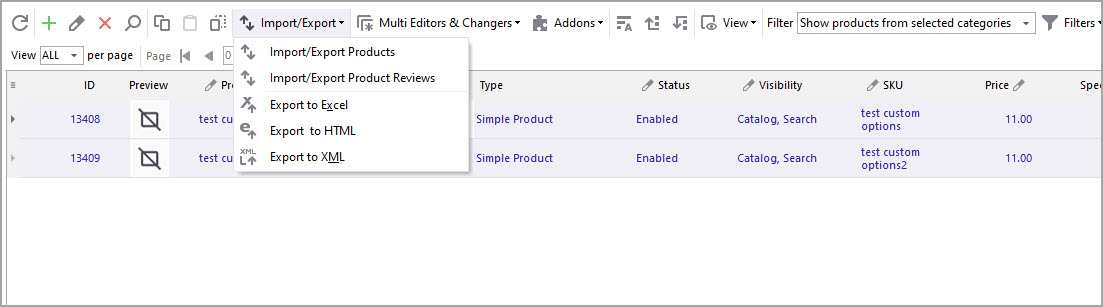
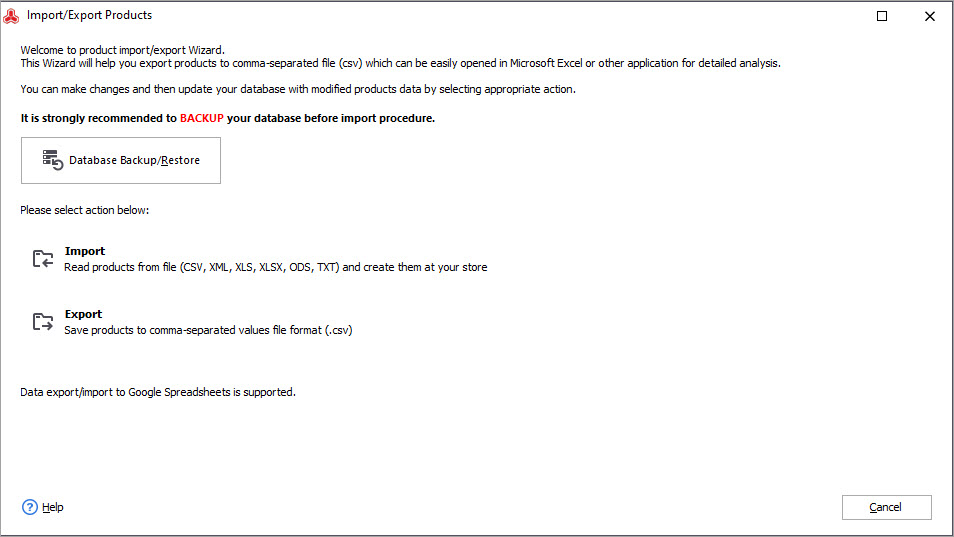
To start Export Products in Store Manager For Magento you need to click on Magento Export Import Products Button button, which calls the Import/Export Wizard.
Or you can use “Export Products to Excel” button for fast Export as well.

Magento Products’ Import / Export Wizard is a lot like Categories Import/Export Wizard. To export products from Magento store follow up several steps:

  1. Select “Export” and click “Next >” button to continue.
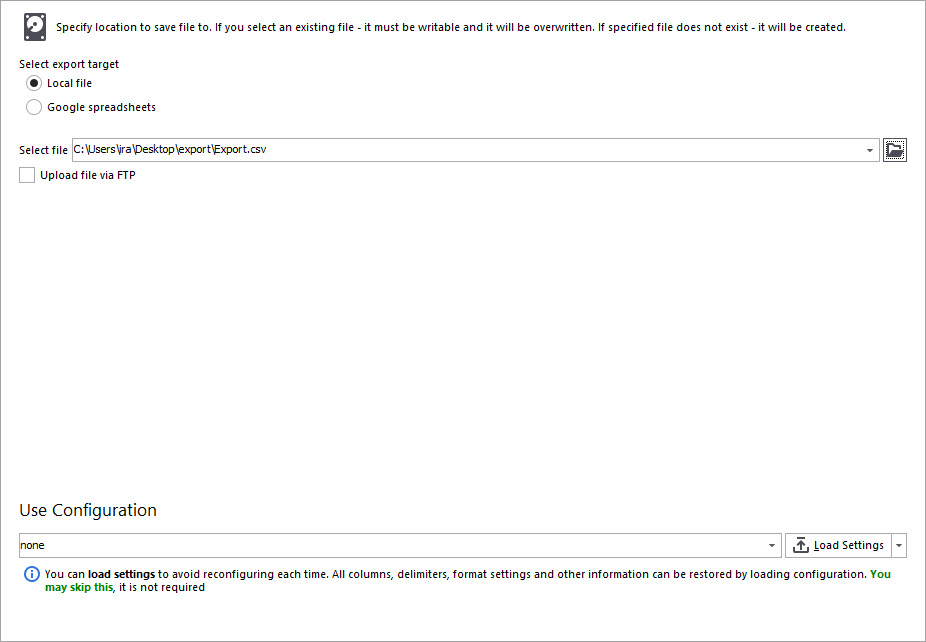
  2. Store Manager can export products to .csv file. You should enter the file name or select one to be replaced. Here you can also load or save export settings (configuration).
    Magento Export Products File name

    Also you can Save Export Settings or Load one to use now.

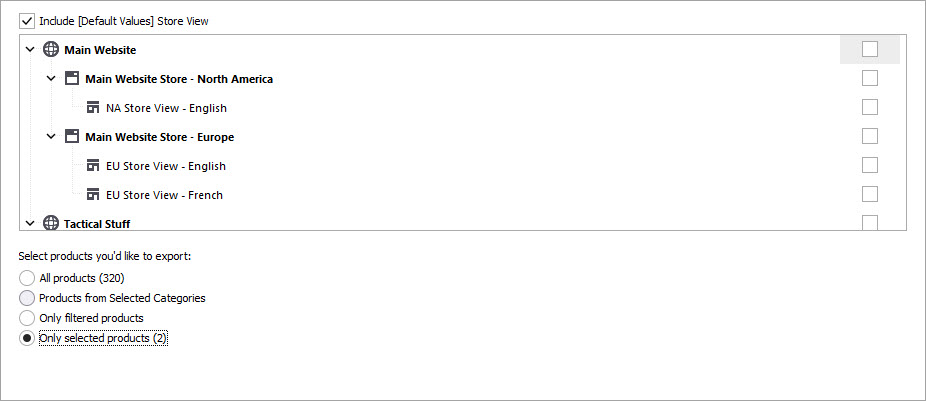
  3. On the next page you can see some general Magento products export options.

    Magento products export options

    Products you’d like to export. Default setting for this option is to export all products at current Magento store. If you wish to export products only from the category highlighted in bold, select Only from current category option. If you wish to export products only from specific category, you’ll need to make sure that category is open before you run the Wizard. If you’d like to include products from current subcategories, please check Export all subcategories. Otherwise products will be exported only from the parent (current) category.

    Export image name - is exporting image names as they are in products (database): some_image.jpg when AS IS option is checked. If you select Full option, image name field will contain URL that can be opened in a browser.

    Export only current language option is useful if your store is running in more than one language. You can switch languages by pressing [Ctrl]+[L] key combination or in Tools->Store Language. If unchecked – all languages will be exported.

    Group fields by language option can be used if your store is running in more than one language and Export only current language option is unchecked. This option will group fields in export file by language: all fields in current language first and then Fields in second (third, etc.) language. Otherwise fields in resulting file will be grouped like this:

    Export table

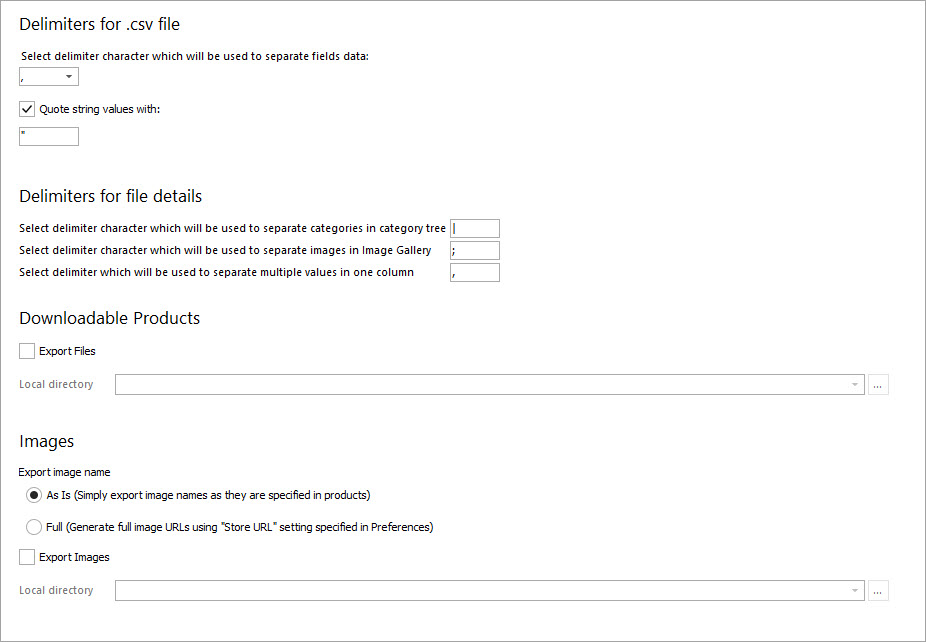
  4. Fields Delimiter page has some important settings. Check them to ensure proper configuration.
    Magento Products Configuration

    First option is delimiter character. Most popular delimiters are comma (,), semicolon (;) and tab character ( ) however other symbols can be used as well.

    Export file is usually generated for further Magento products import. If incorrect delimiter is specified during import, file will not be parsed properly and products will not be imported. Second option is quote string values. It is used to separate strings in CSV file.

    Category delimiter is not native .csv setting; it is used only in Store Manager. As you know categories are organized in a form of tree, where one category can contain one or more subcategories and subcategory can contain one or more other categories. Category delimiter character is used to separate category names and specify full category tree path for given product. Category path is very similar to directory path, used to specify full file name in Windows, where every directory separated by backslash (\) character like this one C:\Program Files\MagneticOne\Store Manager for X-Cart\.

    As for example category path for “Sample Subcategory” (see image below) will be Hardware|Graphics Cards|Sample Subcategory. Pipe (|) character was used as separator.

    Images – Default images path is the exact place to store image files.

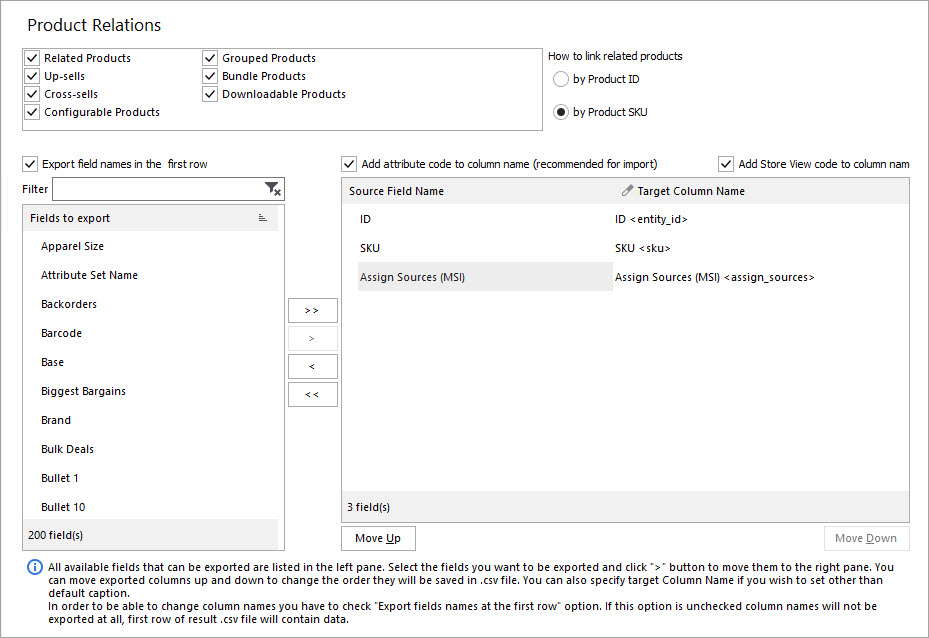
  5. Select fields you want to be exported:
    fields to be exported

    All available fields that can be exported are listed in left pane. Select fields you want to be exported and click “>” button to move them to right pane. If you’d like to export all fields simply press “>>”. The order in which columns will be saved in .csv file can be changed. To do this you can move exported columns up and down using corresponding buttons.

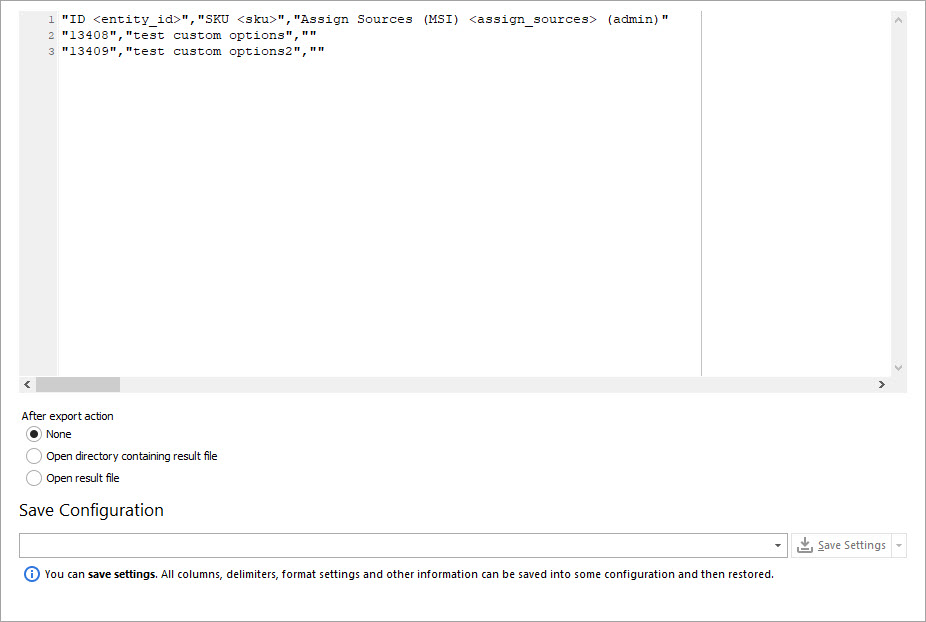
  6. Preview export file and proceed.
    preview export product file

    Choose what action to perform after saving export data, use “None” option and Wizard will be automatically closed. If you wish to open a directory containing result file, check corresponding option. Open result file option allows you to see export file opened in Excel.
    Also you can Save Export Settings for future or load one.

    Attention! When you press “Export” Button, Magento products export process will start! You can save all your Export Settings or Load one.

    Read more Useful articles about Store Manager for Magento here

    Documentation for Store Manager for Magento is available here


    If you have any suggestions on Magento Product Export you’re welcome to contact our support team.