
How to import product images to Magento 2 via admin
Setting up images in Magento 2 is an important step of catalog handling. Doing this you should get acquainted with some specifics, Magento 2 introduces in terms of image management.
Similarly to its predecessor Magento 2 allows to configure small, base, thumbnail images and offers new image type, called swatch image. If you have abundance of products and need to attach photos to them, you can fulfill the task via admin import functionality. Beside traditional image upload from the local server, there has been added the possibility to assign pictures to products via import having URL path to them in .csv file.
Below in this article we are going to outline the overall process of importing images (from local server as well as remote ones) to Magento 2 via default import tool.
Method #1. Magento 2 Image Import from Local Server
This method of Magento 2 image import requires you to fulfill two preconditions:
- Upload locally stored images to /pub/media/import folder on the server.
- Specify image names with their extension in .csv file (Base, Small, Thumbnail, Swatch image and Additional images).
Important
According to Magento 2 logics, you should first upload pictures, you are going to assign to products in the course of import, to default /pub/media/import folder on your server.Further you have to specify image names in certain columns of your .csv files, depending on the roles, these images should perform at the frontend (Base, Small, Thumbnail or Additional images). Insert names of images in base_image, small_image, thumbnail_image columns respectively. If there are several additional images to be assigned to single product, use comma separator to detach their names in additional_images column.

Short Note
- Base product image shows on product detail page.
- Small image is the one, disposed on category listings, in up-sells, related product section, in search result listings.
- Thumbnail image is shown in the thumbnail gallery, in the cart, for cross-sell products etc.
- Swatch image is used to visualize product specifics, like color, material, design, etc.
When you have adjusted the import file, adhere to the following steps:
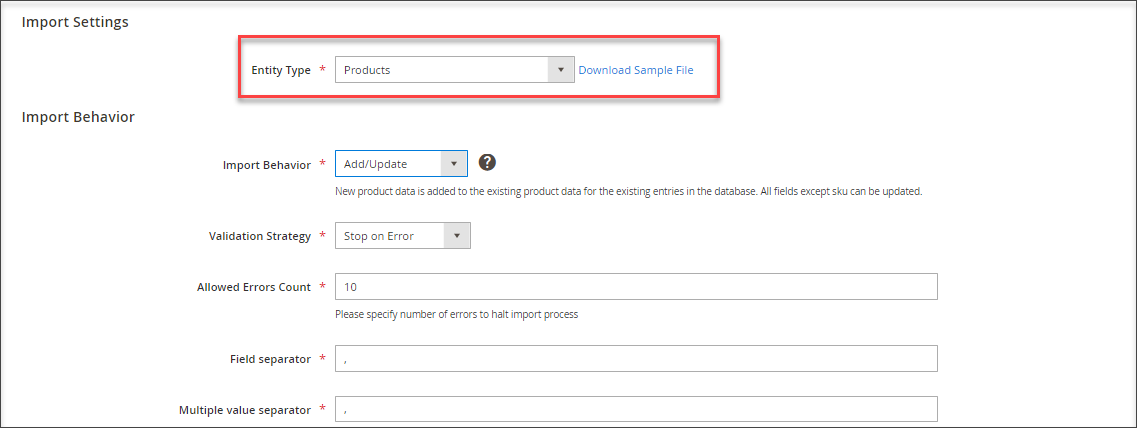
- Navigate to System->Import option in sidebar menu and select products as entity type for import.
- Choose import behavior and field separators, consider multiple value separator if you use one for additional images in Magento 2 import.
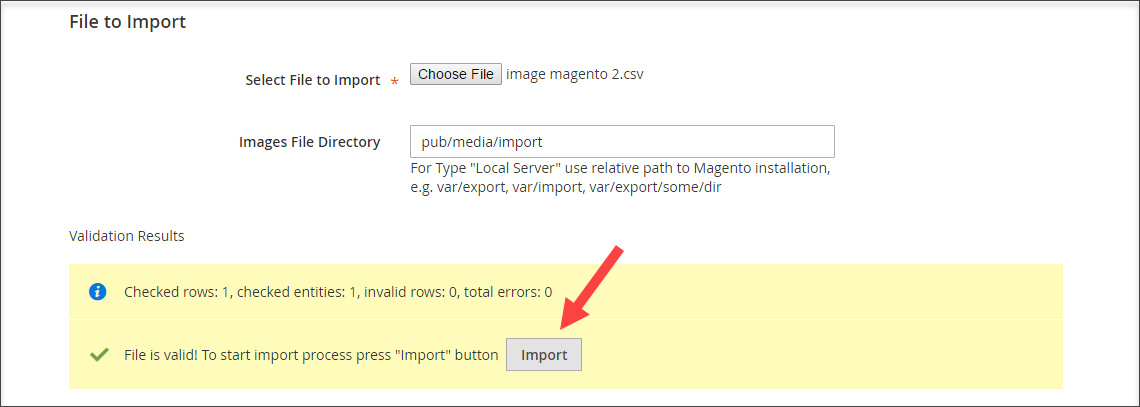
- Choose the file products will be imported from.
- Specify path to file directory on the server, to which you have uploaded images previously.
- Click "Check Data" button to determine whether file corresponds to Magento requirements.
- Confirm data upload pressing "Import" button after validation is completed.
- Images have been added to the product through import and you can check the results.


Method #2 Import Images to Magento 2 from External URLs
If images are stored on external server, you can import them to Magento 2 having full URL path in corresponding .csv file column (base_image, small_image, thumbnail_image, additional_images).
The screenshot, attached below, demonstrates extract from Magento 2 image import file and includes test image addresses.

To upload product photos from URL, you should adhere to the steps as they are outlined above.
Import Images Without Copying Them to Server Directory
Image import to Magento 2 is certainly a valuable facility, although at times it requires excessive manipulations. Imagine you have hundreds of new products to be uploaded to Magento store, each having Base, Small, Thumbnail images and a couple of Additional images to be displayed in the gallery. These should be first copied to /pub/media/import and afterwards ascribed to merchandise through import.
If you are looking for the way to optimize import of images to Magento 2 and bypass extra challenges, you can consider exploiting Store Manager for Magento. Beside manual mode of bulk image assign, Store Manager handles import of local and remote images.
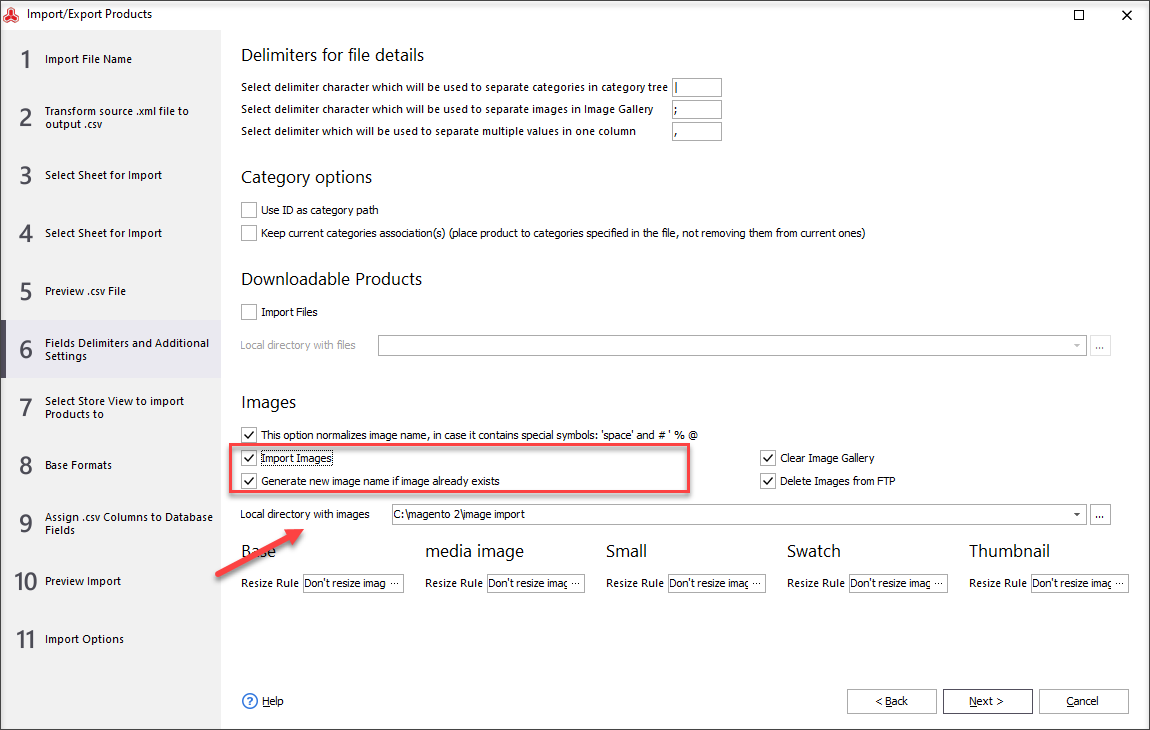
Using Store Manager to upload locally stored images, you do not need to store them in /pub/media/import beforehand, as it is required by admin import tool. Instead, you just need to provide path to the folder on your PC that keeps images, you need to import to Magento 2.
Important
Images, stored in local folder, will be uploaded to /pub/media/catalog/product by path, created on the basis of first two letters of image name, as Magento 2 itself requires. If some image is assigned to several products, image name is regenerated automatically (via option in import wizard).Detailed step-by-step tutorial on image upload via Store Manager for Magento is available in this post - Import Images With Store Manager for Magento
Try Quick Way to Import Magento 2 Images Try Now
Related Articles:
Replace Product Images in Magento 2
Find out how to quickly update Magento 2 images via import and detect the duplicates. Read More...
Add Magento 2 Visual Swatches
Check the ways to add visual swatches to your Magento configurable products for better presentation. Read More...
Import Images from External URLs to Magento
Detailed guides on how to import images from URLs including the list of required CSV columns. Read More...
No More Missing, Duplicated or Unlinked Magento Images
Find out how to prevent your images from getting duplicated, unlinked or undisplayed and what to do if issue occured. Read More...