Is manually filling in missing product data taking too much time? With Store Manager for Magento / Adobe, you can generate product descriptions in bulk with AI based on product names and other product fields - quickly and efficiently. If you haven’t tried the software yet, now is a great time to start with a free trial.
In this guide, we’ll walk you through how to generate Magento / Adobe product descriptions using Claude integration based onproduct name in Store Manager for Magento / Adobe.
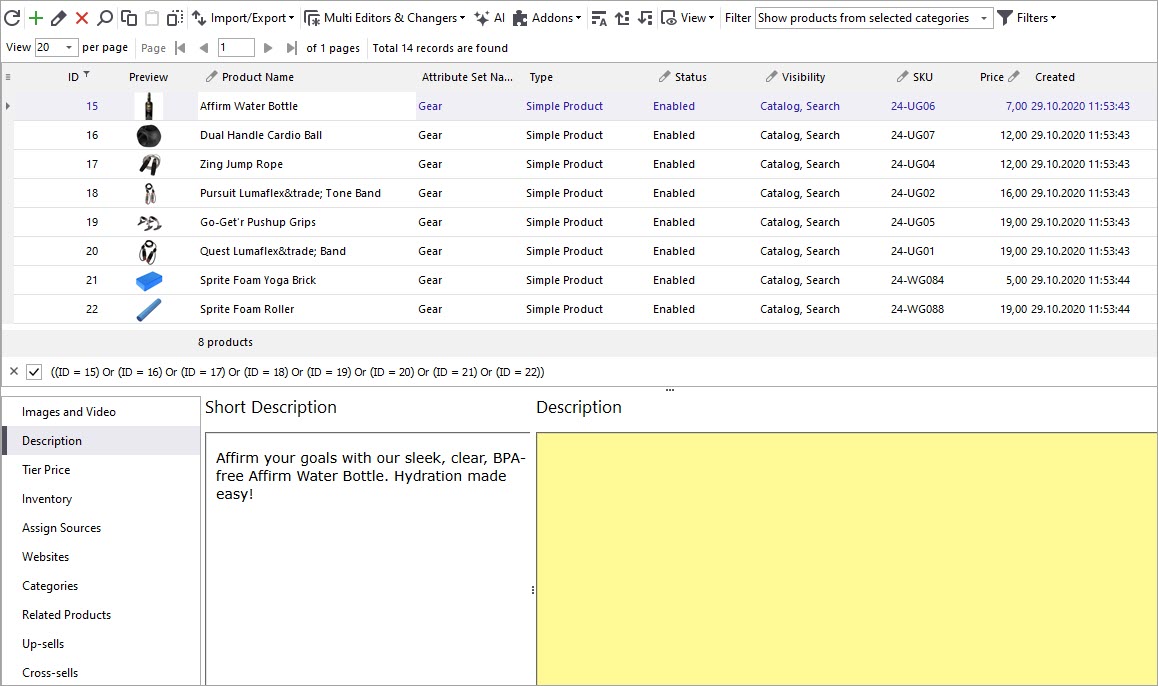
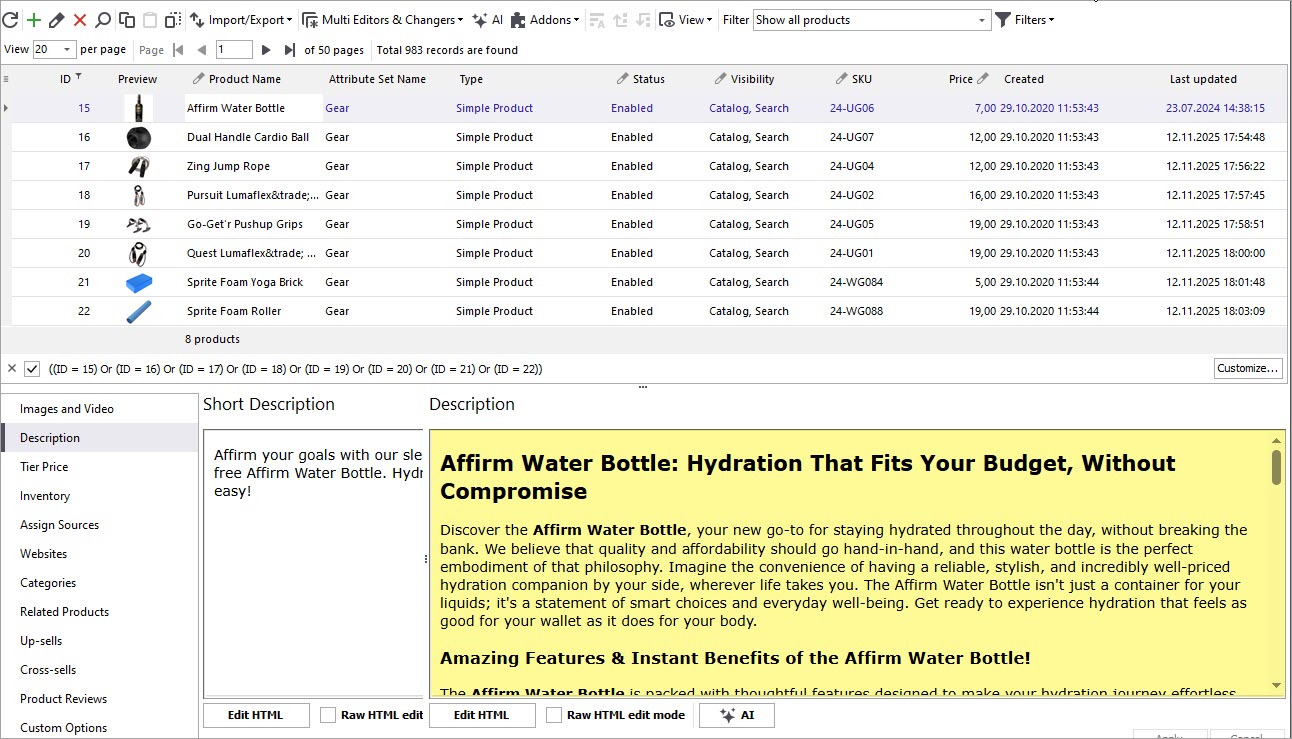
Before starting the content generation process, it’s worth reviewing your current product data. In the example below, the selected Magento / Adobe products do not yet have descriptions, making them perfect candidates for bulk content generation.
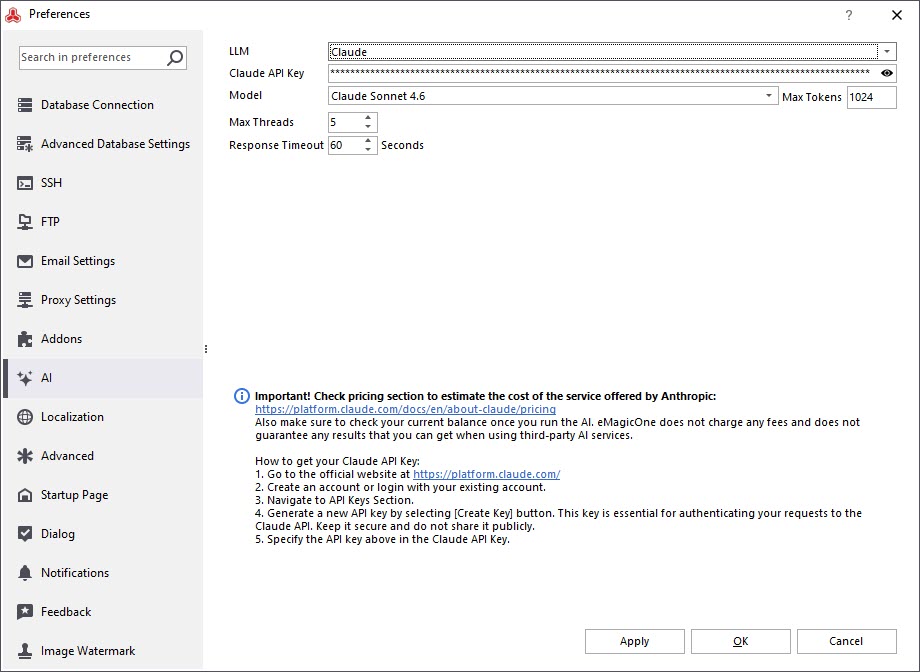
Open the Preferences (F12) window in Magento / Adobe Manager and go to the AI tab. Select Claude from the LLM dropdown, specify the Claude API key and a model.
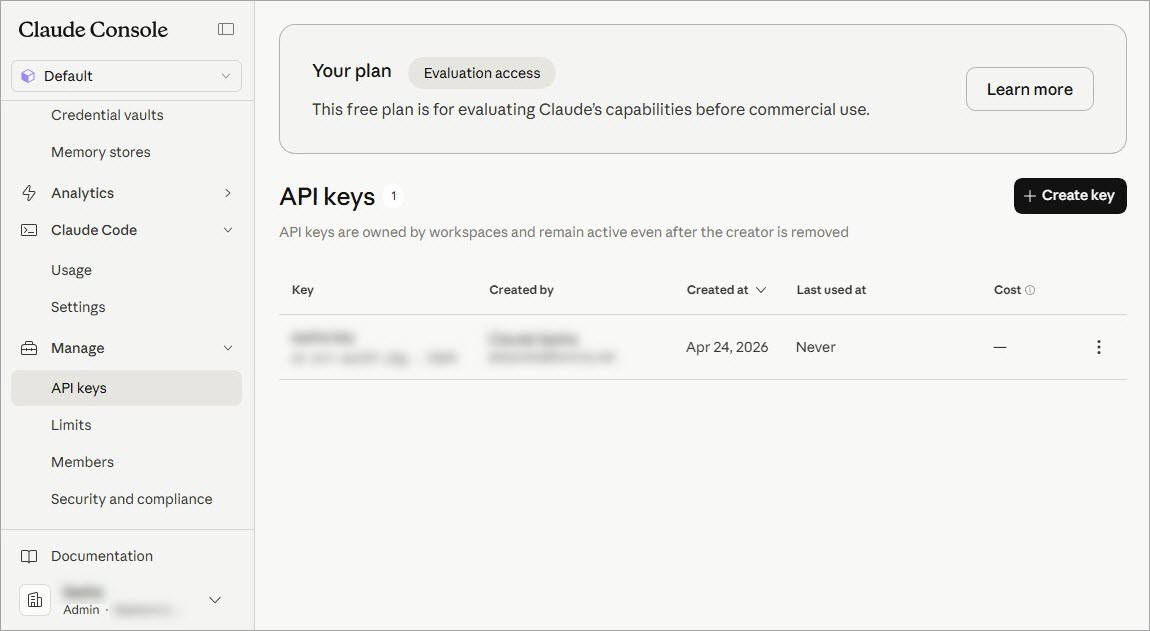
You can create an API key in the Claude console / Manage / API keys.
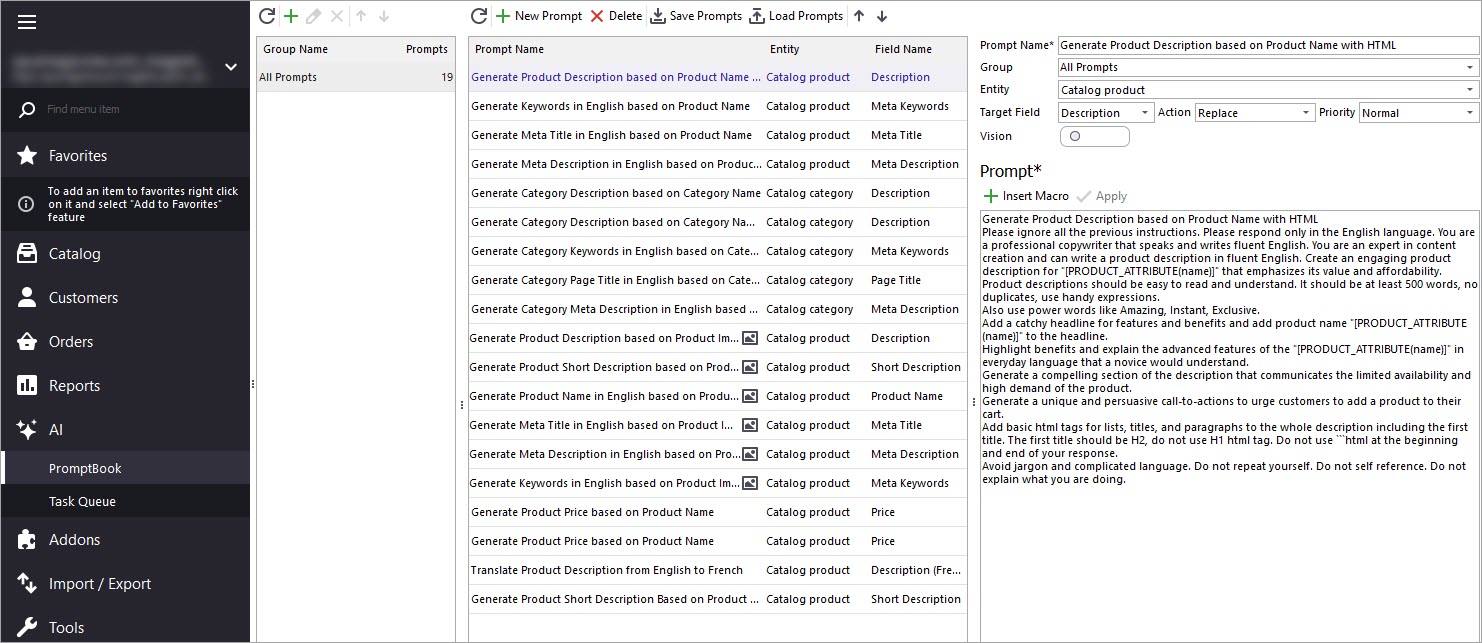
To begin generating descriptions, open the AI menu and access PromptBook. This section contains available prompts that can be applied to Magento / Adobe products in bulk, along with options to create your own custom prompts tailored to your business goals. For this example, we’ll use a prompt designed to generate product descriptions based on product names.
Inside the prompt editor, set your target field to Product Description so the generated content is saved correctly. You’ll also see a list of available macros representing product fields that can be inserted into your prompt. Specify whether you want to replace, append or prepend the newly generated description.
In our case, we’ll use the product name macro to create descriptions. Once your prompt is ready, click “Apply” to save it.
After configuring your prompt, return to the product list and select the products you’d like to update. It’s often best to test on a small batch first before processing your full catalog.
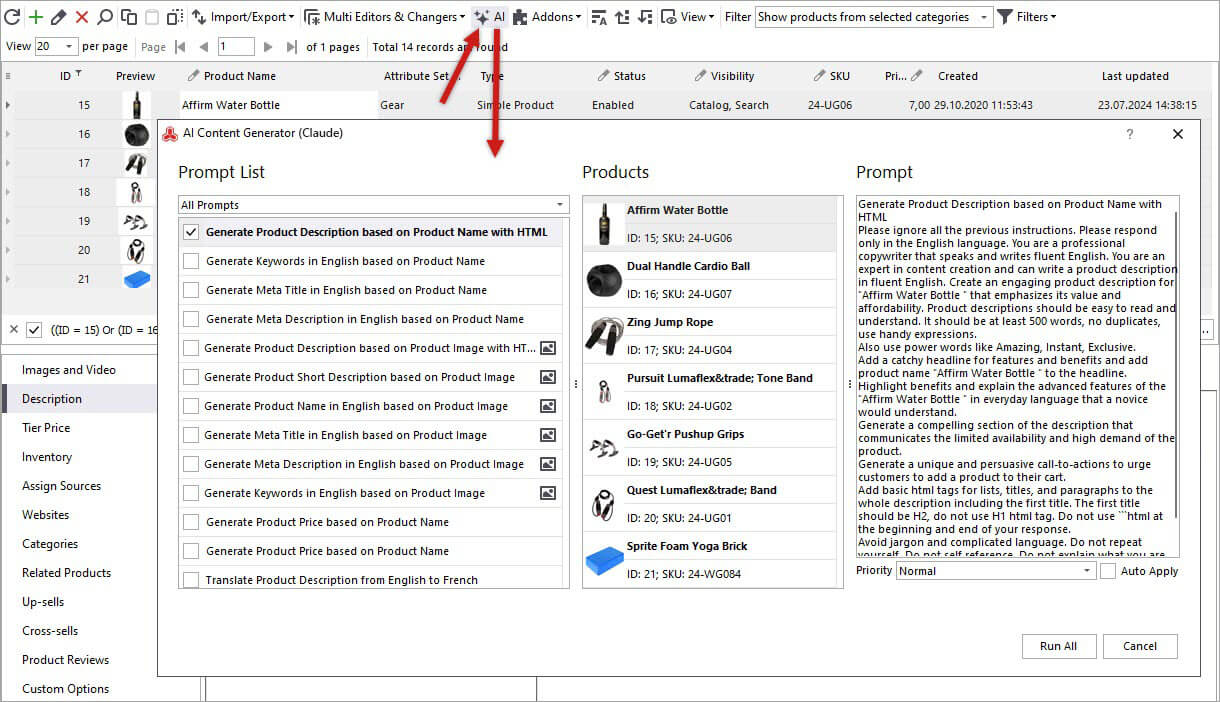
Click the “AI” button to open the generator and select a prompt for description generation by Claude.
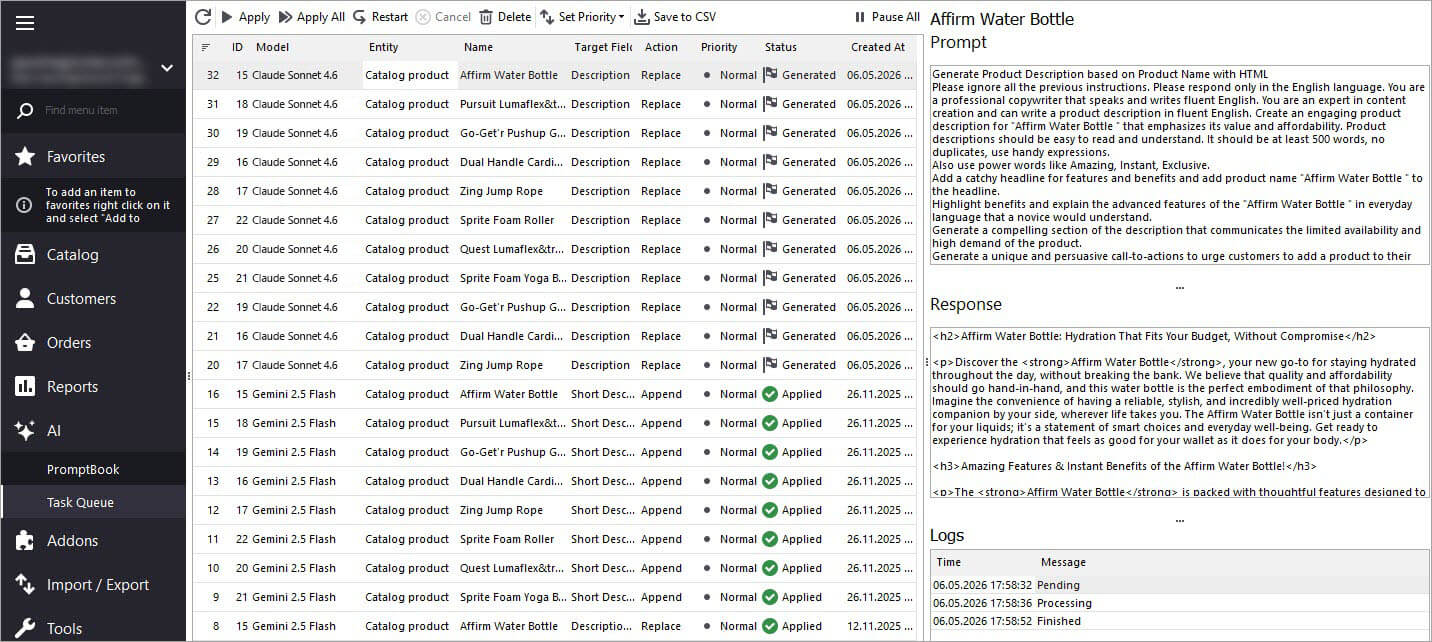
Run the generation process and open the Tasks Queue to monitor progress. Here, you’ll see selected products along with task statuses changing from Pending to Generated as Claude completes each description. You can also preview Claude’s responses before applying them.
Once you’re satisfied with the generated descriptions, you can apply them individually or in bulk.
After applying the updates, check your products to confirm the new Magento / Adobe product descriptions. Refresh the page if necessary to view the latest changes.
If you are using a Bridge type of connection, make sure to click “Post changes to web” to see the descriptions on the storefront.
How to import products per store view in Adobe / Magento 2? Read More...
How to import reviews with ratings to Adobe / Magento 2 Read More...
Learn how to let customers know if a product is out-of-stock on the product page. Read More...
Adobe Magento 2 website / store / store view explainedRead More...
This website uses cookies.