




Generate Magento Product Short Description Based on Product Name and Product Brand with Gemini
Do you find it time-consuming to manually fill in missing product data? With Store Manager for Magento (Adobe) and the built-in Gemini integration, you can generate short descriptions in bulk based on product name and brand massively. If you haven’t tried the software yet, now is the perfect moment to start your free trial and connect to your store. Let’s begin!
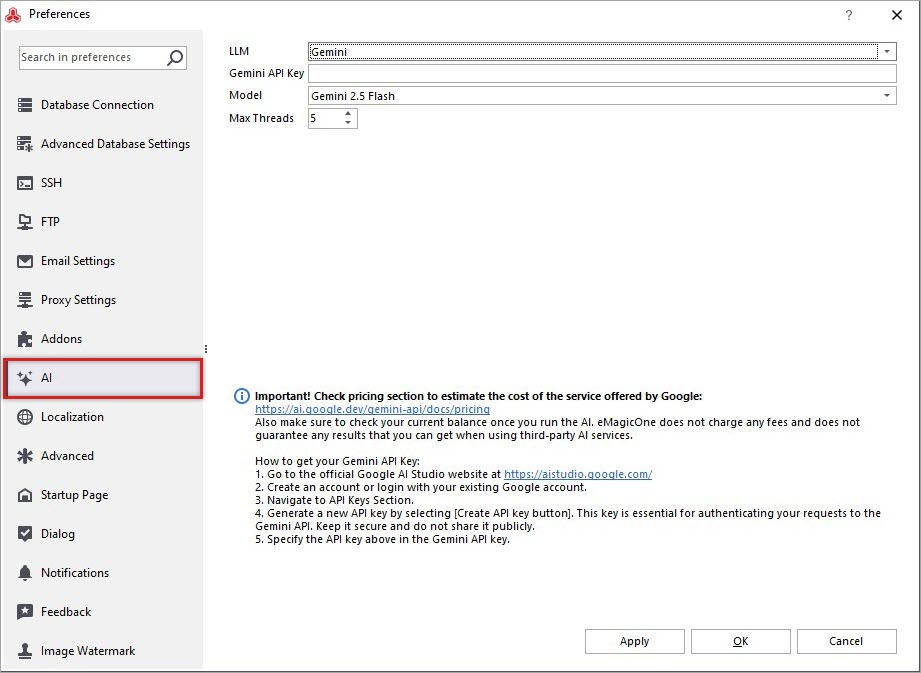
Go to Preferences (F12) → AI tab. Select Gemini from the LLM dropdown. Insert Gemini API Key to establish the connection.
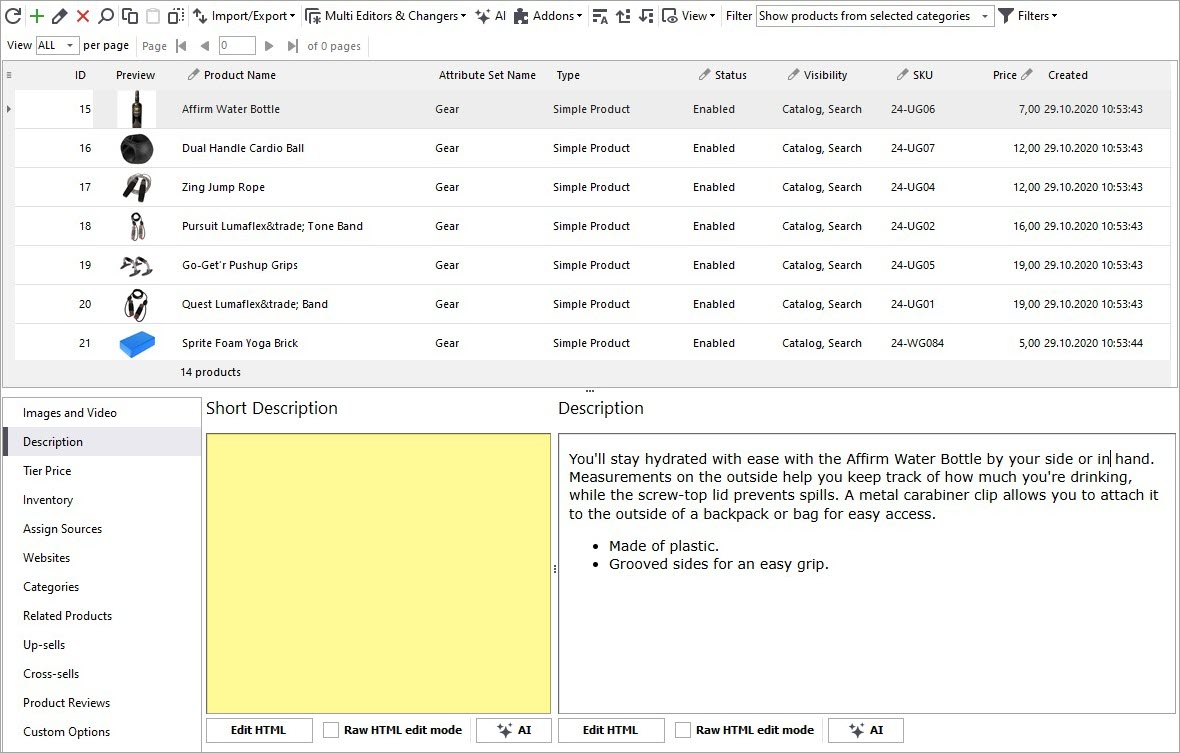
Before generating short descriptions, let’s look at the products we’ll be working with. In our dataset, the short description field is empty for all items.
Step 1: Create Your Own Prompt
To start generating short descriptions, we need to configure the prompt. Open the AI menu and navigate to PromptBook. Here, you’ll find ready-to-use prompts for mass content generation, and you can also create your own prompt tailored to your needs. In this example, we’ll create a prompt built specifically for generating a short description from the product name and brand.
Start with the New Prompt button, specify the name, target field, action, and other details. In the same window, you’ll find a list of available macros representing product fields you can reference inside your prompt. Experiment with your prompt wording until it produces the style of content you want. Here’s an example of the prompt text:
Please ignore all the previous instructions. Please respond only in the English language. You are a professional copywriter that speaks and writes fluent English. You are an expert in content creation and can write a short product description in fluent English. Create an engaging short description for the [PRODUCT_ATTRIBUTE(name)] product. Also mention the product brand [PRODUCT_ATTRIBUTE(brand)] in the short description. Short descriptions should be easy to read and understand. It should be up to 100 characters. The description should include key characteristics such as color, material, etc. which can be listed with a comma. Avoid jargon and complicated language. Do not repeat yourself. Do not self reference. Do not explain what you are doing.
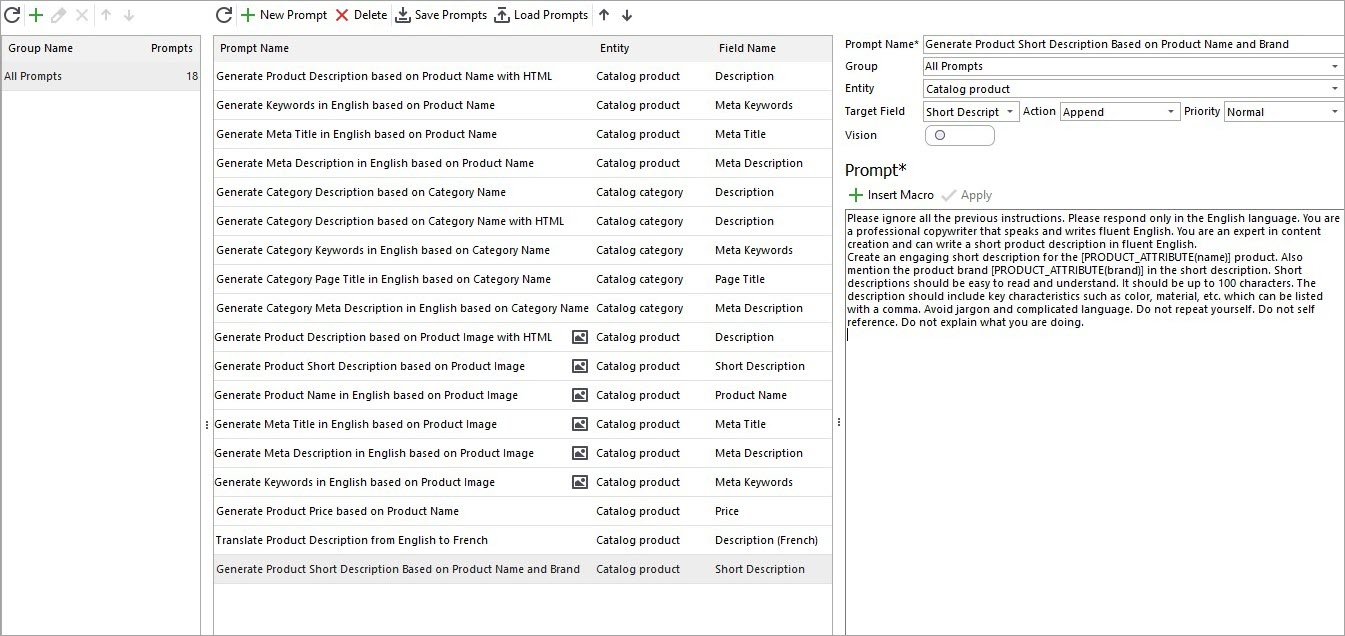
* [PRODUCT_ATTRIBUTE(name)] and [PRODUCT_ATTRIBUTE(brand)] are macros that can be inserted into the text using the corresponding button or context menu.
Once you are done, don’t forget to click "Apply" to save the changes.
Step 2: Open the Gemini Mass Changer
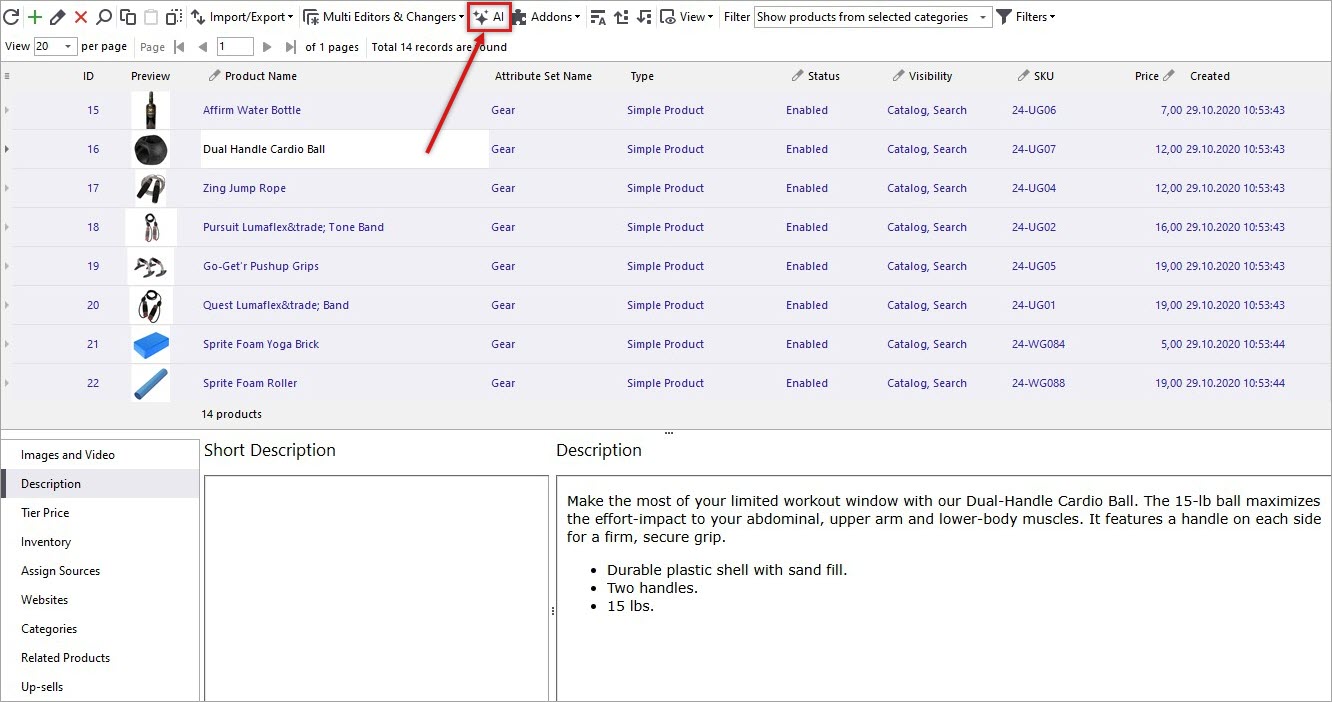
Once your prompt is ready, return to the product list and select several products you want to update descriptions for. It’s always a good idea to test on a small batch before applying changes to your entire catalog. Use the AI button to open the Gemini Content Generator settings.
Step 3: Choose a Prompt and an Action
Now select the newly created prompt you want to apply, specify the priority if needed and hit “Run All”.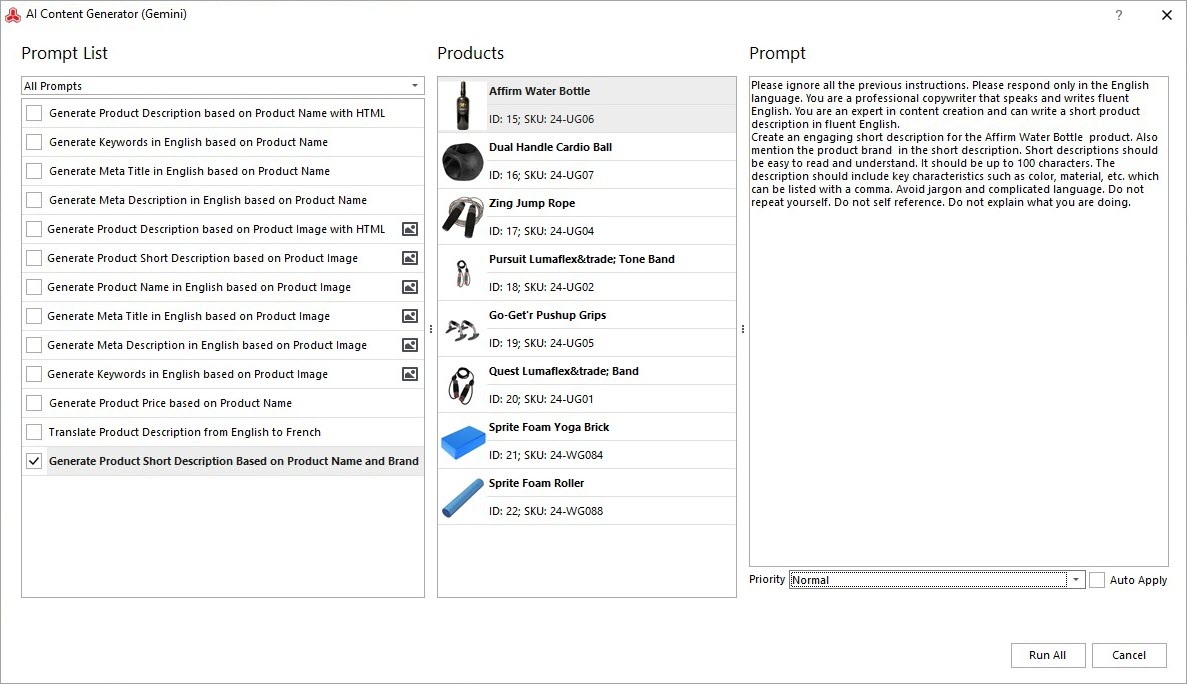
Step 4: Work with Gemini Tasks Queue, Apply the Result
If everything is set correctly, open the Tasks Queue to see Gemini working. Here you’ll find all scheduled and processed tasks. Once the short description is generated, the task status will update from Pending to Generated. You can also preview the Response before applying it to your products.
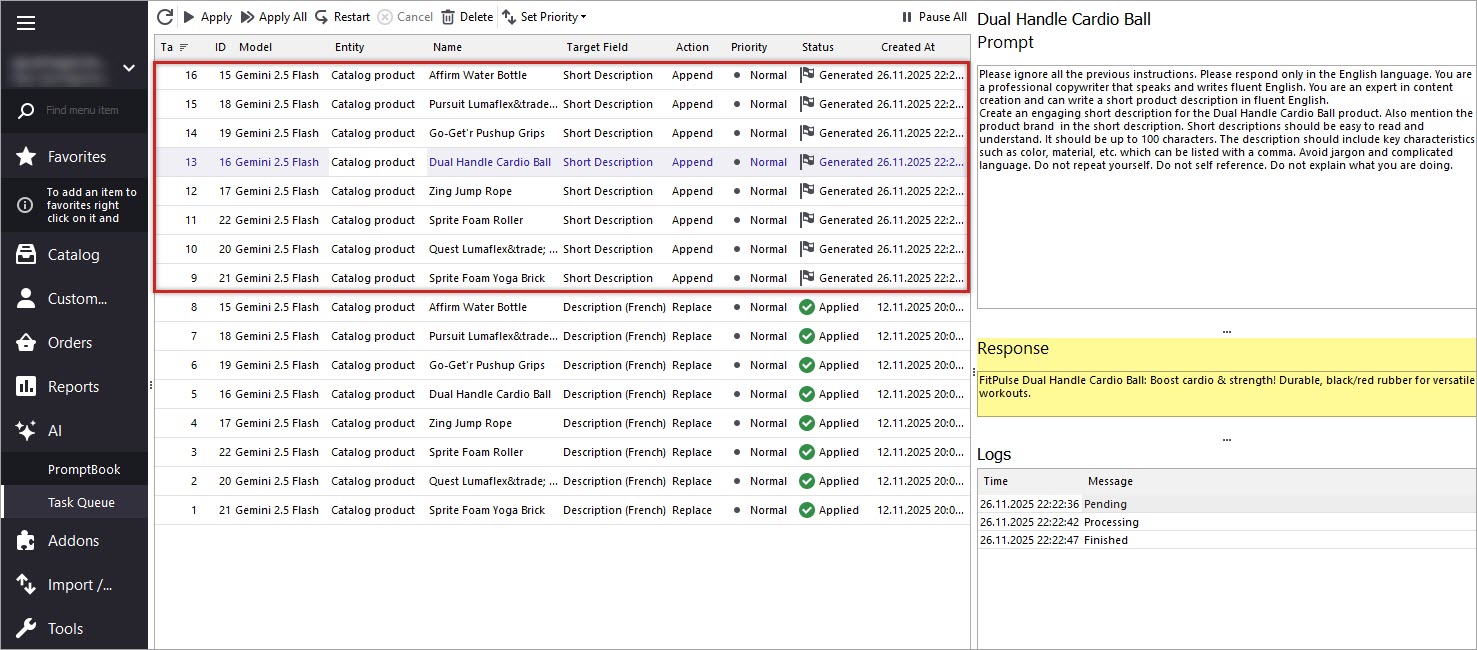
If you're satisfied with the output, click "Apply" for each item or apply changes in bulk.
Step 5: Verify the Changes in the Store
After applying the results, you’ll see updated short descriptions by product name and brand in Store Manager.
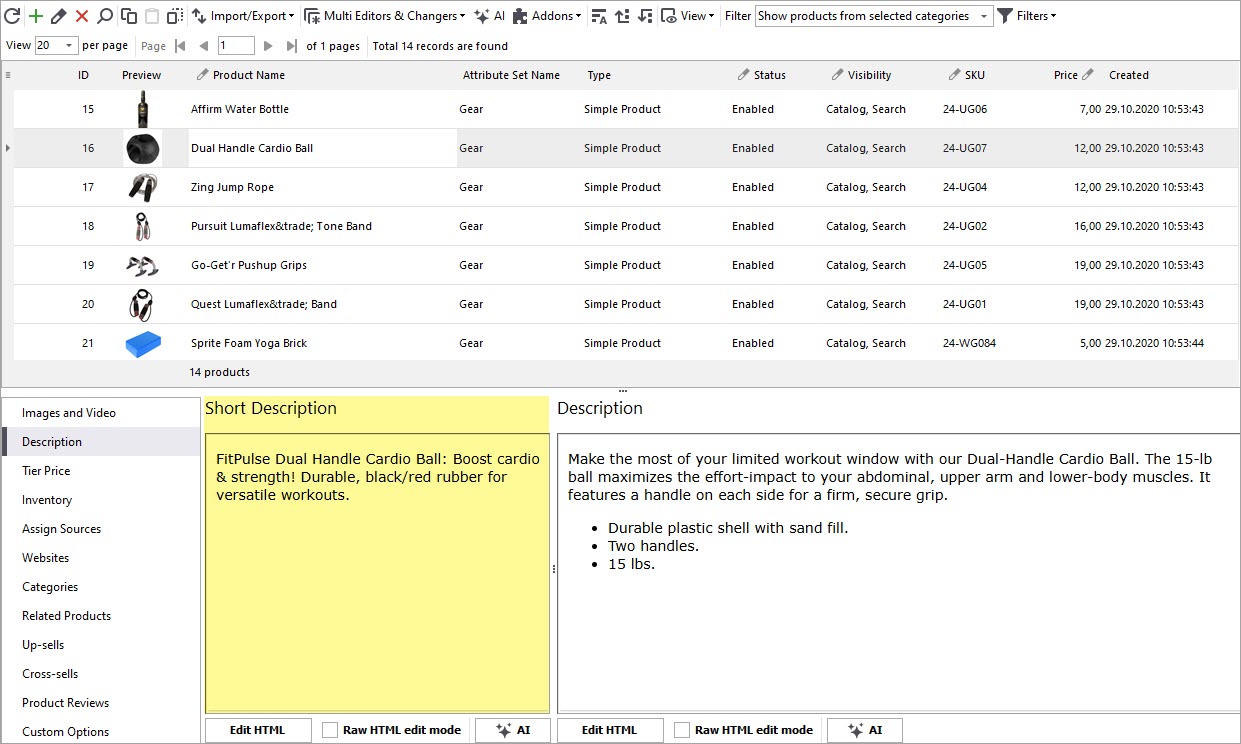
Refresh your Magento frontend page to view the new description live. If you are working with Bridge type of connection, do not forget to post changes to the web (CTRL+P). You can run this process for any number of products in bulk. You can also append or prepend text, or build prompts based on other product fields such as color, size, material, and more. We hope this guide helped you understand how Store Manager for Magento (Adobe) together with Gemini AI can speed up and simplify your product data generation workflow. Try the free trial and experience the power of automated content generation with Store Manager + Gemini today!
Related Articles:
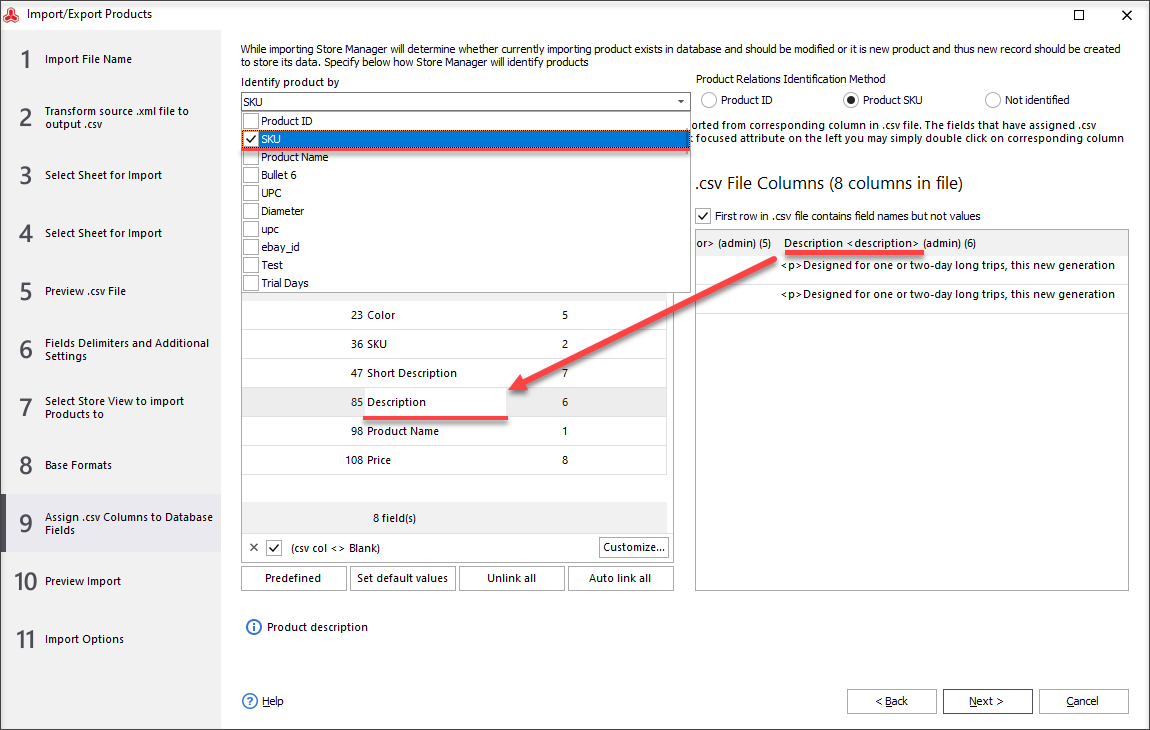
Import Adobe/Magento 2 Language Translations
How to import products per store view in Adobe / Magento 2? Read More...
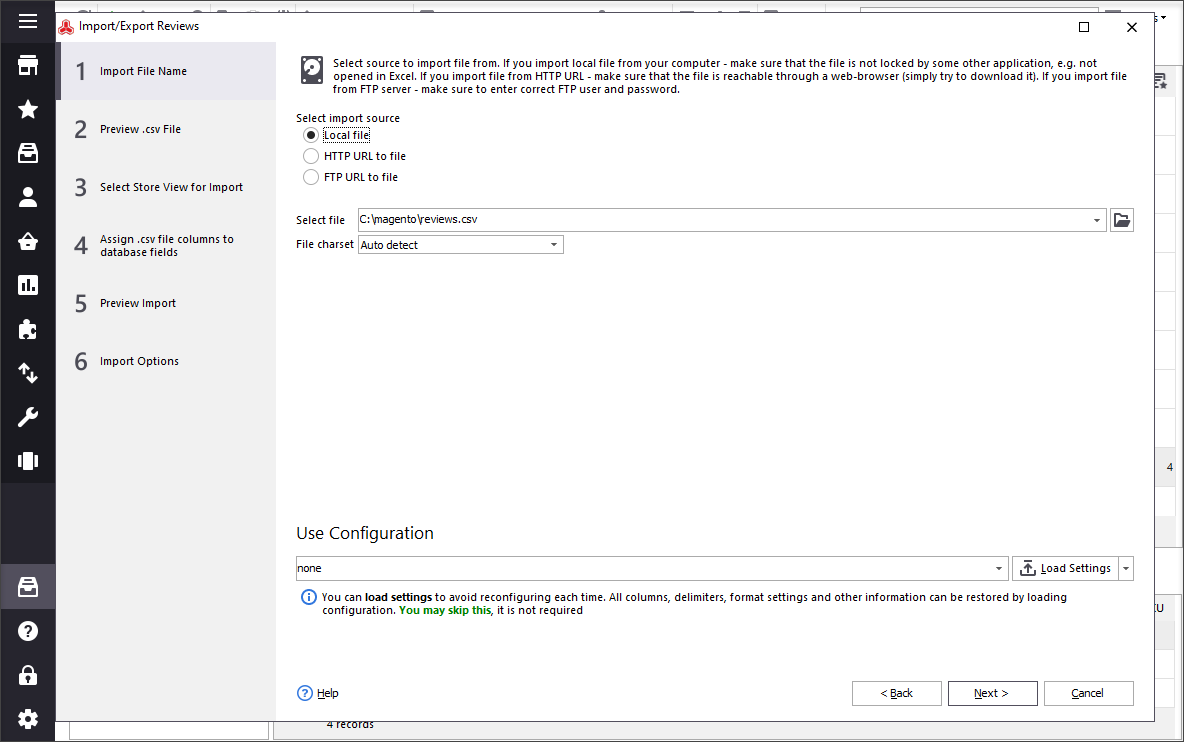
Adobe / Magento Reviews Import
How to import reviews with ratings to Adobe / Magento 2 Read More...
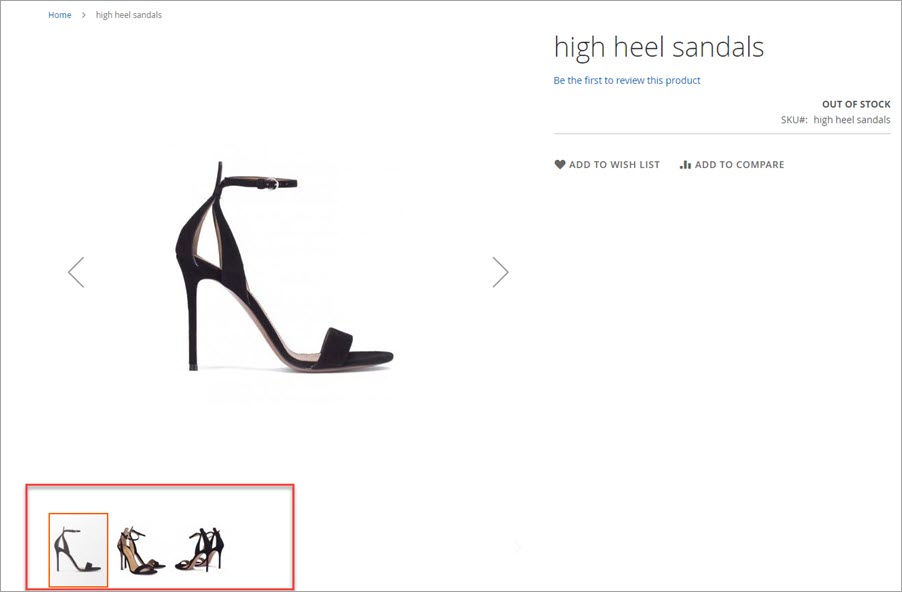
Magento 2 / Adobe Add Product Image per Store View
Learn how to let customers know if a product is out-of-stock on the product page. Read More...
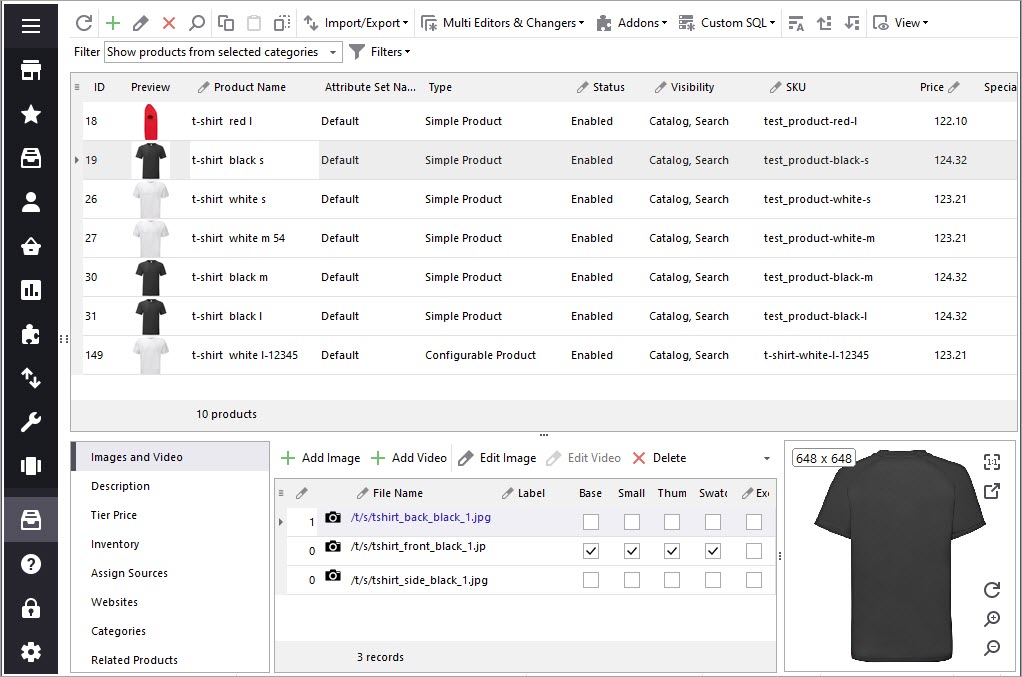
How to Add Adobe / Magento 2 Multilanguage Site
Adobe Magento 2 website / store / store view explainedRead More...
COMMENTS