




Translate Adobe / Magento Product Description with Gemini
Expanding your online store to new markets means reaching customers who speak different languages. Translating your Adobe/Magento product descriptions into local languages helps boost SEO visibility, build trust with shoppers, and increase conversion rates. Doing this manually, however, can be time-consuming and error-prone - especially when you manage hundreds or thousands of products. That’s where Store Manager for Adobe/Magento with the Gemini tool come in handy. With Gemini, you can translate all your product descriptions in bulk - accurately, quickly, and in a consistent brand tone - so your international customers get the same great experience, no matter where they shop.
Download the free trial and start translating Adobe/Magento product descriptions with Gemini right now! If you already have the software installed, let’s get started.
Step 1: Open Preferences Connect to Gemini
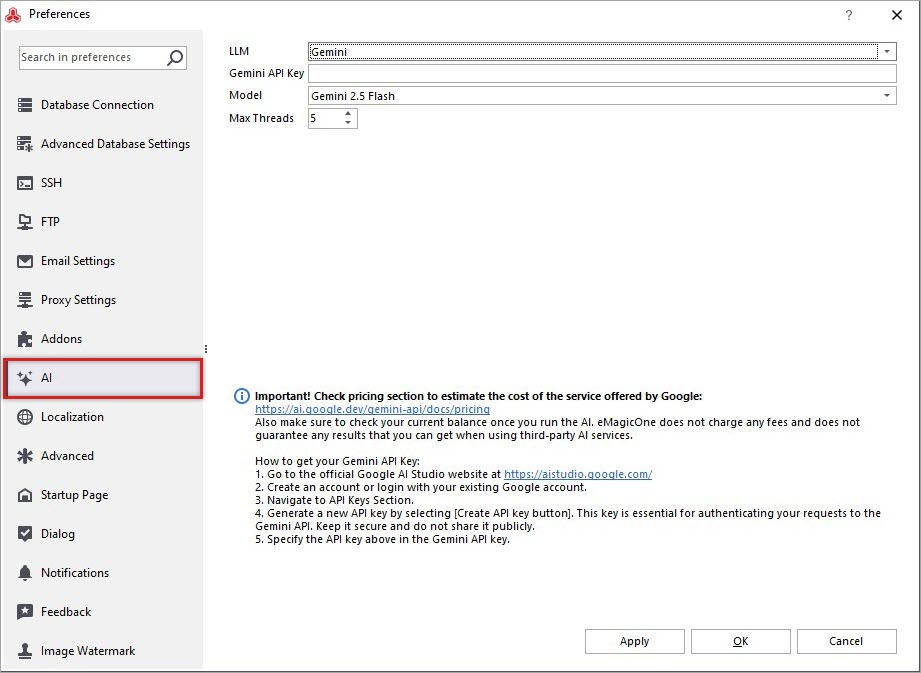
Go to Preferences (F12) → AI tab. Select Gemini from the LLM dropdown. Insert Gemini API Key to establish the connection.
Step 2: Select Your Language / Store View to Run Gemini
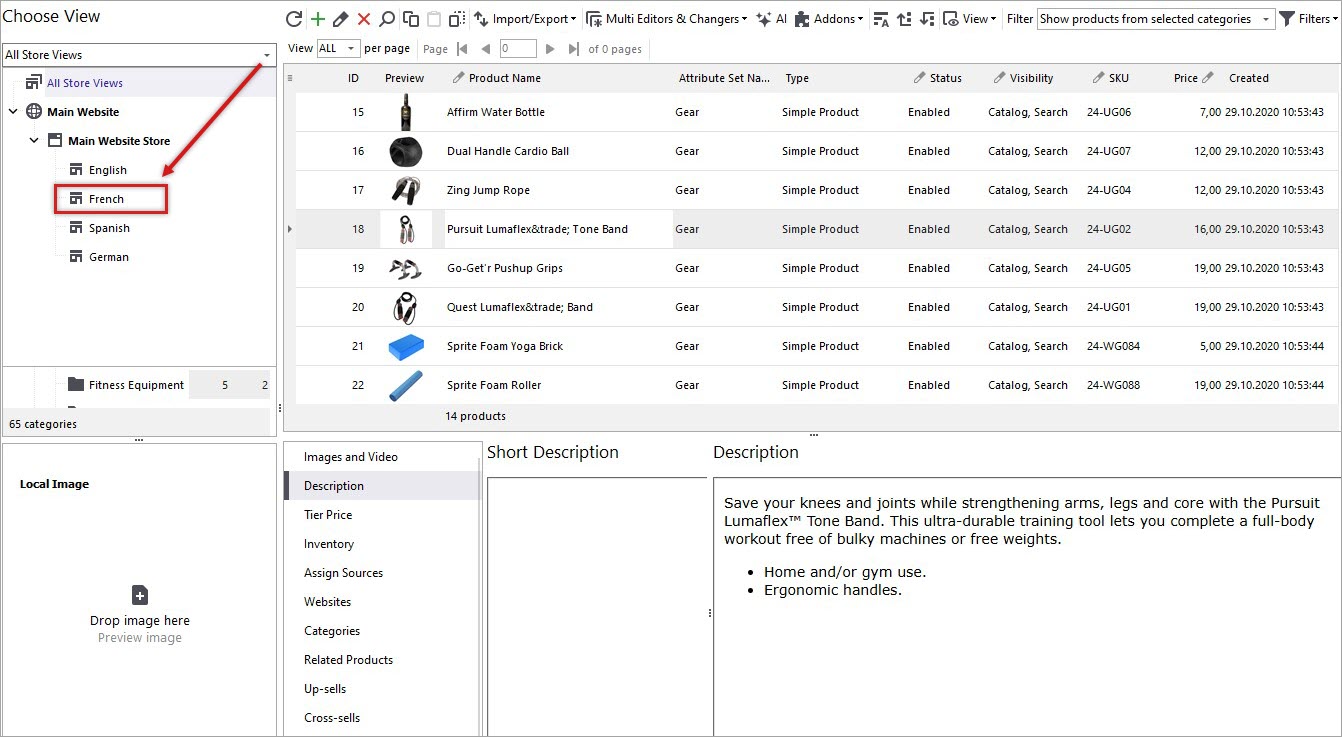
In Adobe / Magento, language translations are applied using store views. Before translating the description with Gemini, make sure that your default language content (e.g., English) is filled in. Use the store view selector in the main menu to choose the desired language (e.g., French) for translation.
Step 3: Adjust Gemini Product Description Translation Settings
In the AI → Promptbook menu, you can create your translation prompt. Start with the New Prompt button, specify the name, target field, action, and other details. Experiment with your prompt before applying it in bulk. Here’s an example of the text:
Please ignore all the previous instructions. Please respond only in French. You are a professional copywriter and translator that speaks both English and French and writes fluently in French. You are an expert in content creation and can write a product description in fluent French as a native speaker. Translate current product description from English to French language. Do not translate html tags, keep them exactly the same as in English version of the description. Do not repeat yourself. Do not self reference. Do not explain what you are doing. The description that you need to translate from English to French is: *INSERT PRODUCT DESCRIPTION EN MACRO HERE!*
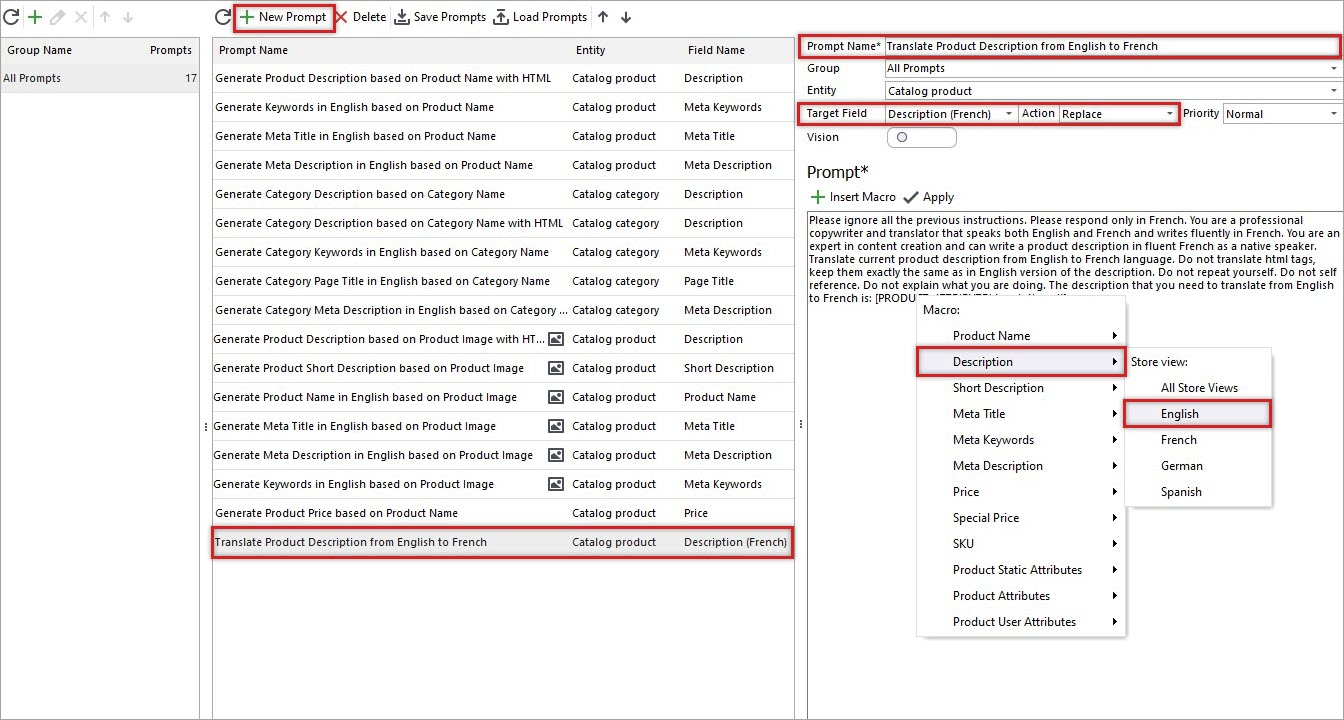
Crafting a clear and specific prompt ensures accurate results. Fine-tune your prompt to match your goals.
Step 4: Select Products to Translate
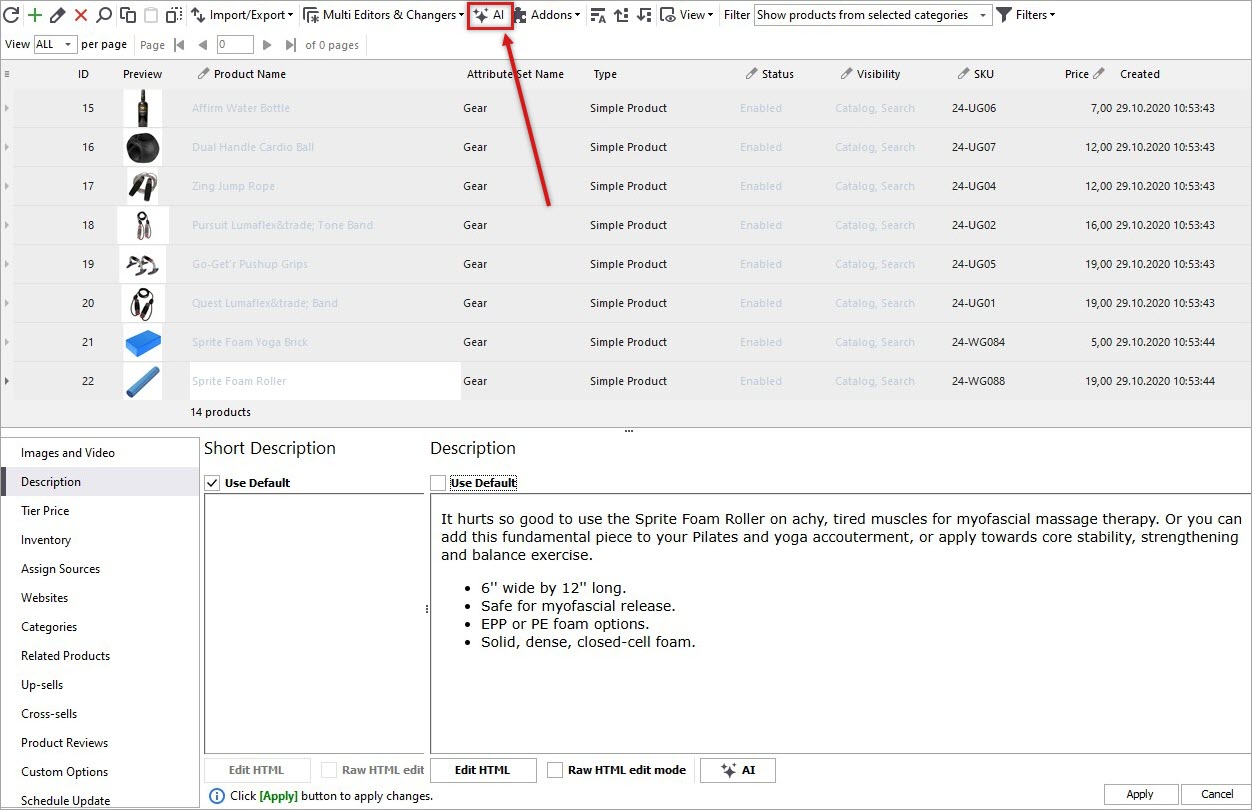
Open your product list and select one or several products (use CTRL for multiple selections) and click the AI button. It’s best to test your prompt with one or two products first to ensure the best translation quality.
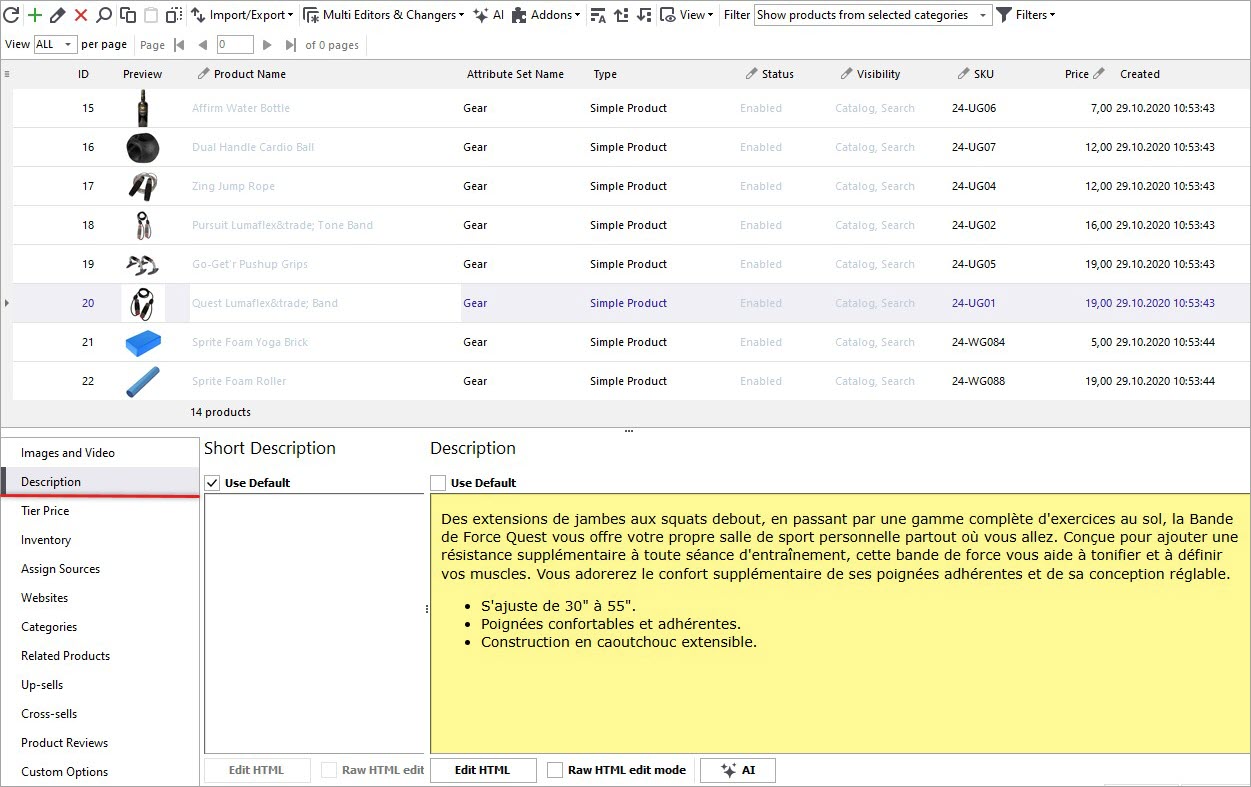
Important: Uncheck the Use Default box in the Description field to allow adding the new translation. Otherwise, the system will keep using the default (English) text. Tip: Enable Raw HTML Edit Mode to prevent adding extra HTML tags.Click the AI button to proceed.
Step 5: Run the Translation
After the right prompt is checked and selected products confirmed, Run all to send translation requests to Gemini.
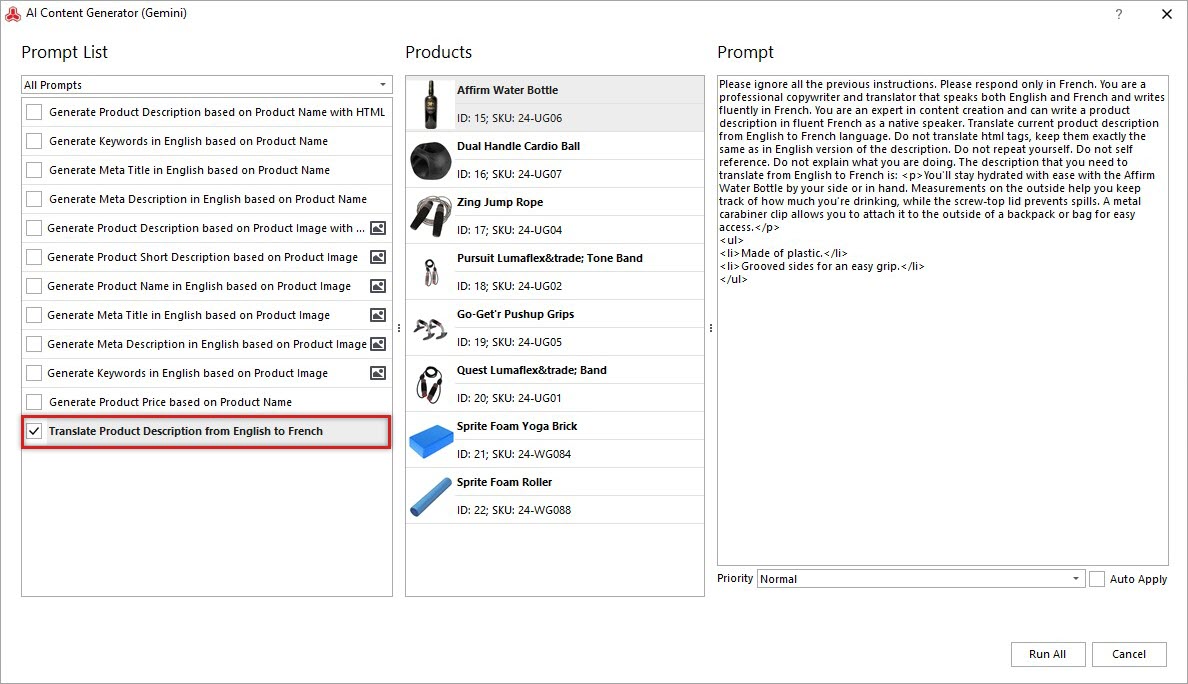
You can monitor the translation progress in the AI Task Queue tab.
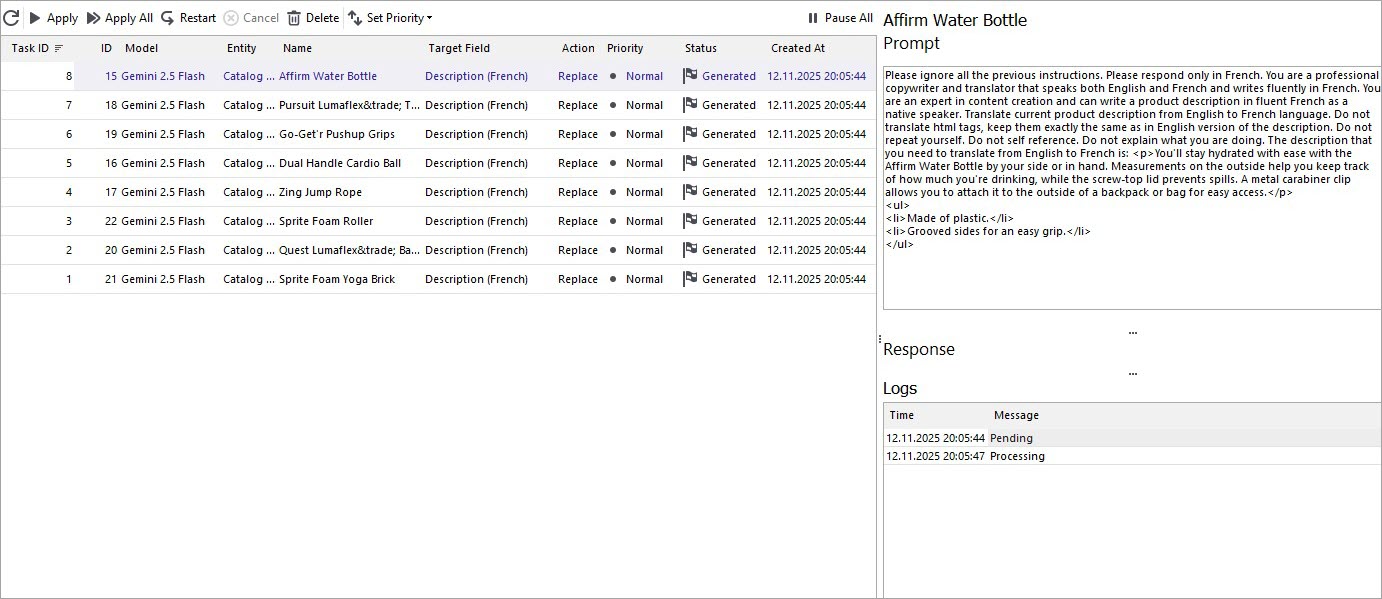
Step 6: Check Results
After Gemini finishes processing, review your translations in the Gemini Queue tab. Click Apply Changes to finalize the results. Once applied, the status will update to “Applied”, and you can review the translated text directly in the product editor.
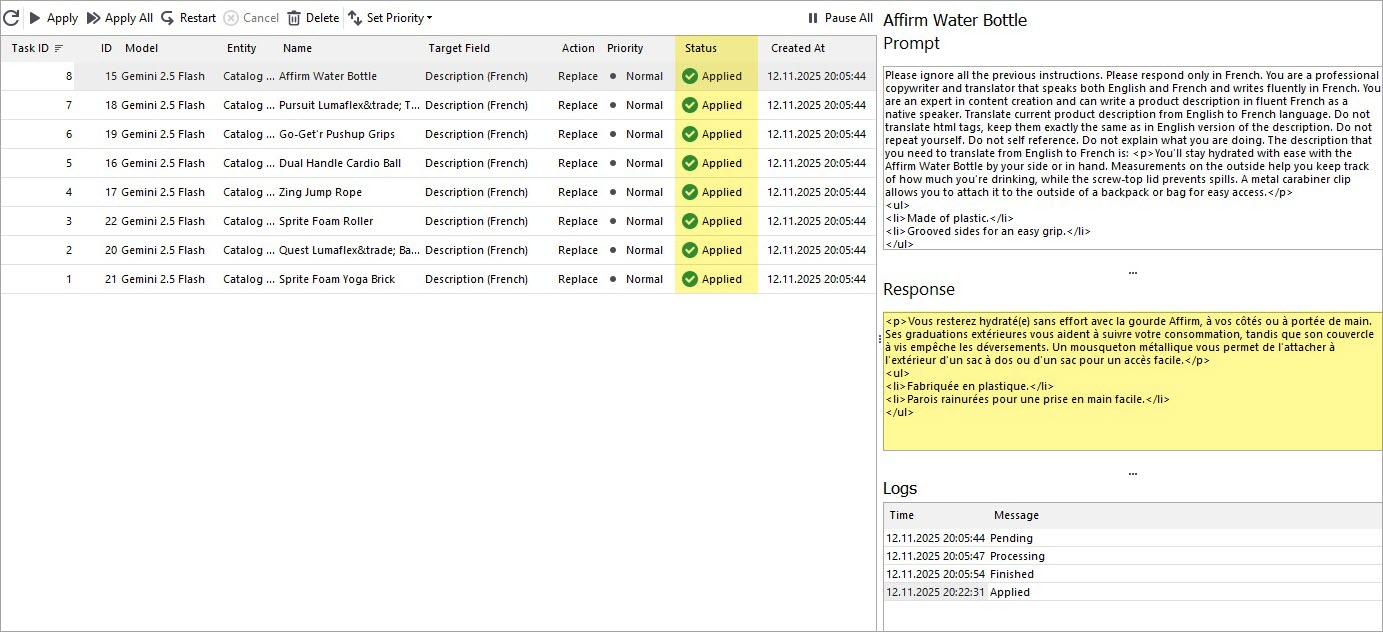
That’s it! Enjoy your fully localized product catalog on your Adobe / Magento store.
Related Articles:
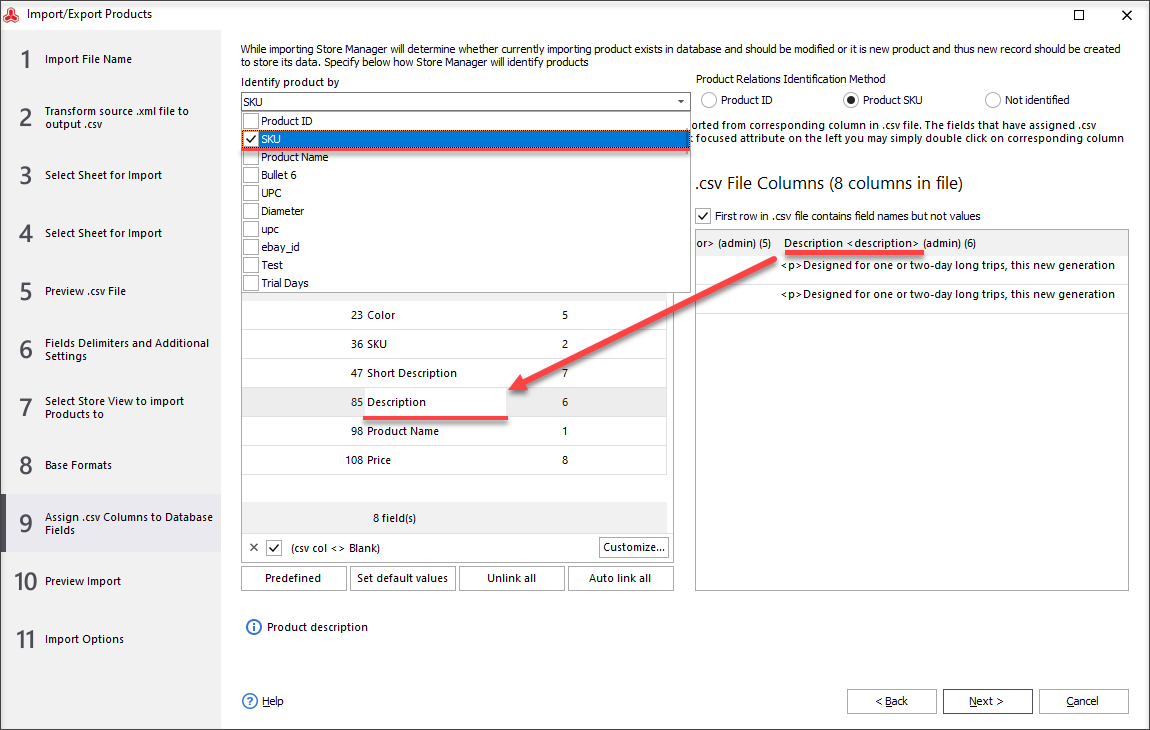
Import Adobe/Magento 2 Language Translations
How to import products per store view in Adobe / Magento 2? Read More...
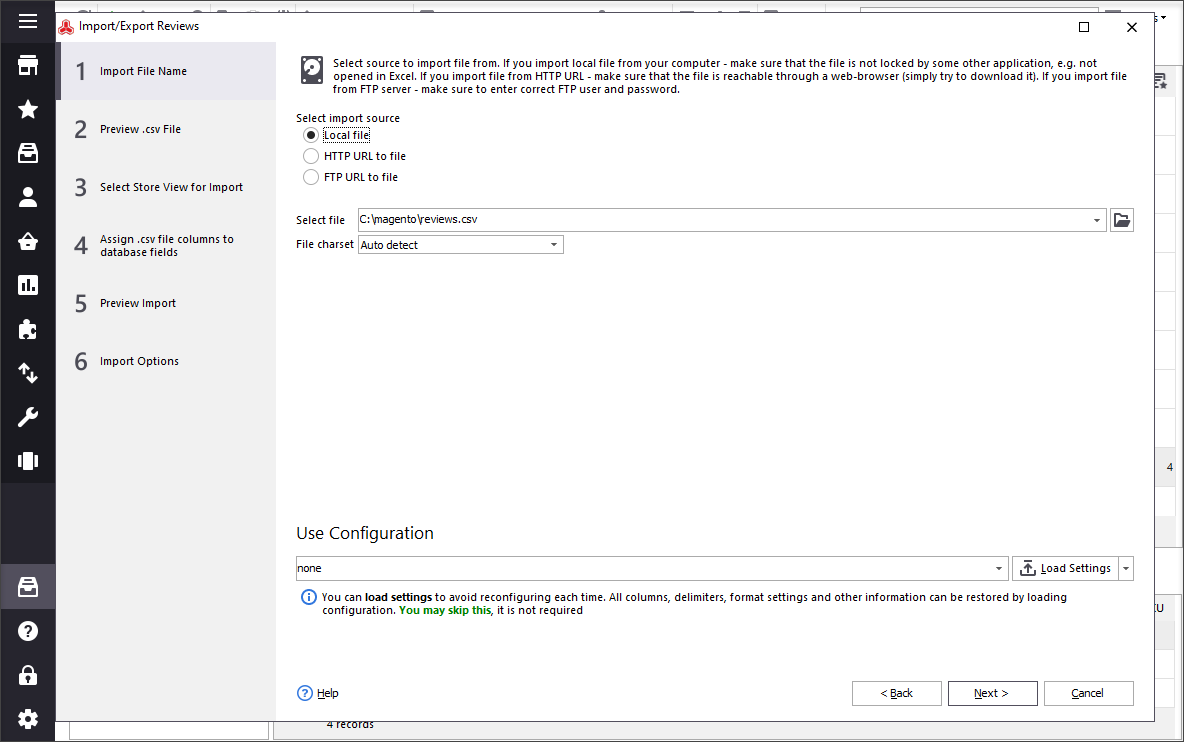
Adobe / Magento Reviews Import
How to import reviews with ratings to Adobe / Magento 2 Read More...
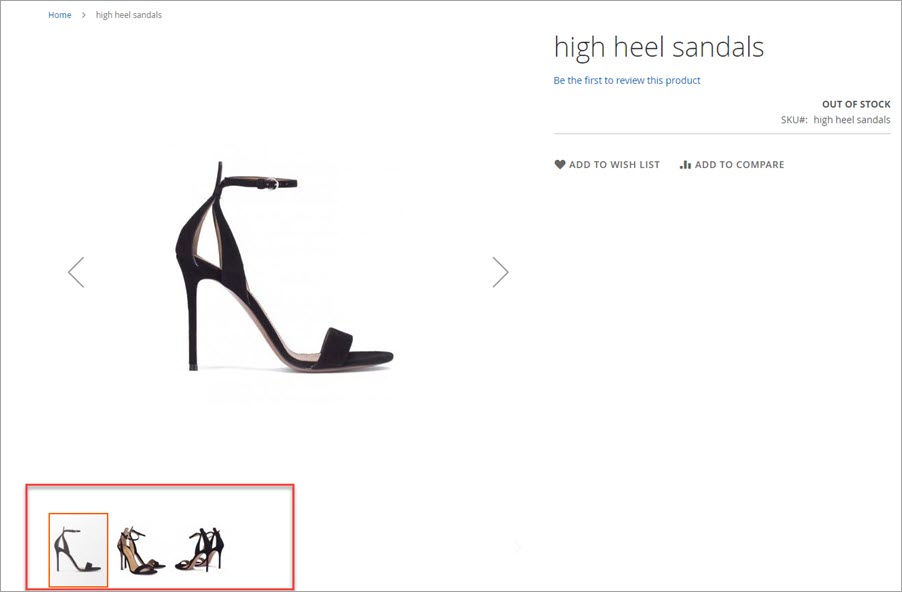
Magento 2 / Adobe Add Product Image per Store View
Learn how to let customers know if a product is out-of-stock on the product page. Read More...
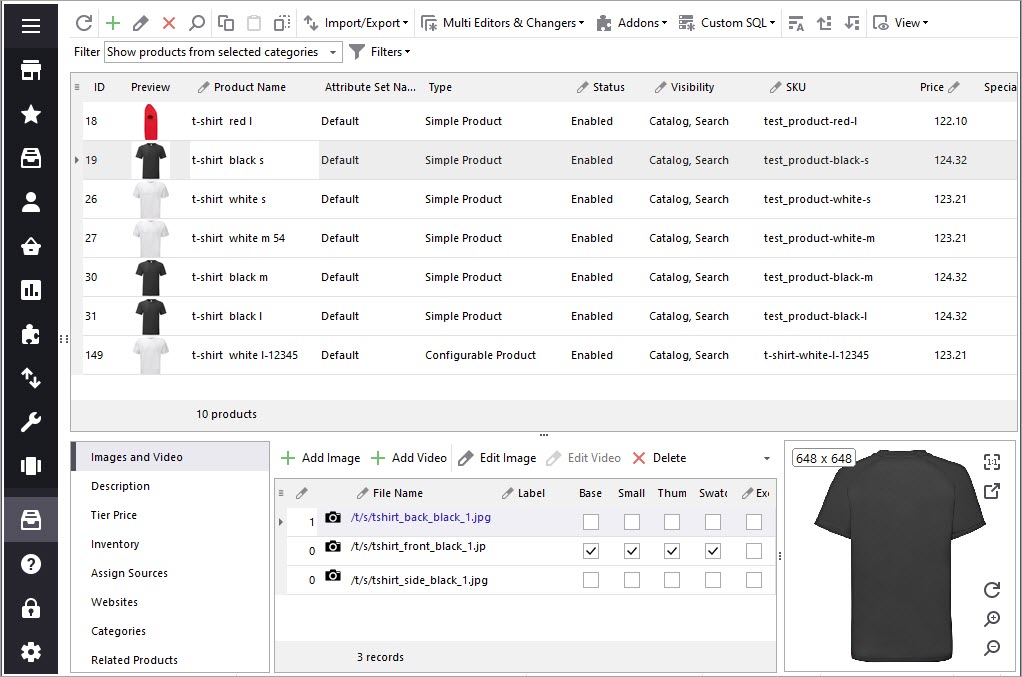
How to Add Adobe / Magento 2 Multilanguage Site
Adobe Magento 2 website / store / store view explainedRead More...
COMMENTS