
Adobe / Magento 2 - ICEcat Integration: Step-by-Step Tutorial
Magento and ICEcat integration solves one of the biggest challenges of an online store owner - getting relevant images and product descriptions for the catalog. Below you'll find a guide on how to connect Magento with ICEcat using the Store Manager for Magento application and its ICEcat Integration addon. Using the addon, you can update your entire Magento catalog or just selected items. Watch the video and follow the guide to get quality content from ICEcat to your store.
[quote color="green"]
Store Manager is a downloadable application that enhances Magento admin with tools for bulk edits, automated import/export, database backup, data generation, and ICEcat integration.
If you don’t have Store Manager yet, download a free trial and install it on your computer. Connect the application to your store database and enjoy the simplicity of store administration.
[/quote]
Steps to Update Entire Magento 2 Database from ICEcat
Prerequisites: before you begin, make sure you have an accout with an Open or Full ICEcat catalog. Also, it is important that your Magento products have an identifier like product code, EAN, UPC or another GTIN. This will allow to find matching products from the ICEcat catalog.
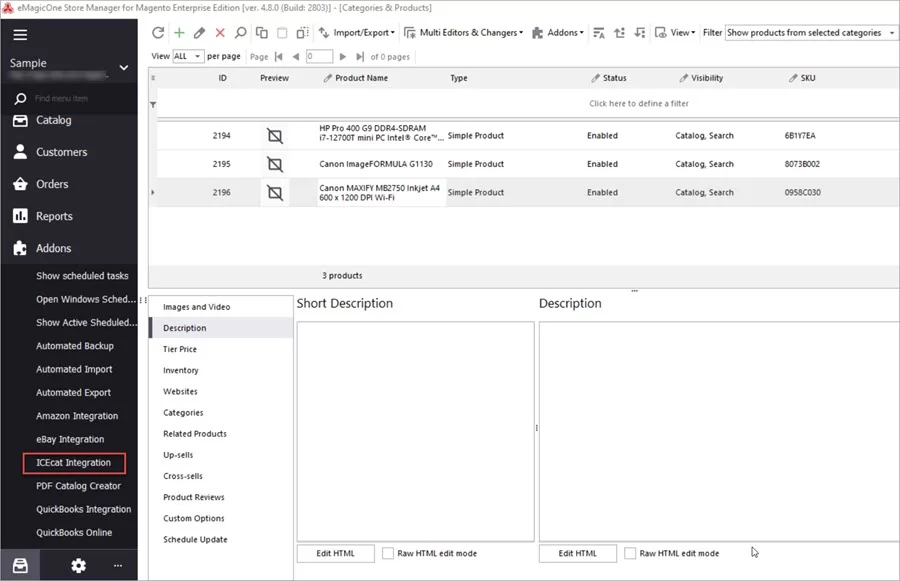
- Run ICEcat addon from the Store Manager nenu.
In Store Manager open Menu > Addons > ICEcat Integration. Note that in the demo mode you will be able to update 3 products as a test. To update all products, you need to purchase the addon.
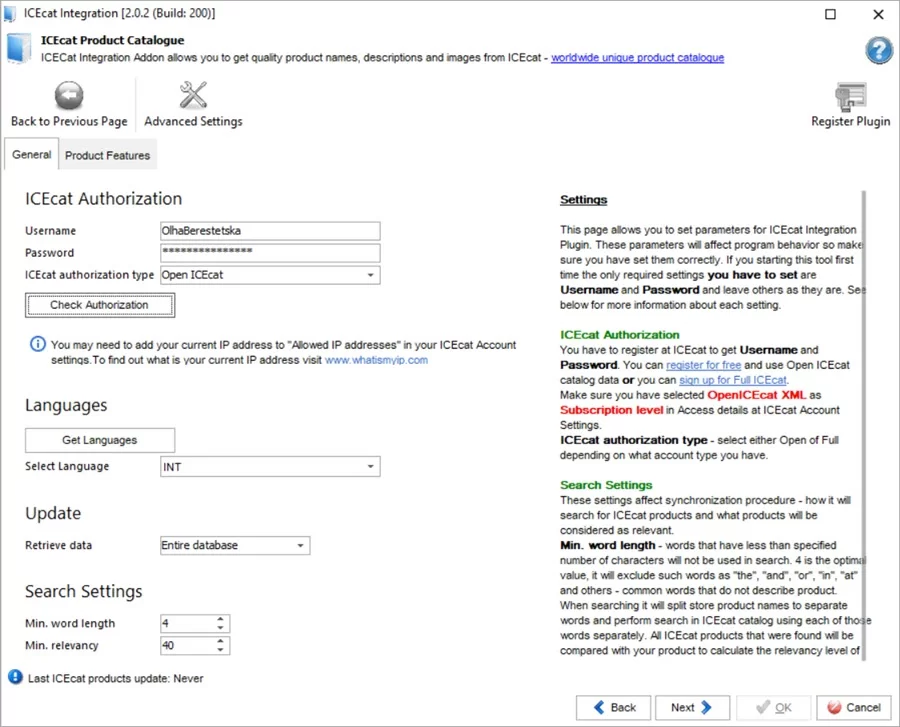
- Configure General Settings.
- ICEcat authorization - enter the username and password to your Open or Full ICEcat account.
- Languages - if you are selling goods in a specific geographical area and need product details in the definite language, you can select it here. Further you will be able to find matches for the selected localization.
- Update - if you are using the addon for the first time, you need to use the “Entire database” option. The “Daily updates” option suits for further usages of the ICEcat addon and repeated updates of the new products appearing in your shop.
- Search settings - indicate minimal words length and minimal relevancy.
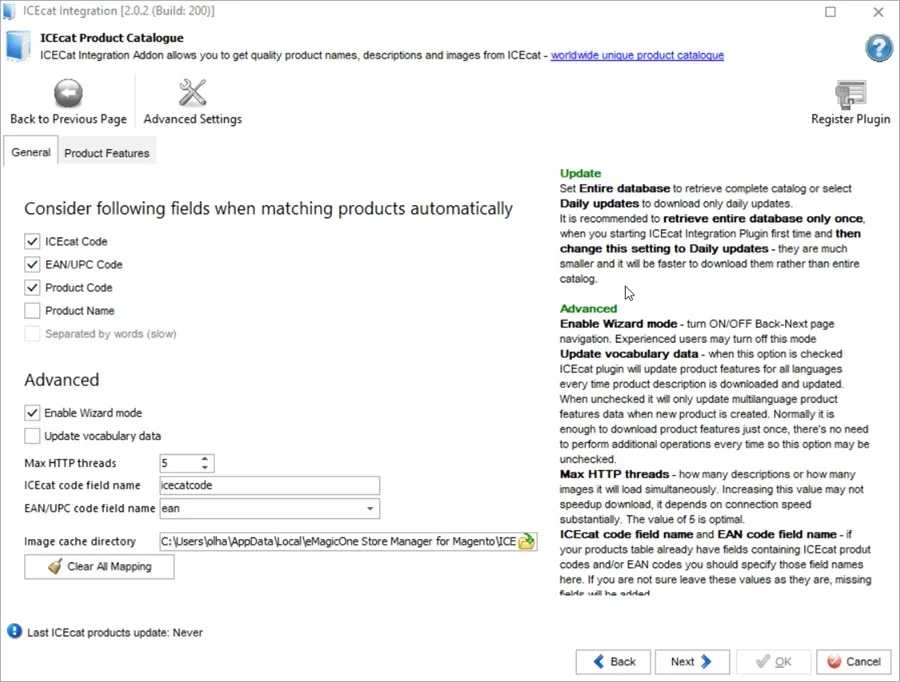
- Configure General Settings.
- Fields to check when finding matches on ICEcat - select the fields from your store that the ICEcat addon must check to pick matching products from ICEcat.
- Advanced - the most important settings in this section are the ones related to product identifiers.
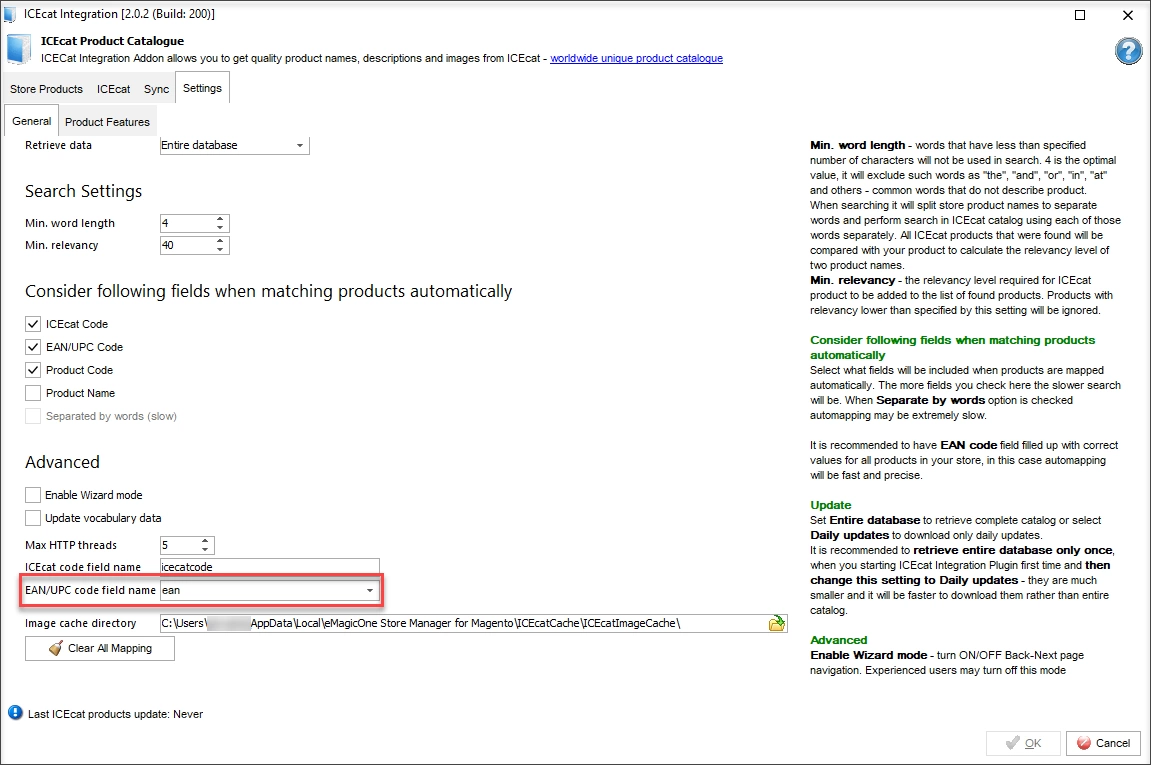
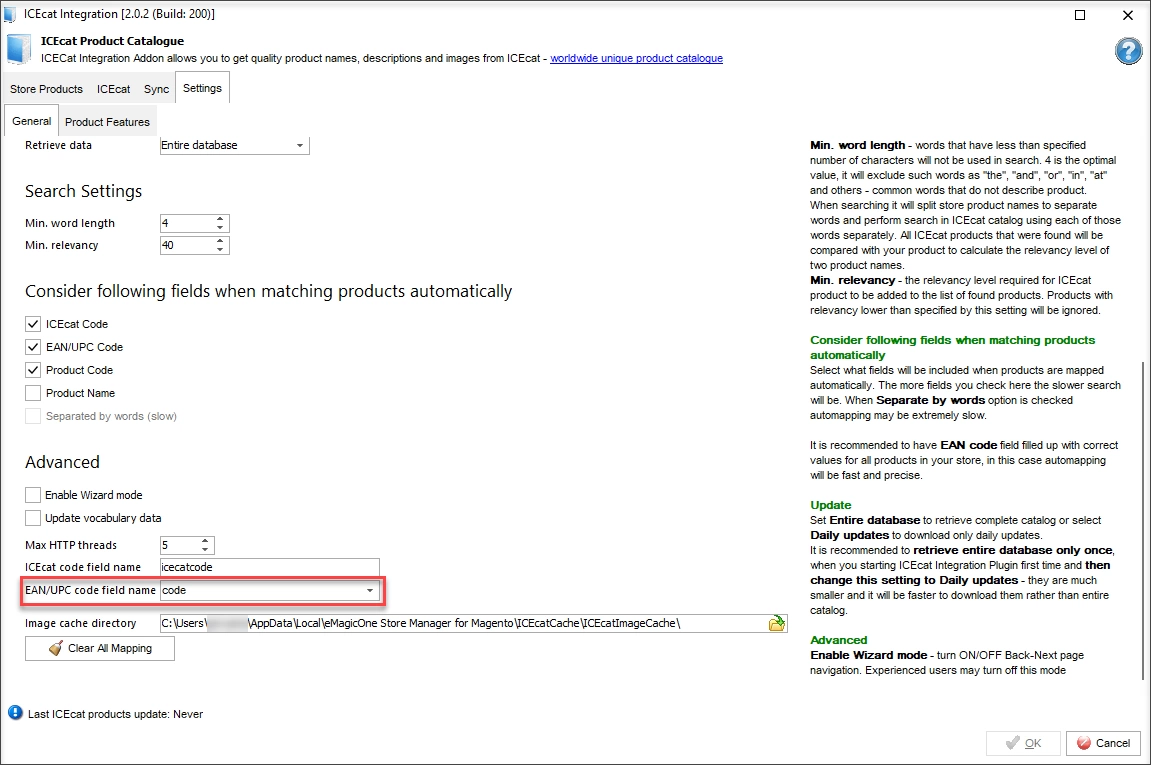
As it was mentioned above, to be able updating your store data with specifications from ICEcat, you need to make sure your products have a unique identifier: product code, EAN, UPC, etc. In the Advanced settings, you need to specify the field from your database containing this unique identifier. Expand the drop-down list next to the EAN/UPC field and select the attribute code of the attribute containing product identifier.
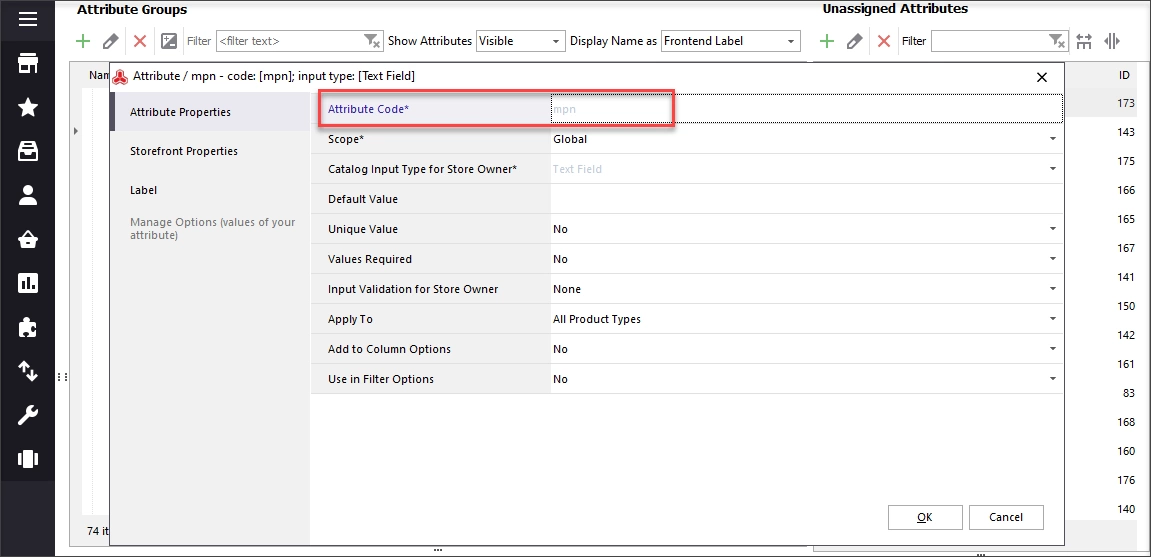
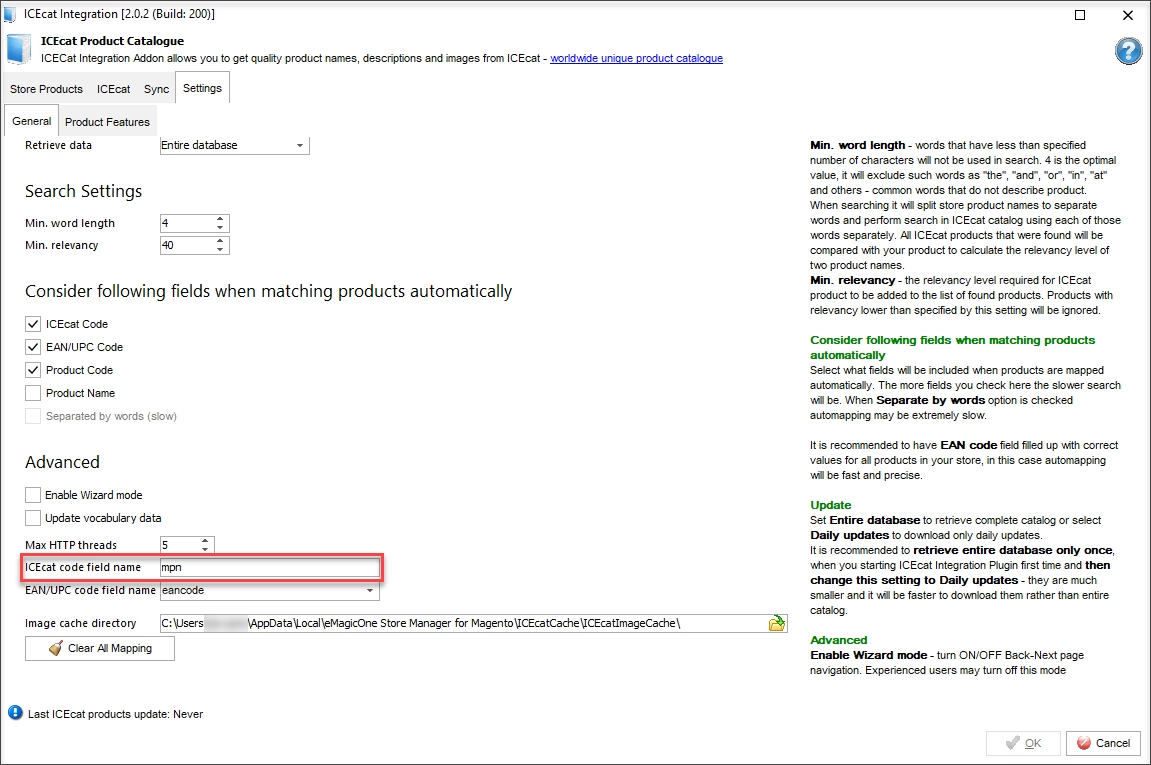
If your product identifier is named differently than on ICEcat, you need to specify the attribute code* of that Magento product attribute in either 'ICEcat code field name’ or ‘EAN code field name’ field (depending on the code you have).
*Attribute code should be formatted according to the Magento requirements (no spaces or special symbols, lower-case letters only). You can check the codes of your attributes going to ‘Attribute’ section, opening edit form for the needed attribute and viewing the tab ‘Attribute Properties’.
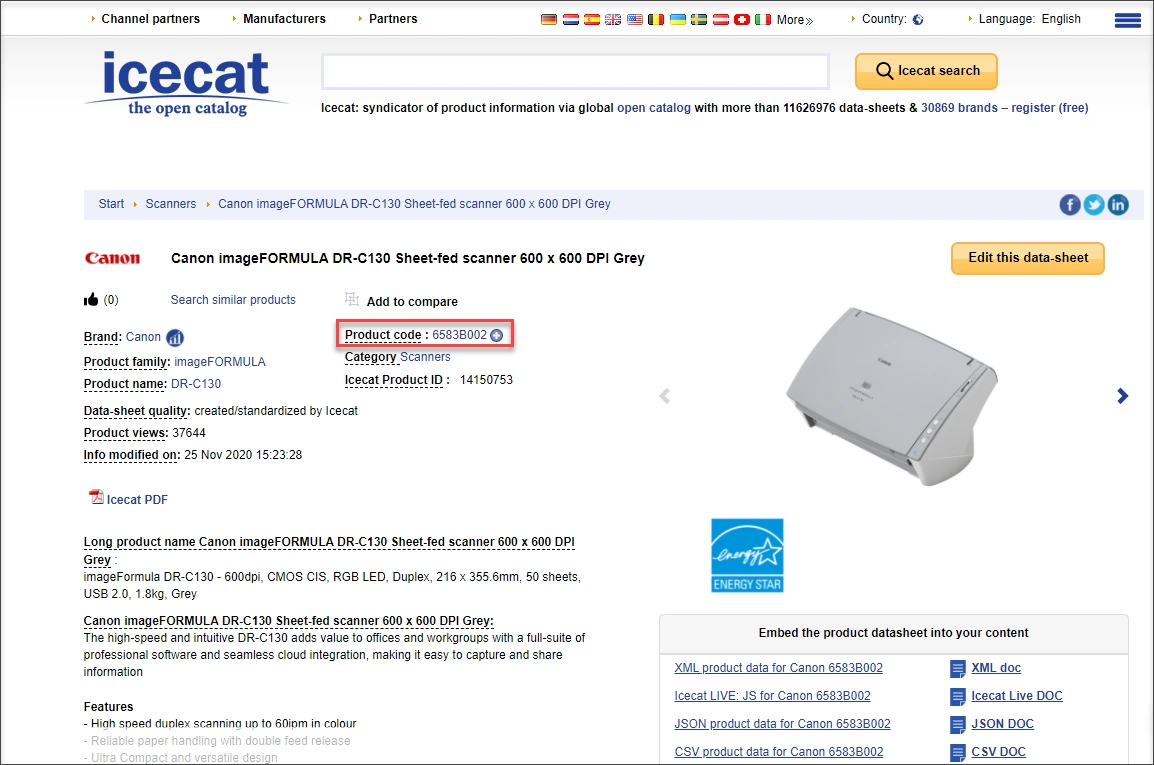
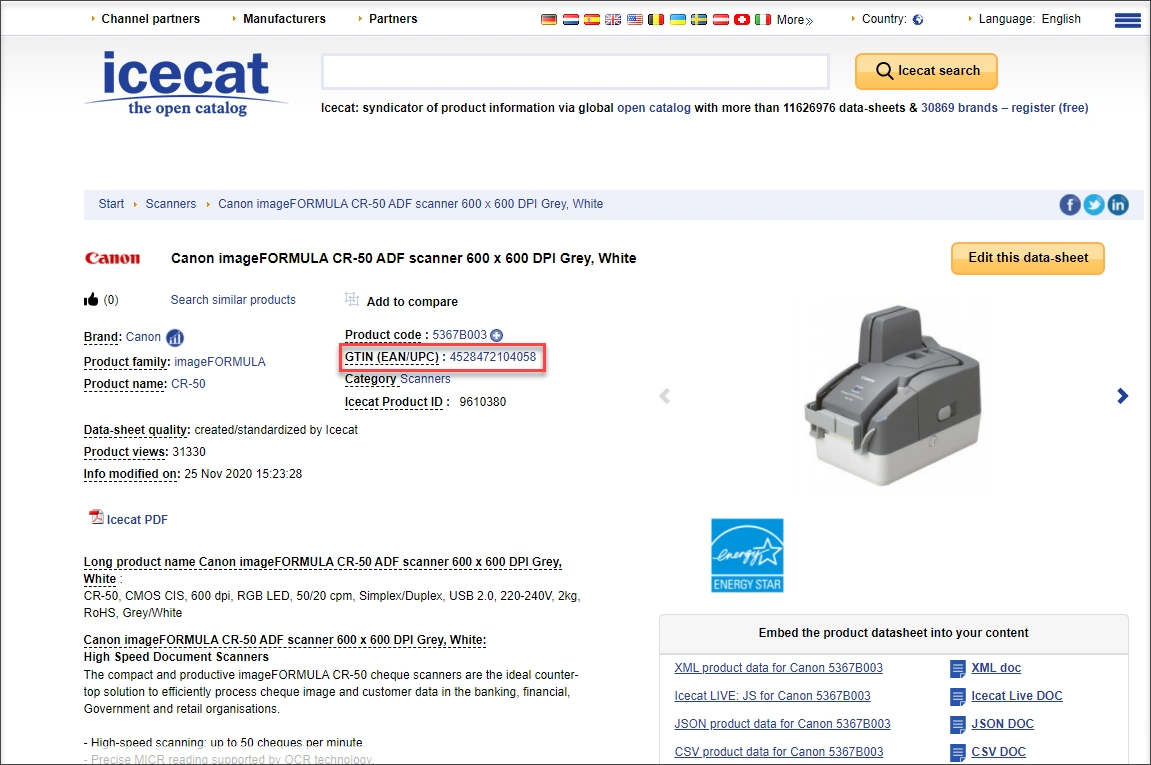
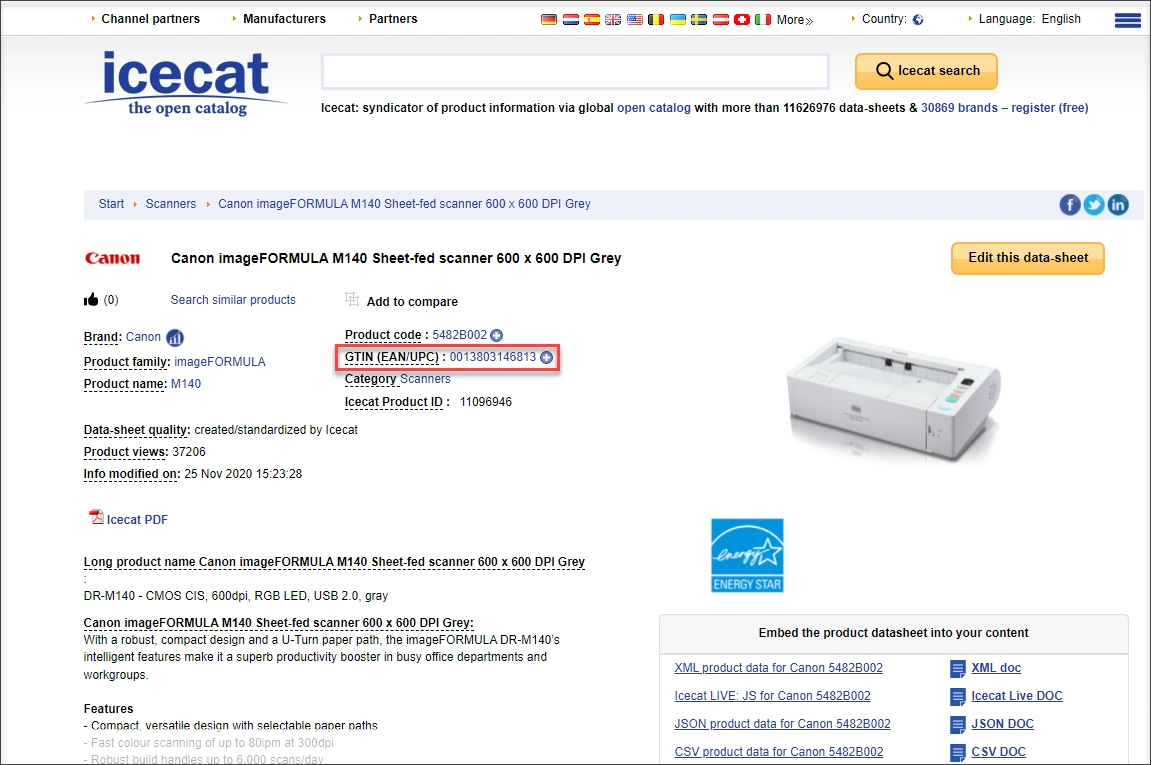
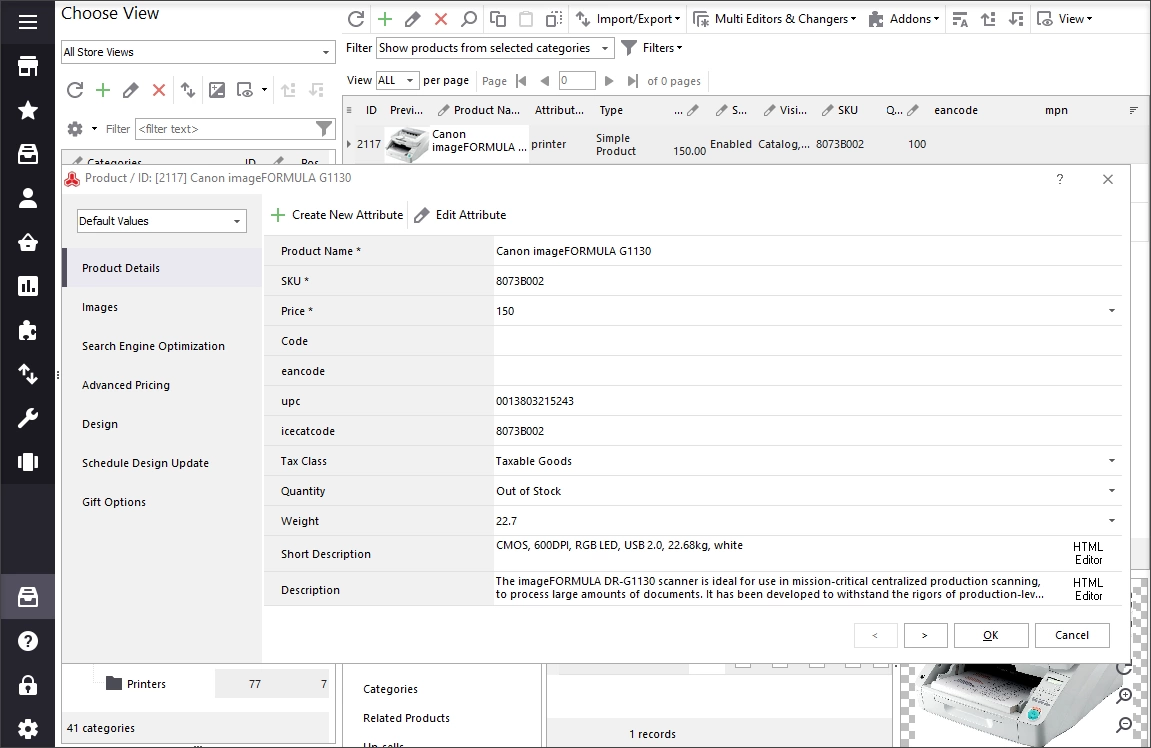
Here is an example of a product page on ICEcat. Here you can see the fields like ‘Product Code’ and ‘GTIN (UPC/EAN)’:
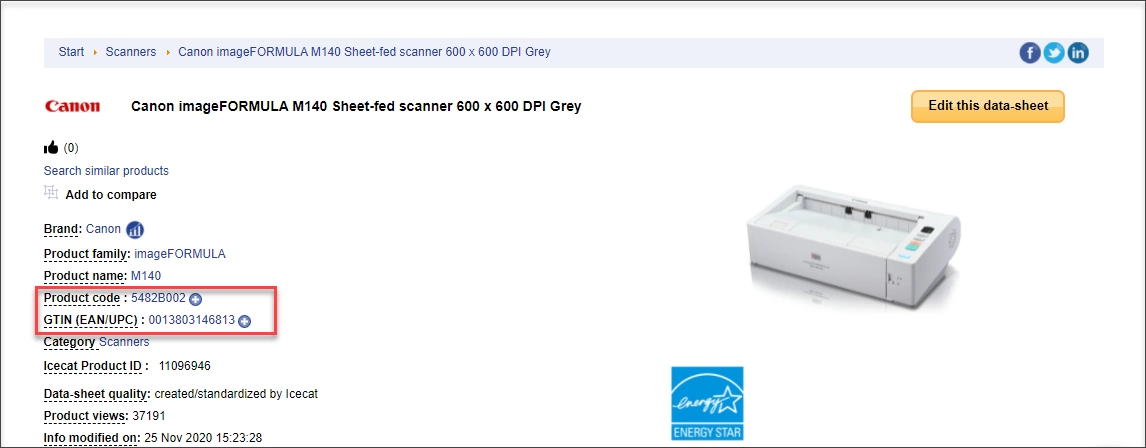
Let's now review the most common fields that can store the identifier in the database and how you should specify the field in the addon.
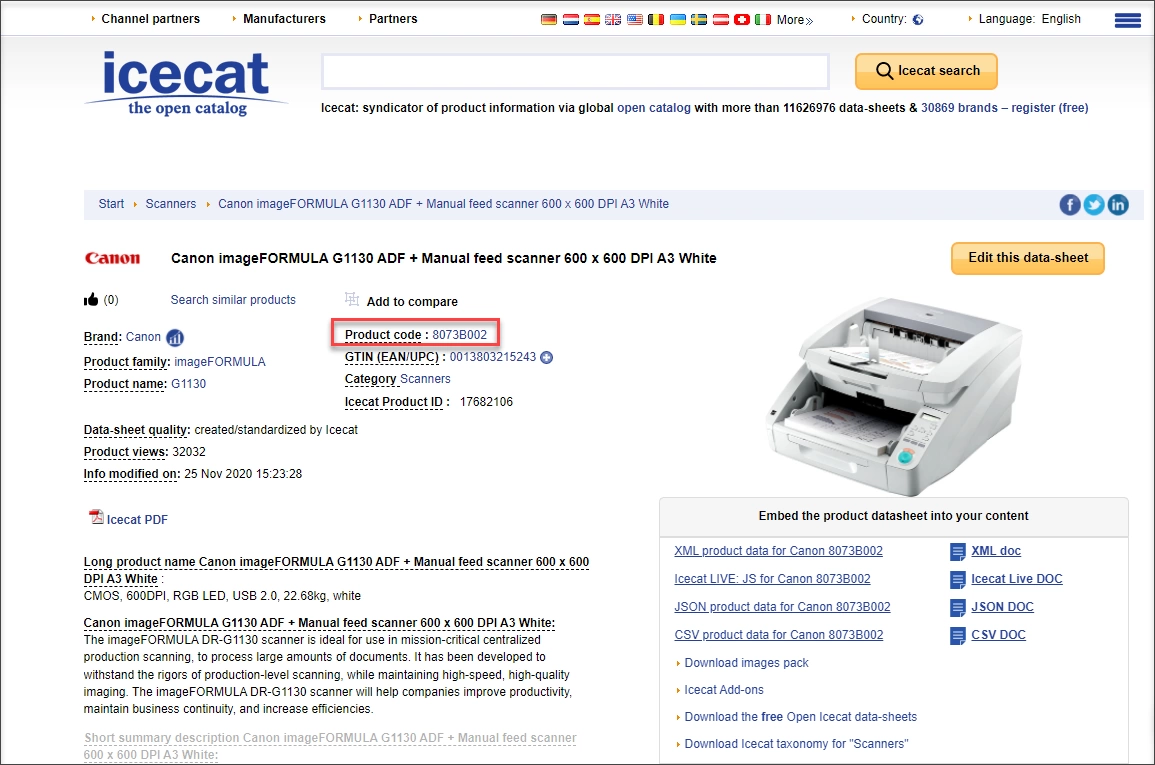
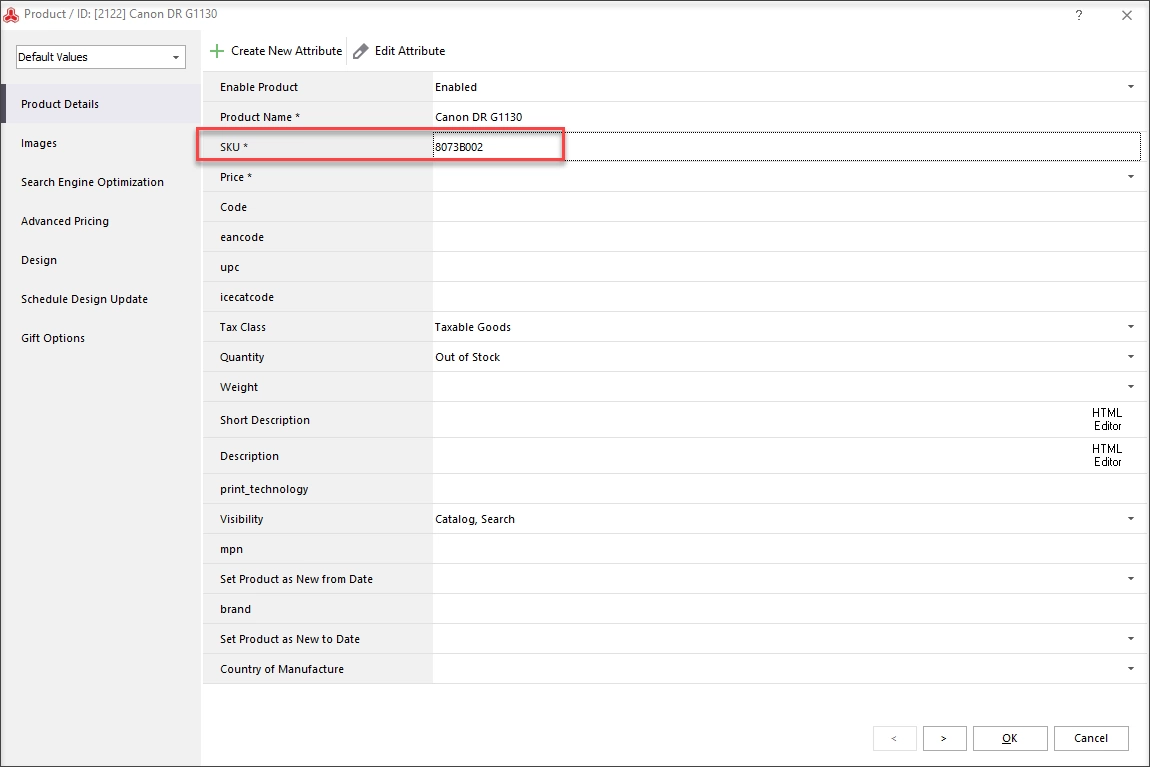
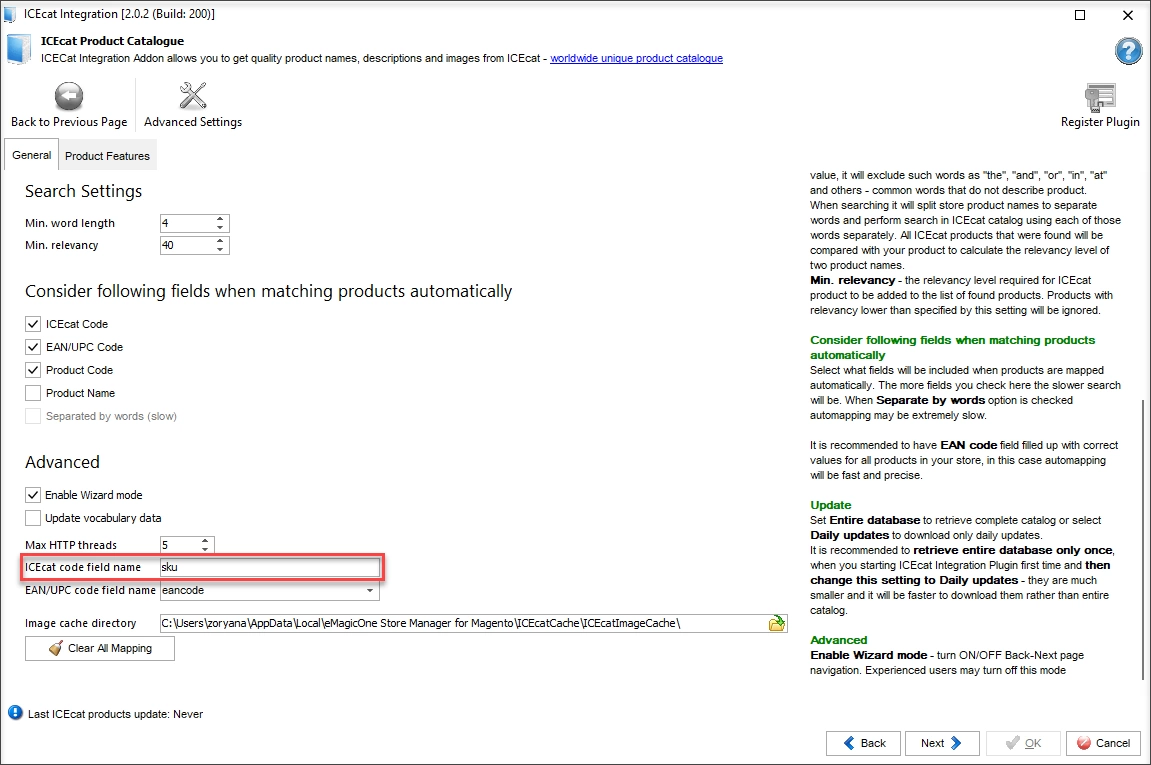
SKU
Lots of stores use SKUs as universal product codes. If this is your case, then put ‘sku’ in the ‘ICEcat code field name’:
 |  |  |
MPN
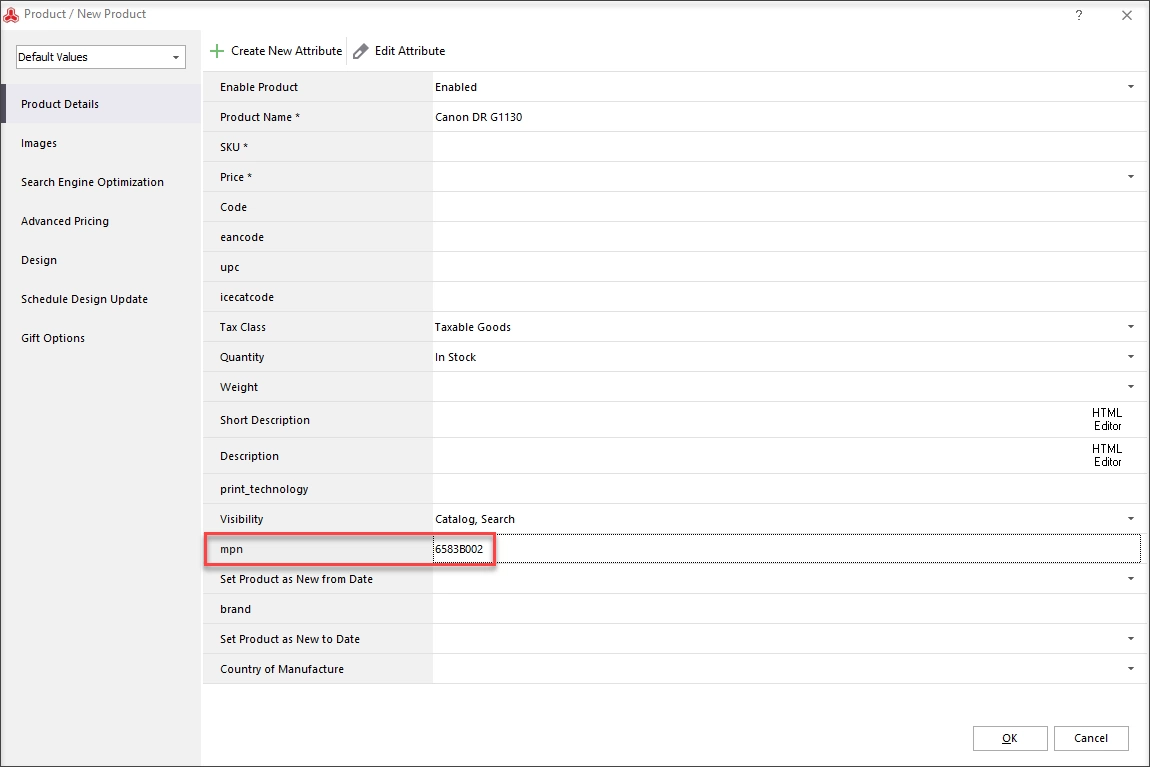
Put the exact name of this field (in our case it's mpn, you should specify your attribute code) in the the field ‘IceCat code field name’:
 |  |  |
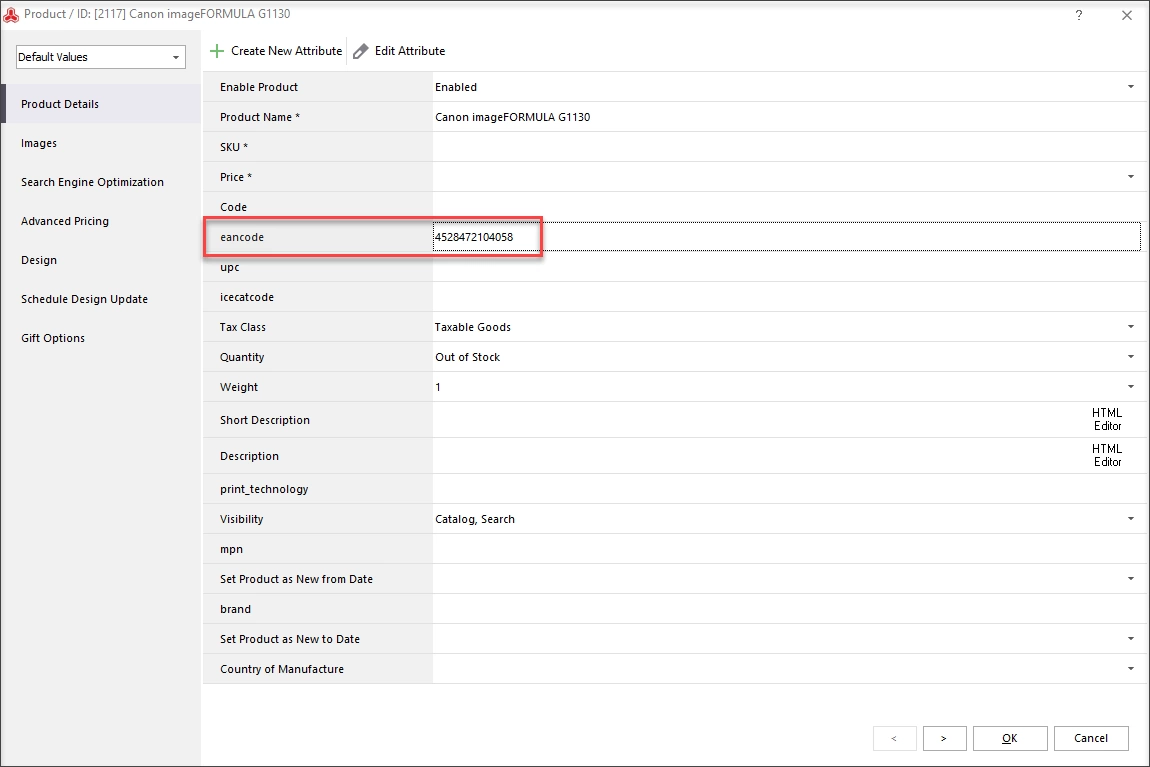
EAN
If you have an EAN code in the field named ‘Ean’ for your Magento goods, you have to put ‘ean’ for the field ‘ICEcat code field name’.
 |  |  |
Any Custom Attribute with an Identifier
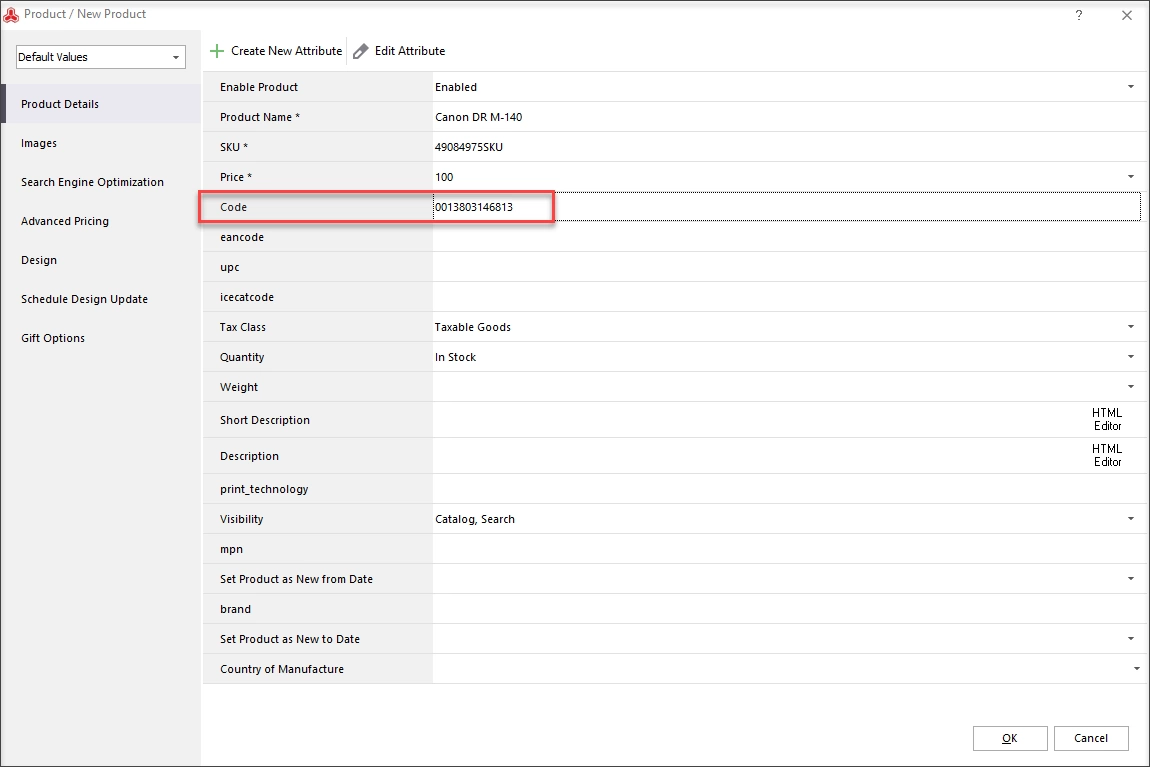
If the identifier is stored in some specifically-named attribute, simply specify the attribute code of this field. For example, if a EAN code value is stored in the field called ‘Code’, select this field in the drop-down:
 |  |  |
- Product features (specifications) settings.
In the ‘Product features’ tab, you can configure the settings to add ICEcat specifications as separate attributes or as a part of a description. To add specifications to your product description, just check the box responsible for this setting.
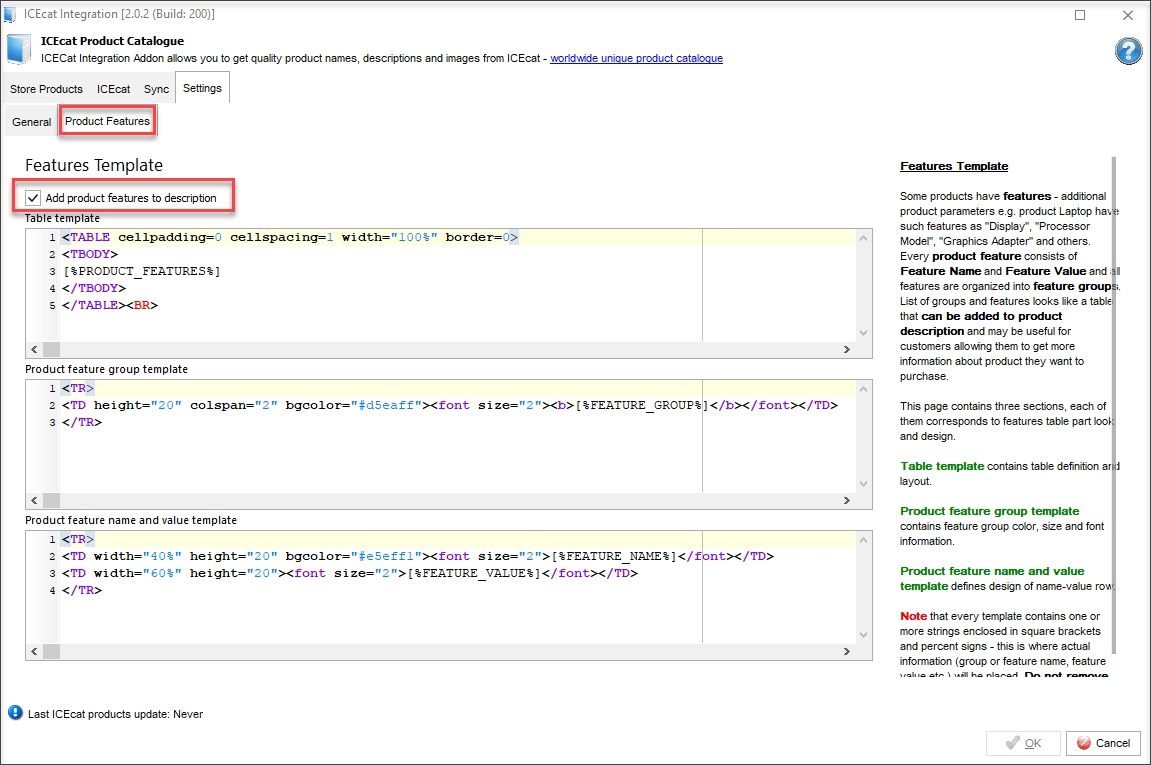
If you want to add specifications as attributes, you need to create the attributes with the same names as on ICEcat (attribute codes may be different) in your database. Moreover, you need to uncheck the box ‘add product features to description’. After that you will be able to import all 'Detailed info' from ICEcat as attributes to your store.
For more details, read the documentation on how to add IceCat Specifications as Attributes or in Descriptions
- Advanced settings.
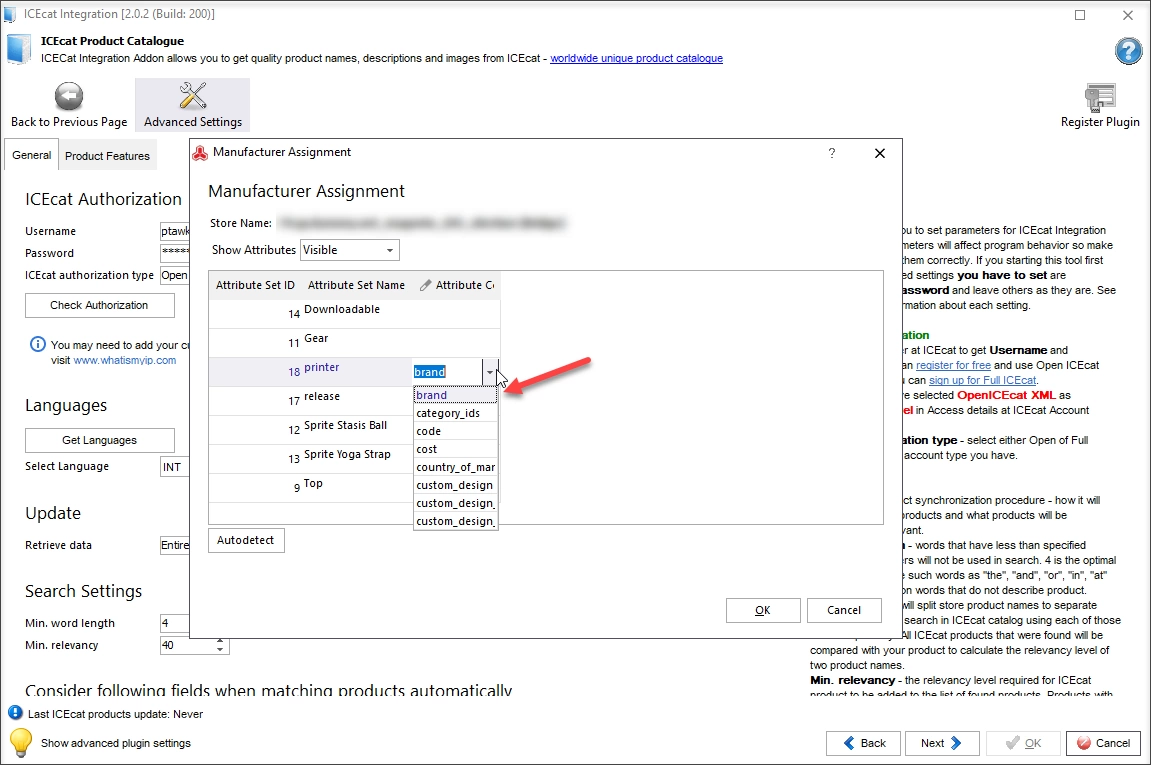
You may have different manufacturer attributes for different attribute sets. For example, an attribute set ‘Printer’ may include a ‘Brand’ attribute storing the manufacturer name. In this window, you can specify a corrensponding field:
- Retrieve products from your store.
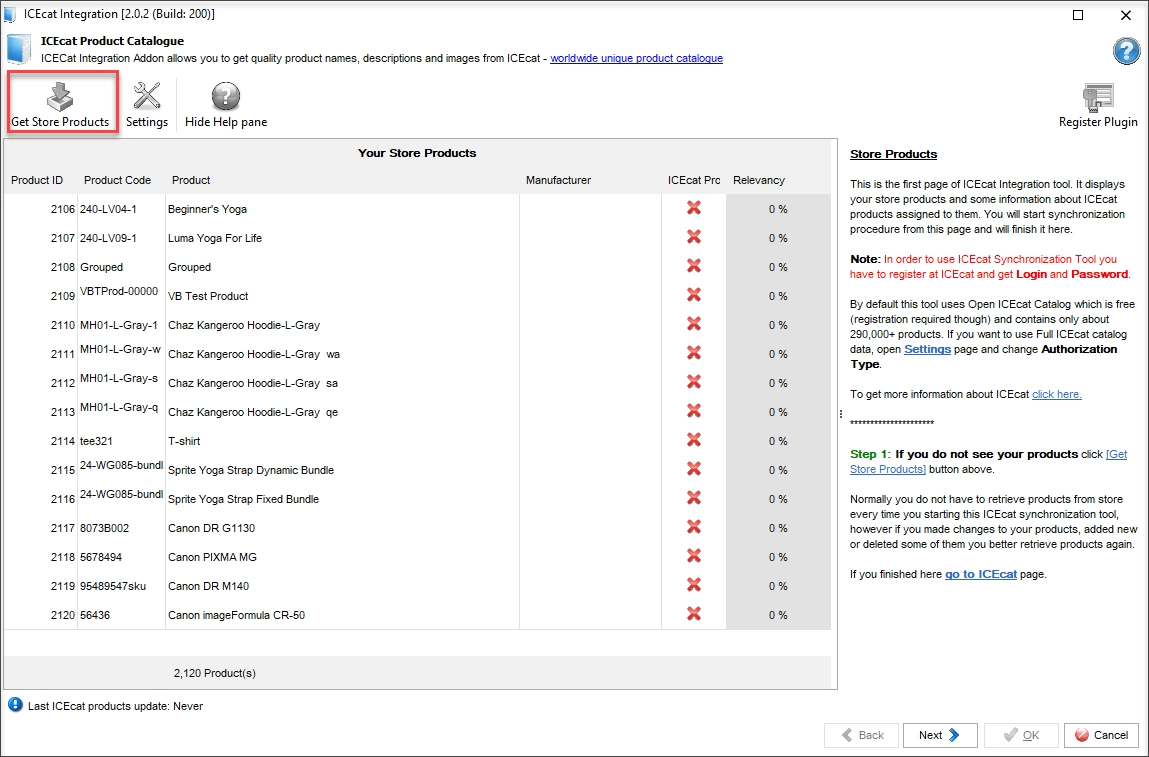
After the settings are configured, go back to the previous page. There you'll see the button that allows you to load all the products from your store. Press the button and move to the next step.
- Select categories and suppliers.
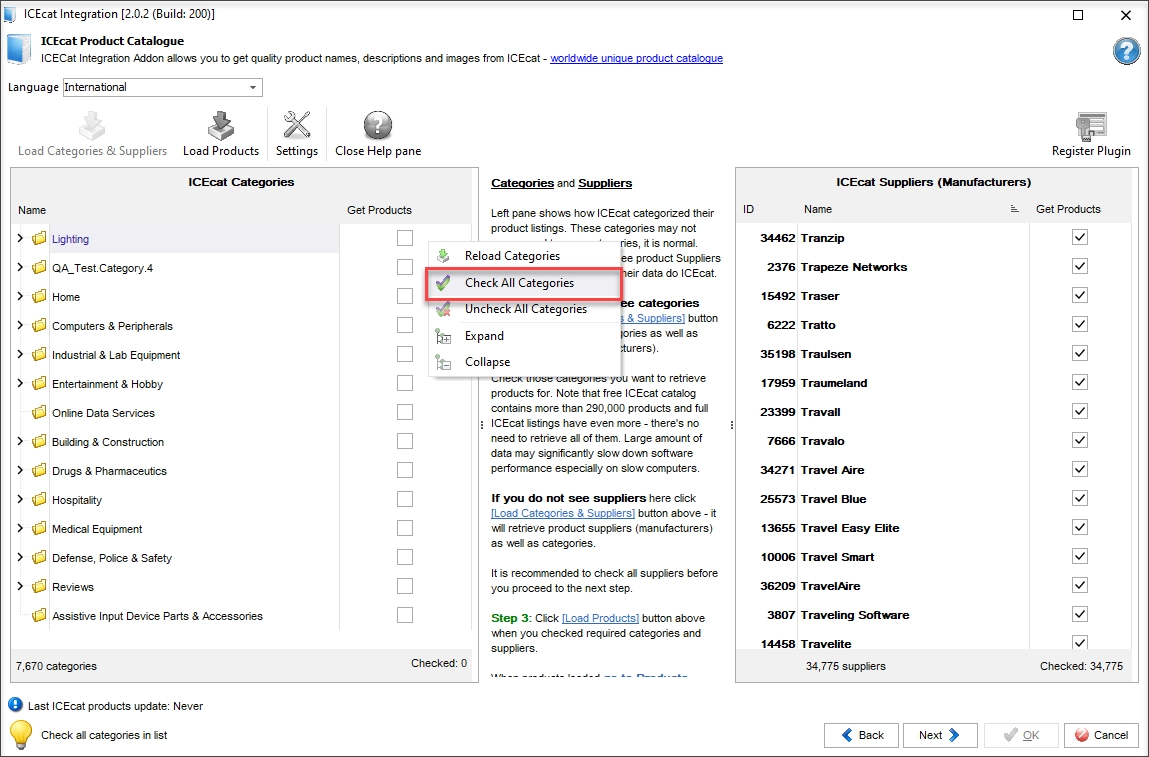
If you sell goods belonging to specific categories, you can select them here. Do not worry if ICEcat categories do not coincide with your store categories. Just select the ones that match your industry best.
However, if you are performing update for the first time, it is recommended to check all categories and suppliers to get a copy of the whole ICEcat database saved locally. It will be used for further updates without repeating the mentioned 4 steps again. To select all categories, right-click on a category and choose to select all:
- See ICEcat products by a category.
At this page you will see the products retrieved from ICEcat corresponding to the categories and suppliers that you'd selected at the previous step.
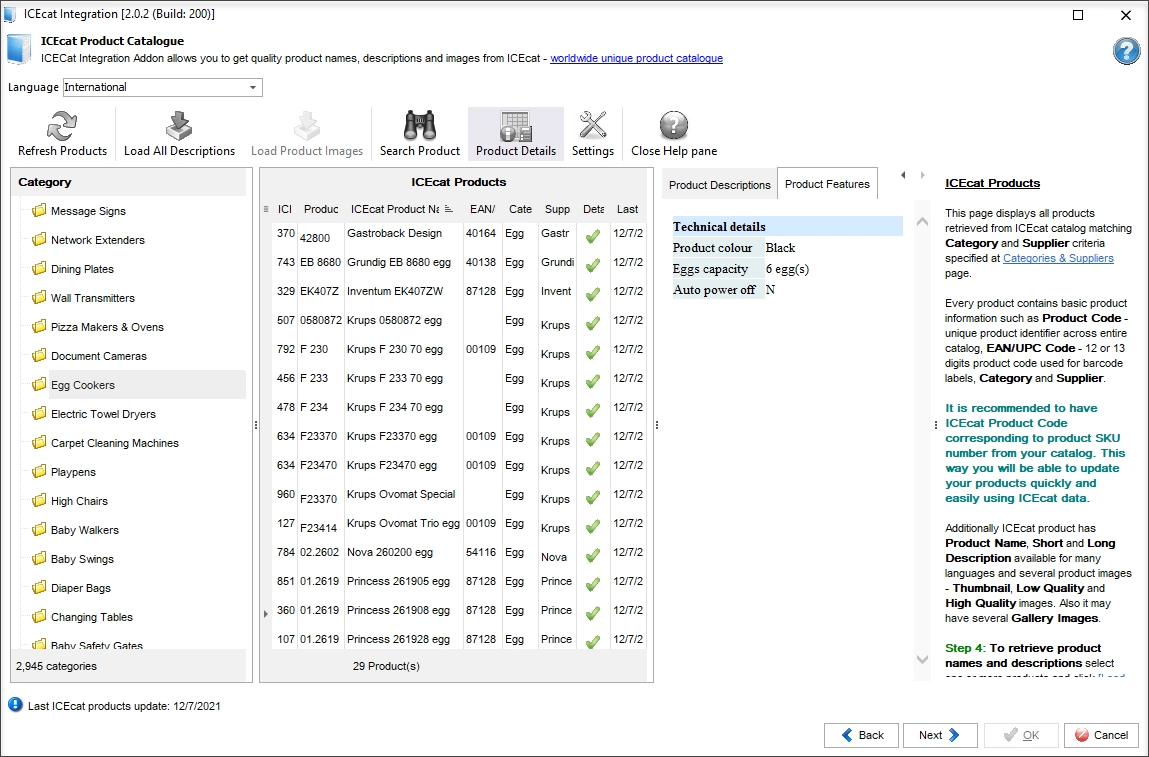
You can switch between different ICEcat categories and see the products belonging to them. If you press ‘Product details’, you will see product features and descriptions that ICEcat catalog offers. In case there are no any, you can load product images and descriptions from ICEcat. Note that this may take considerable amount of time.
If you do not load all the product details here, you will be able to do this at the next step for each ICEcat matching item.
- Link your store products to the matching products from ICEcat.
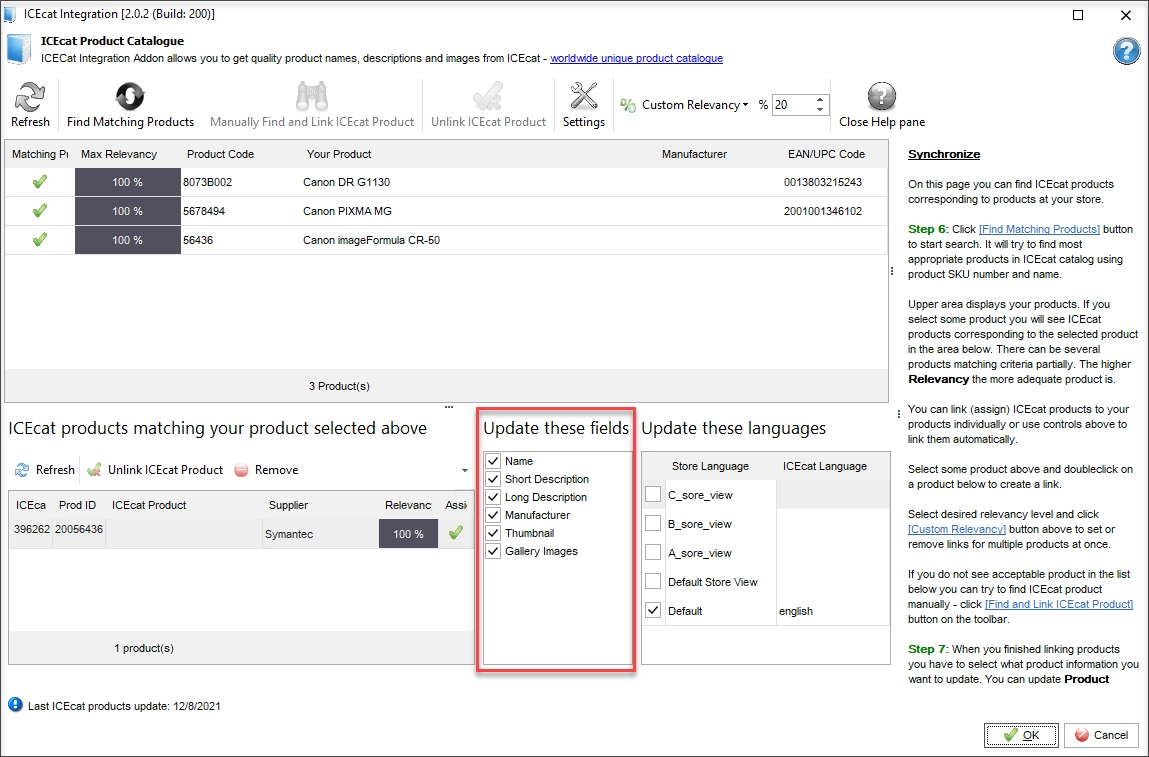
To find ICEcat products that correspond to your Magento goods, press “Find ICEcat matching products”. Select what info to update for the found matches by checking corresponding options:
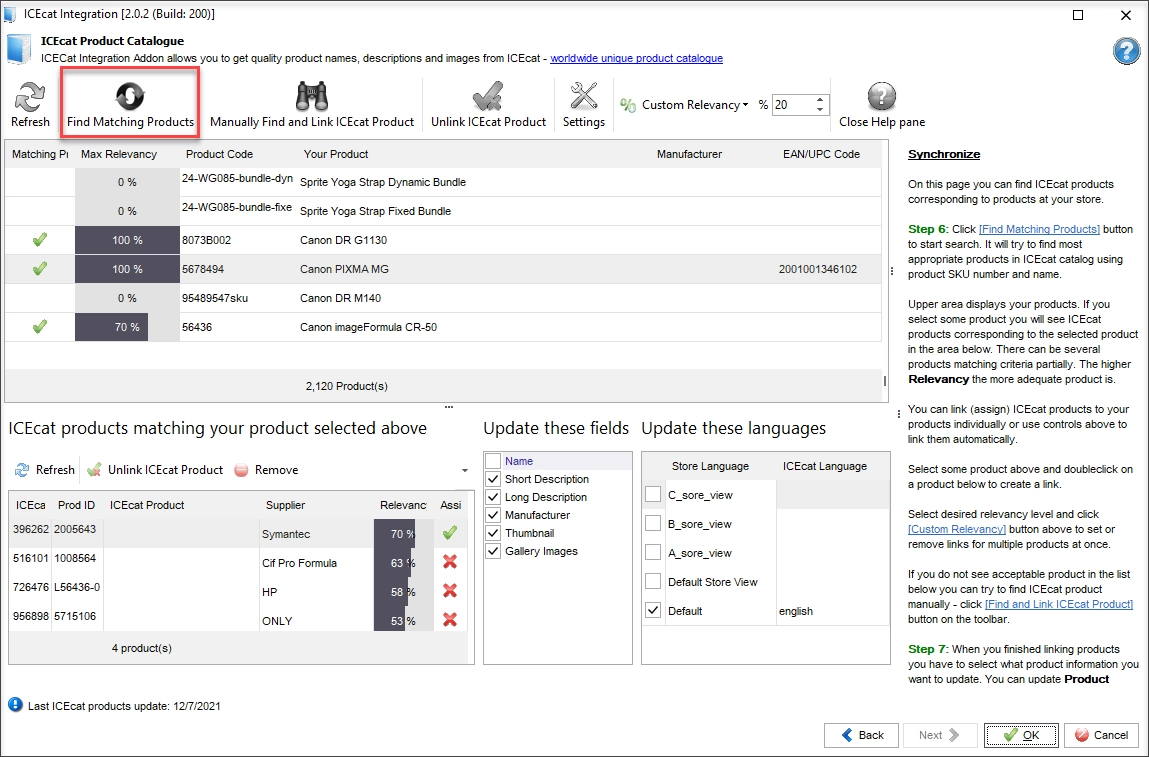
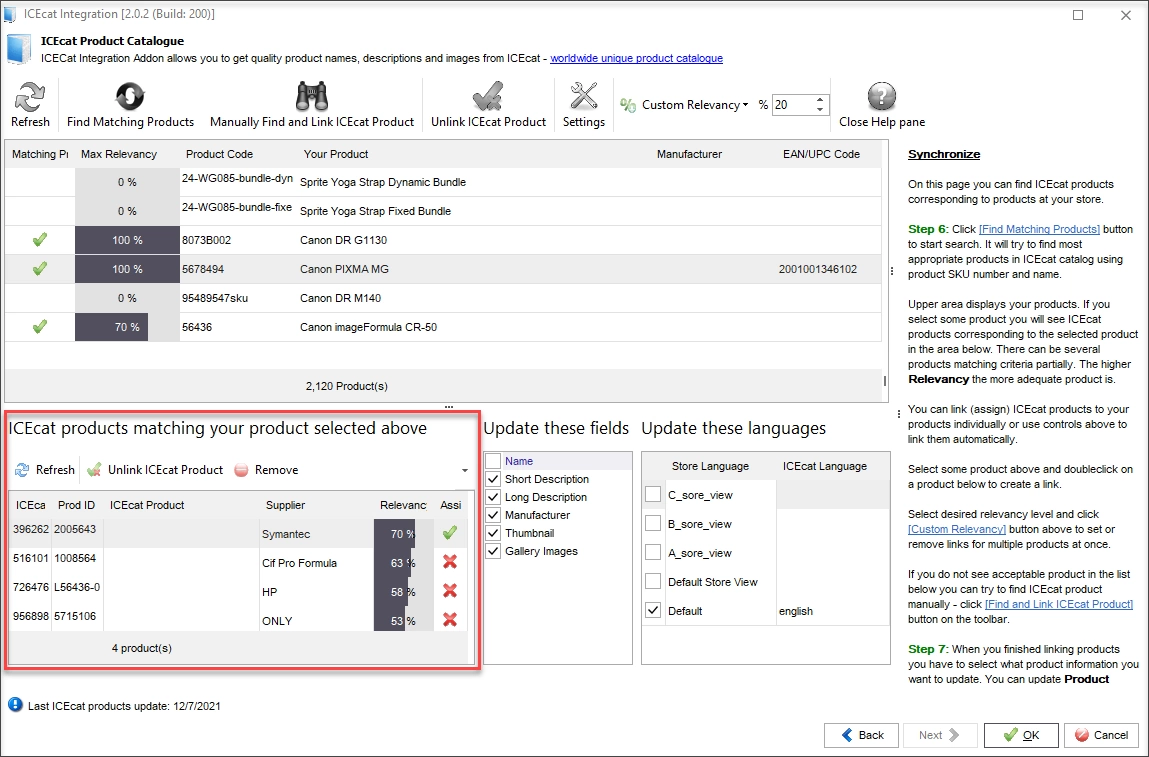
Note that various suppliers can provide different details. You can load specific descriptions, images and other details by manufacturer and apply the most relevant. These settings are available by clicking a matching product and using the buttons and tabs in the lower grid.
Enrich Certain Items with Details from ICEcat
You might need this functionality in case you have added some new items to your shop which have not been updated using ICEcat yet, so they can be amended individually without the need to load all the products once again.
Note: if you are performing update of products from ICEcat for the very first time, follow steps 1-4 mentioned above. After ICEcat database was retrieved and saved at your PC locally, you can use it to update your products.
- Select Magento goods
In Store Manager for Magento, choose products you would like to update and right-click any of selected items to call out context menu. From it select Addons > Find ICEcat Matching Products.
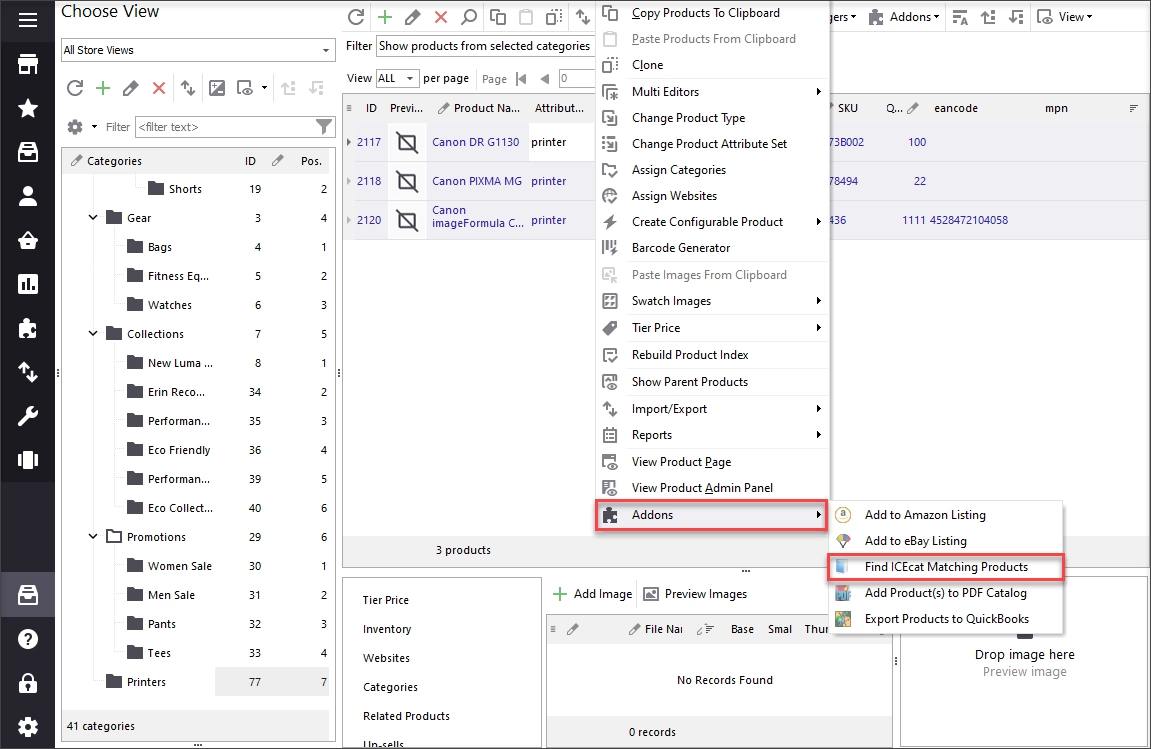
- Find ICEcat matching products.
You will be directed right to the step when you can check if the same products can be found and mapped to the ones on ICEcat. If the matches are not found, you can find the option to check your settings at the same page.
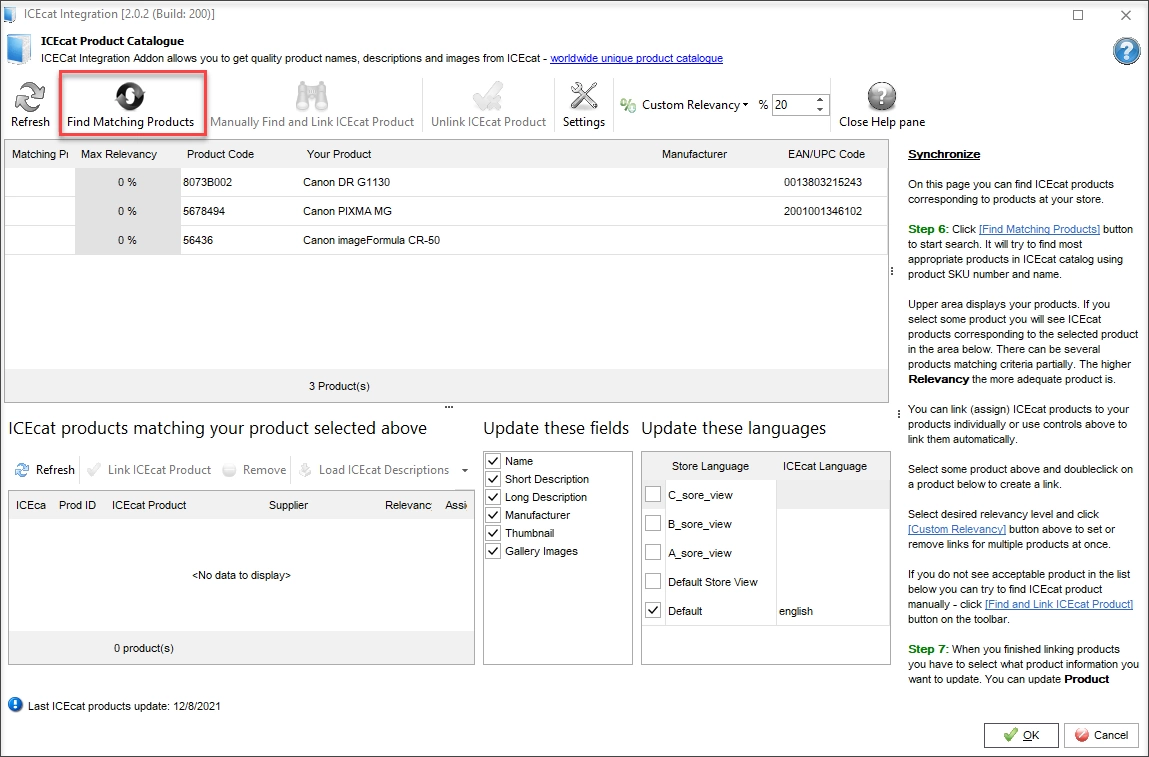
- Select the fields to be updated.
If the matching items were found, you can view and load new product details from ICEcat and sync them to your Magento products.
Let's now check the results. Here is an example of a product before the update:
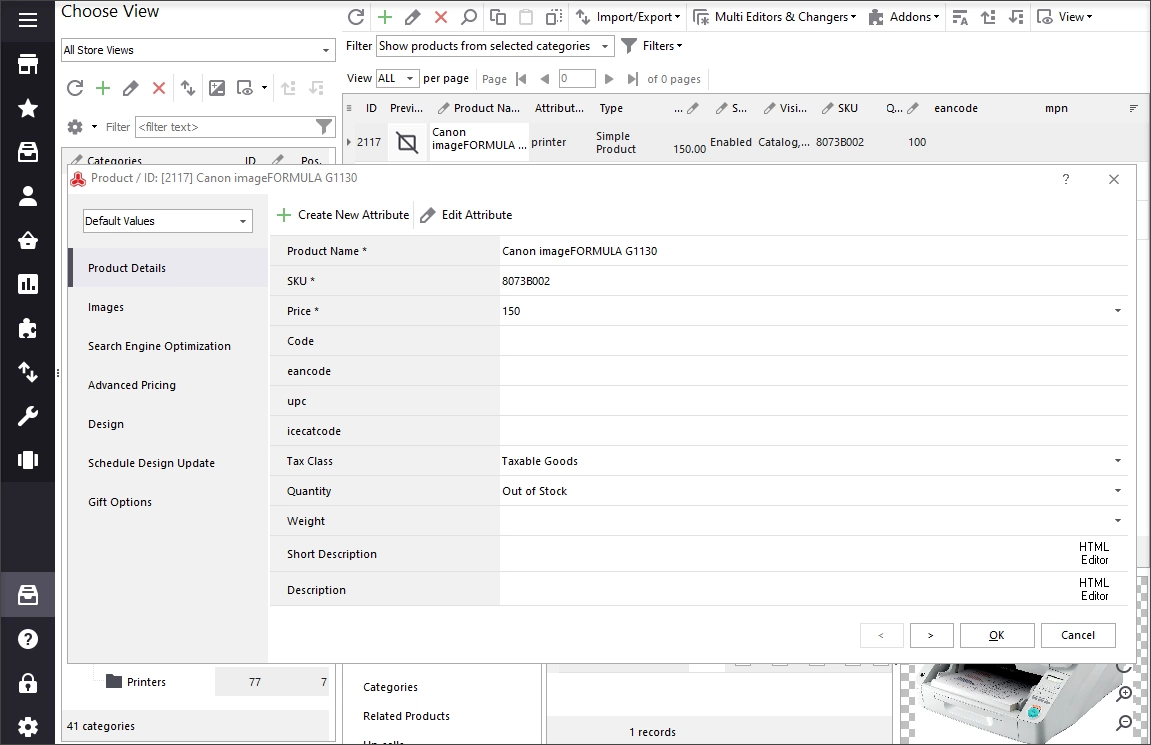
And here is the same product with details loaded from ICEcat:
What to do If you cannot find matching products on ICEcat
- Make sure you retrieved all data from ICEcat (loaded the entire database.)
- Check the identification code under the Advanced setting. Check the examples of identifier field settings described above.
- If a product code in your store is created as a custom attribute, check if you specified the correct attribute code in the addon settings.
- Note that Full ICEcat catalog has wider database than Open ICEcat. Therefore, try to look for a product in the Full ICEcat catalog. If you have found it, check if you have the same identifiers (product code, EAN/ UPC codes).
- Contact us at support@emagicone.com with the screenshots of your settings. We will try to guide you in the right direction.
Enrich your Magento products with detailed and accurate data from ICEcat! Integrate Now!
Related Articles:
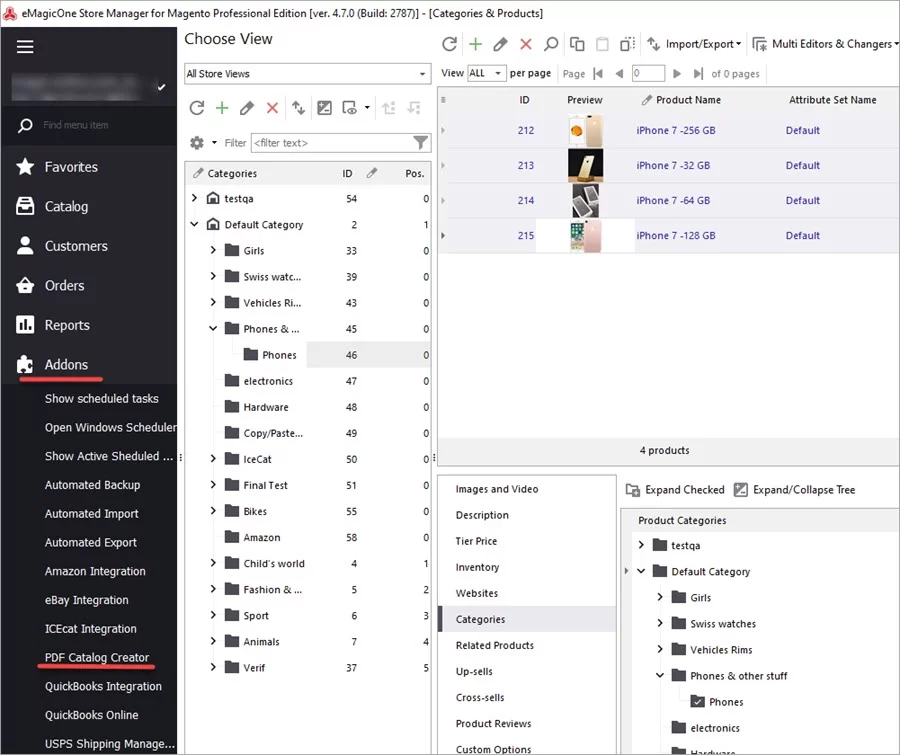
PDF Catalog Creator Addon Integration
Check the ways to show different product images on different Magento store views (manual picture removing, massive assignment or hiding of images or importing). Read More...

Add Different Images to Different Magento Store Views
Find out how to add to export file group of fields with related information (ordered items, shipping details, billing details). Read More...
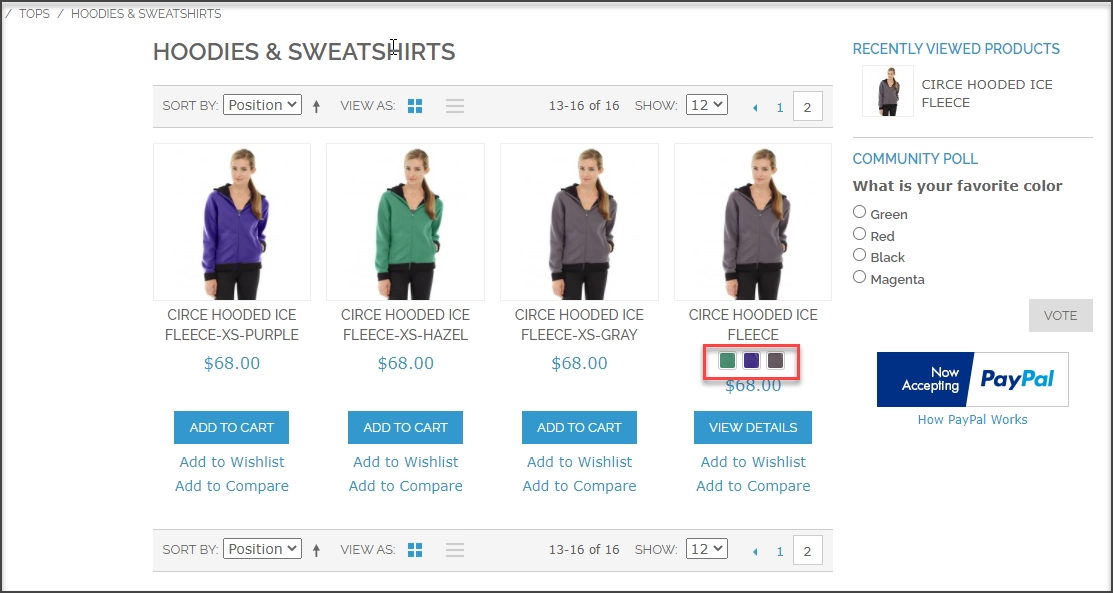
How to Bulk Upload Magento Swatch Images
Check every step of Magento swatches massive import detaily explained (.csv file preparation, import set-up and accomplishment). Read More...
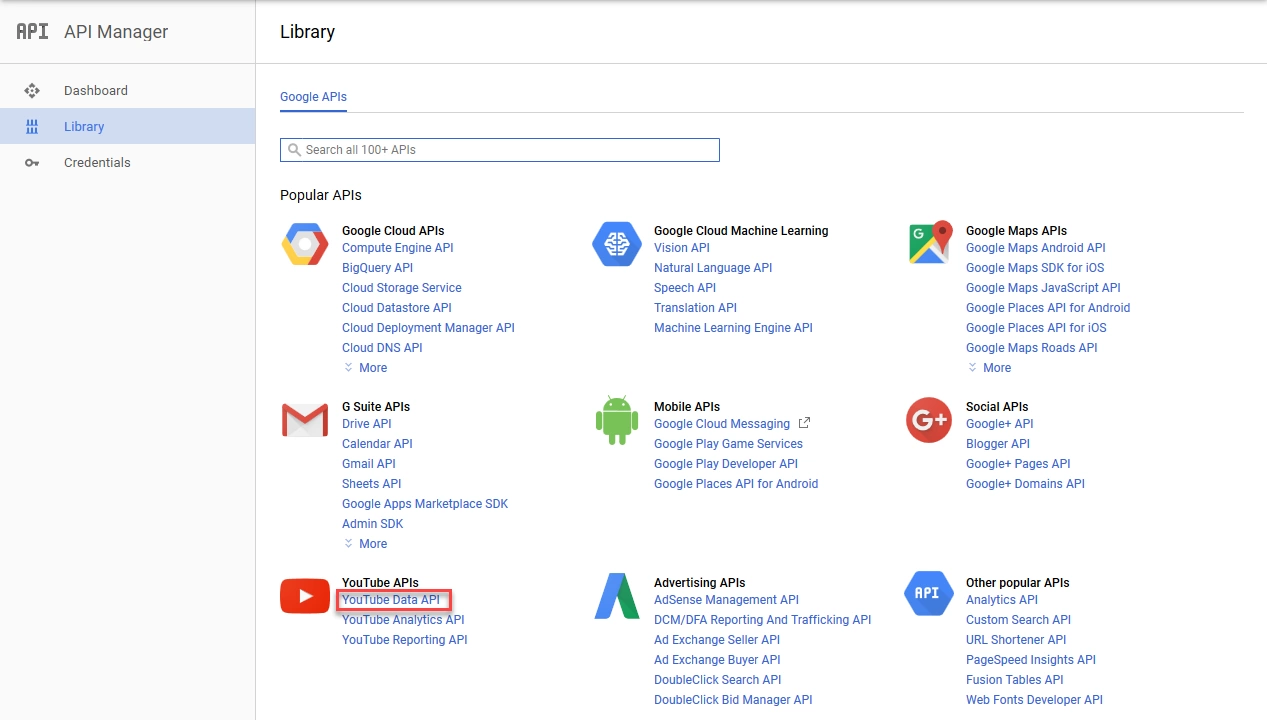
How to Upload Magento 2 Product Videos
Learn how to add YouTube videos to Magento 2 products (generate YoutTube API code and integrate it to Magento 2). Read More...