
How to import images from links to Adobe / Magento 2?
There are occasions when you do not have images saved locally or on your servers. You might be receiving the file with information from your supplier with reference to images as an external URL. You might also need to export data from one platform to another and image URLs can be a part of your file. Is it possible to import images from links to Magento 2?
Magento itself does not provide the possibility to extract images from remotely hosted http links. So, how to upload images in this case? Check the solution below.
Admin Import& DataFlow
Since import possibilites of Magento admin cannot fetch remote images from the URL, you need to do it on your own.
- Open each image in the browser, right-click on the picture and press 'Save image as...' and load it to the local folder at your PC.
- After all the images are in this folder, you need to connect to your FTP server and copy images from folder at your computer to media/import directory of your Shopping cart installation.
- In your csv import file in column for images indicate image name with slash at the beginning (corresponding to image titles in media/import folder) in front of appropriate product SKU, like this -

- Run Import/Export of DataFlow Profile to link images to corresponding products via import and see them at the front-end.
How to Import Images from URls to Magento 2, Bypassing Media Storage?
Store Manager application allows to grab image from remote location, download it to your own server and assign it to the correct item - all of these right in the process of import.
Prepare CSV
- The http links to Magento 2 images should be in your file in column(s) for images. Shopping cart allows you to add one and the same or different pics to product, making them base, small, thumbnail or adding extra pictures to the gallery.

- If you want to add multiple images to product, you need to separate URLs with symbol that serves as data delimiter

Before configuring the import process, make sure to set up FTP connection with the software. To do that go to Preferences (F12) and input access details in FTP tab.
- For remote images there is no need to indicate local image directory. Additional options allow on-the-fly avoid duplicates by re-generating image name if there already exists exactly the same. You can also clear already present product images if necessary (e.g. if they were uploaded incorrectly previously)
Configure Images Import from URLs to Magento 2
- Launch Import / Export wizard by selecting Import / Export products option.
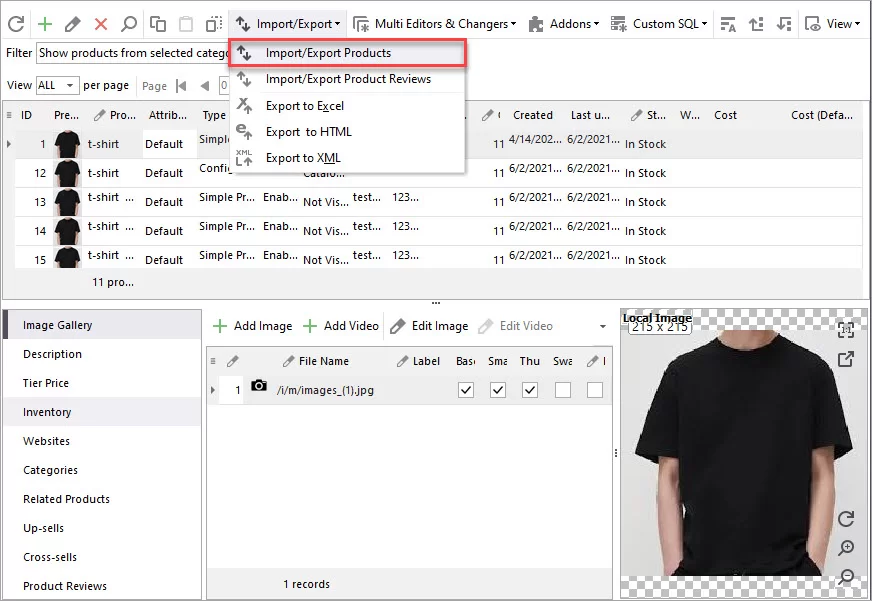
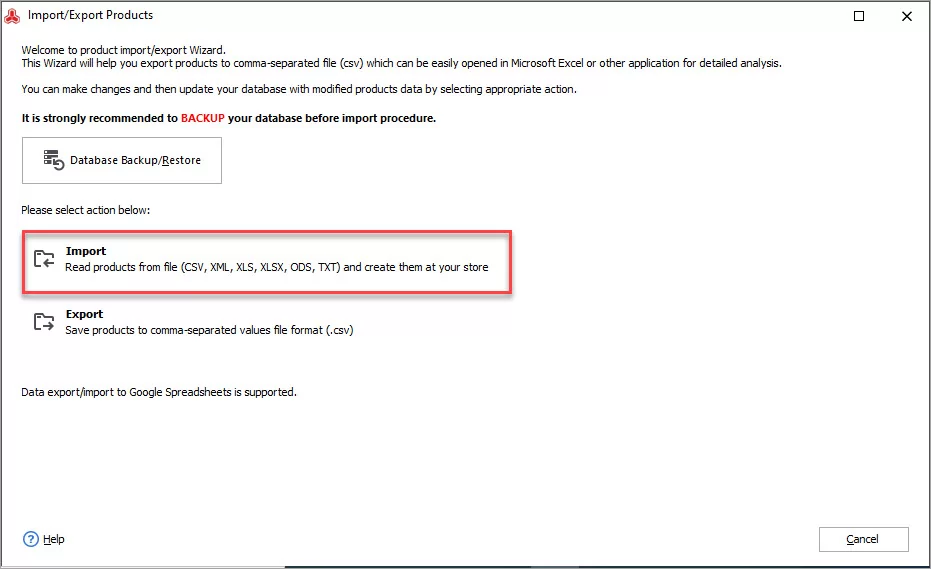
- Select import option.
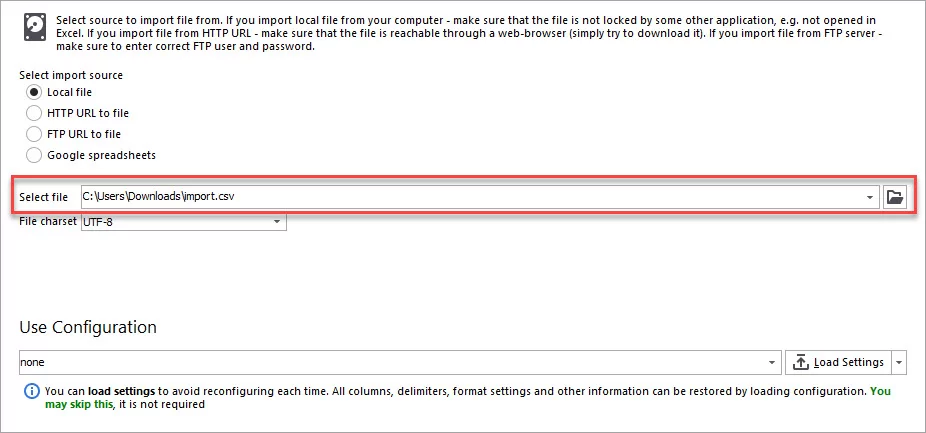
- Select the CSV file with Magento images URLs.
- Select delimiters to separate fields data. You can preview the file with selected delimiters below in the same window.
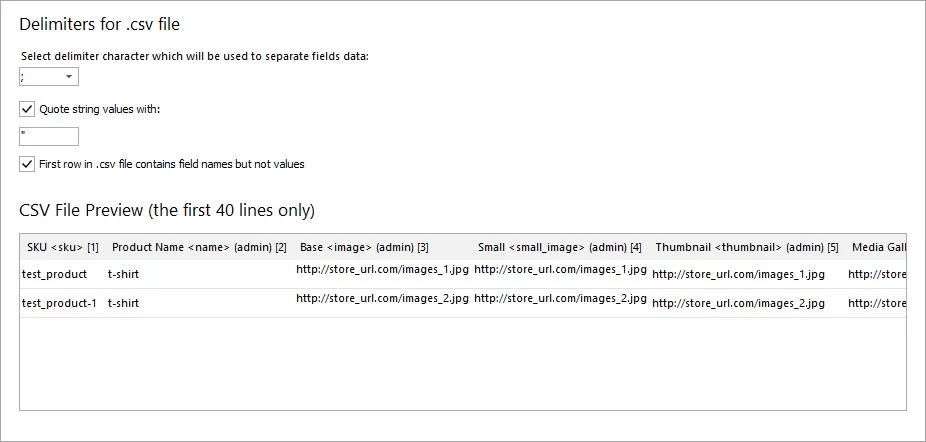
Import Delimiters - On the next step make sure to enable images import by checking the corresponding box.
For remote images there is no need to indicate local image directory. Additional options allow on-the-fly avoid duplicates by re-generating image name if there already exists exactly the same. You can also clear already present product images if necessary (e.g. if they were uploaded incorrectly previously.
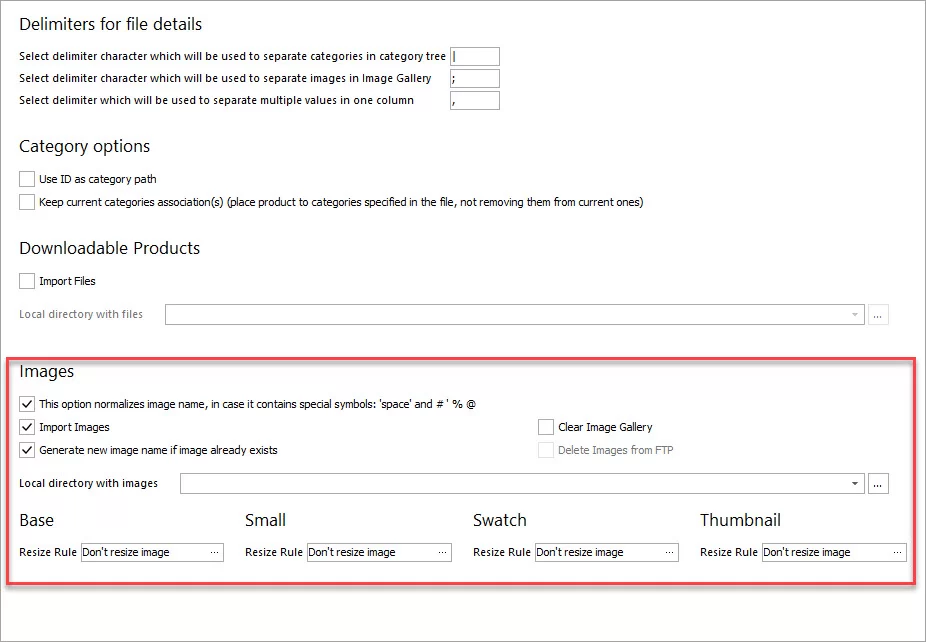
Import Images with Store Manager Options - Map column with images from your file to database fields where image records should be saved.
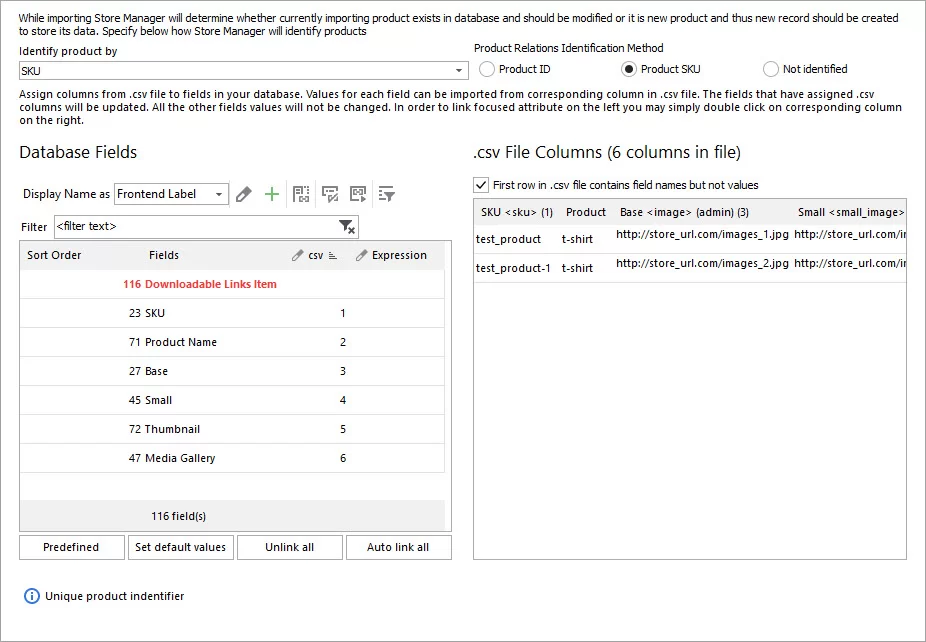
Assign csv Columns to Database Fields During Import If you have one image for all image types, you need to assign one and the same CSV column to database fields for small, base, thumbnail images and also to media gallery.- The last step of the wizard requires you to select a suitable import method. Also, you can check other import settings here, if necessary, or leave them default. After that press 'Import' to start running the process.
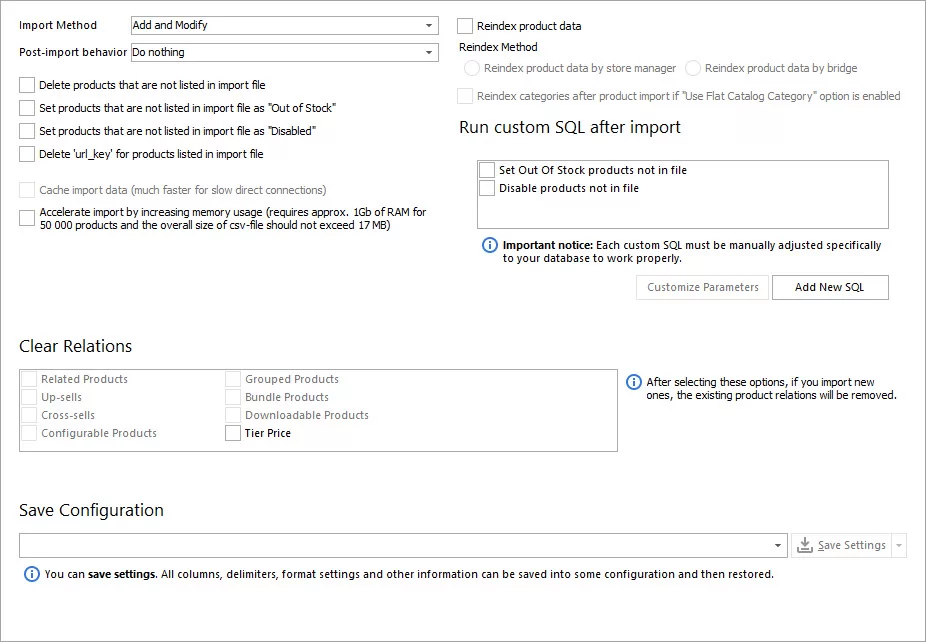
Import Options Step - After import is reported to be successful, check your images at the front-end.

Check Added Image on Frontend Images import is pretty time-consuming process since images are being uploaded to your server and linked to the products on-the-fly. Thus, even when import has showed you ‘Finish’ screen, the pictures might still be loading. Check if there are any in FTP tasks queue.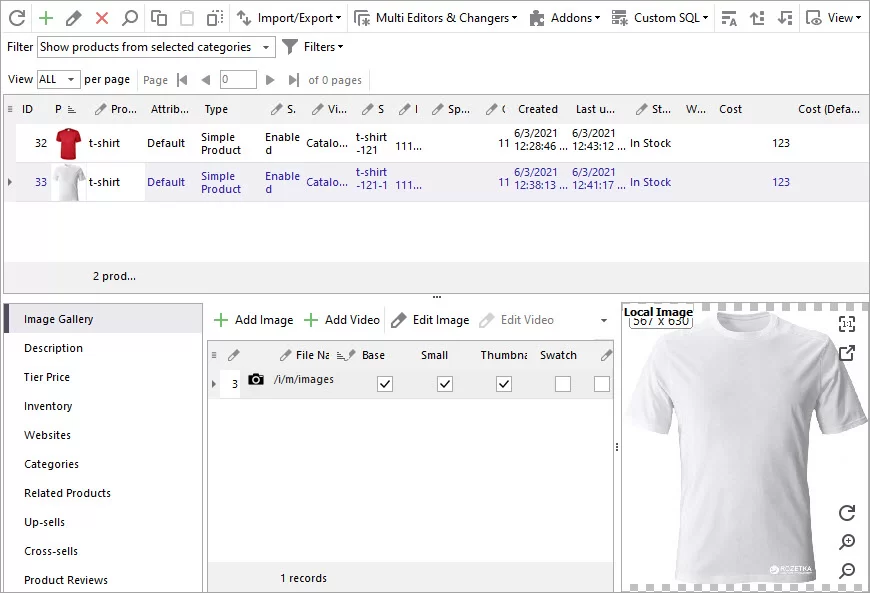
Check Added Image after Import in Store Manager
Open for yourself new experience in images upload to Magento, uploading remote (external images from supplier) using their URLs. Try it free right now -
Try FREE remote images import via Store Manager for Magento Try Import
Related Articles:

Import Images With Store Manager for Magento
Full guidance on images import (local and remte images) and CSV import file sample. Read More...

Enrich Your Magento Products with Descriptions, Images and Specifications from ICECat
Find out what is ICEcat and what you can get after integrating your Magento store with this content provider. Read More...

No More Missing, Duplicated or Unlinked Magento Images
Find out how to prevent your images from getting duplicated, unlinked or undisplayed and what to do if issue occured. Read More...

Upload Magento Swatch Images to Configurable Products
Get the full explanation of Magento swatch images and their purpuses and find out the ways to assign them to products via admin and Store Manager. Read More...